
Signing in
Sign in with a link and code sent to your email, or with a password.
Who can do this: Owner, Admin, Office, Service Tech, Field Worker.
Last updated
There's no separate account to create. Your owner invites you by email, and that email is how you sign in.
Steps
Go to the sign-in page and type your work email.
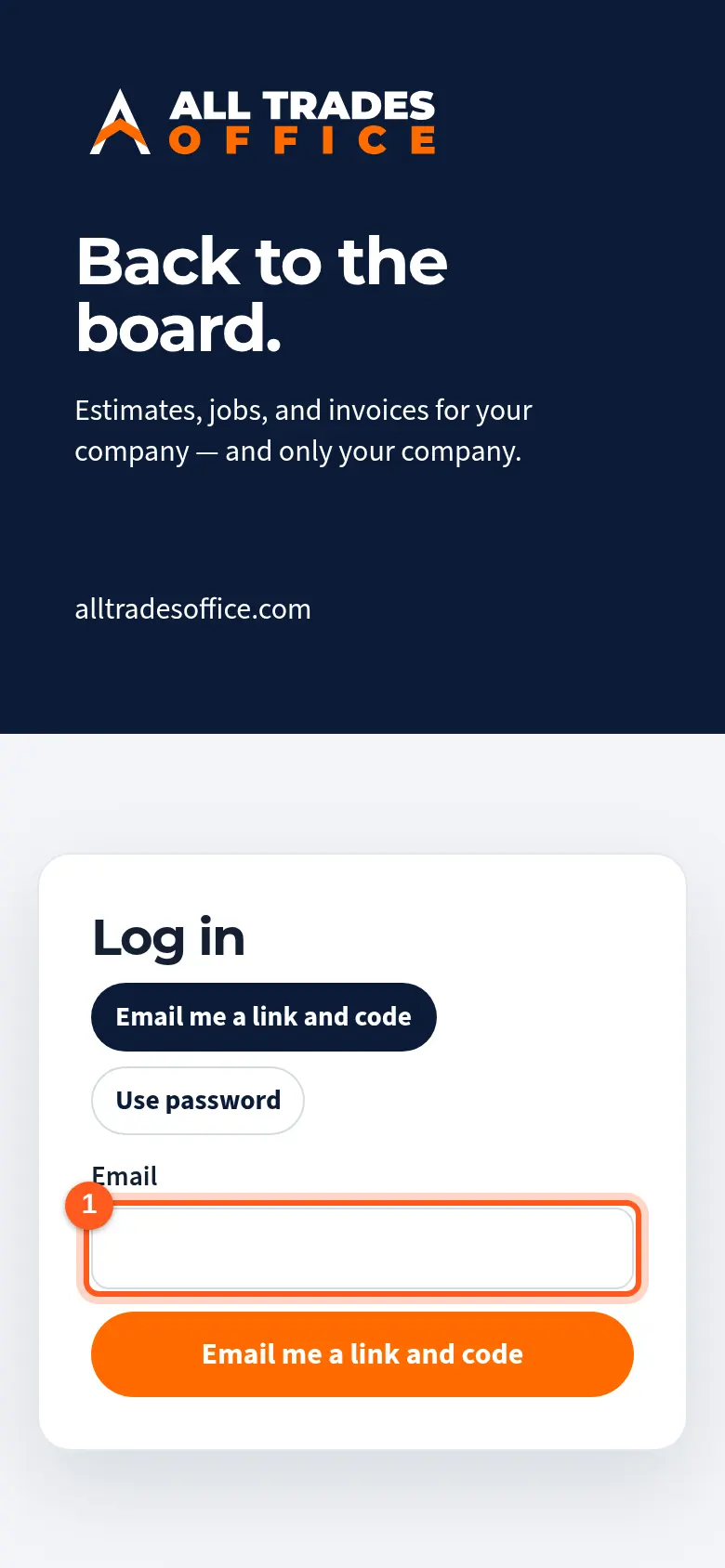
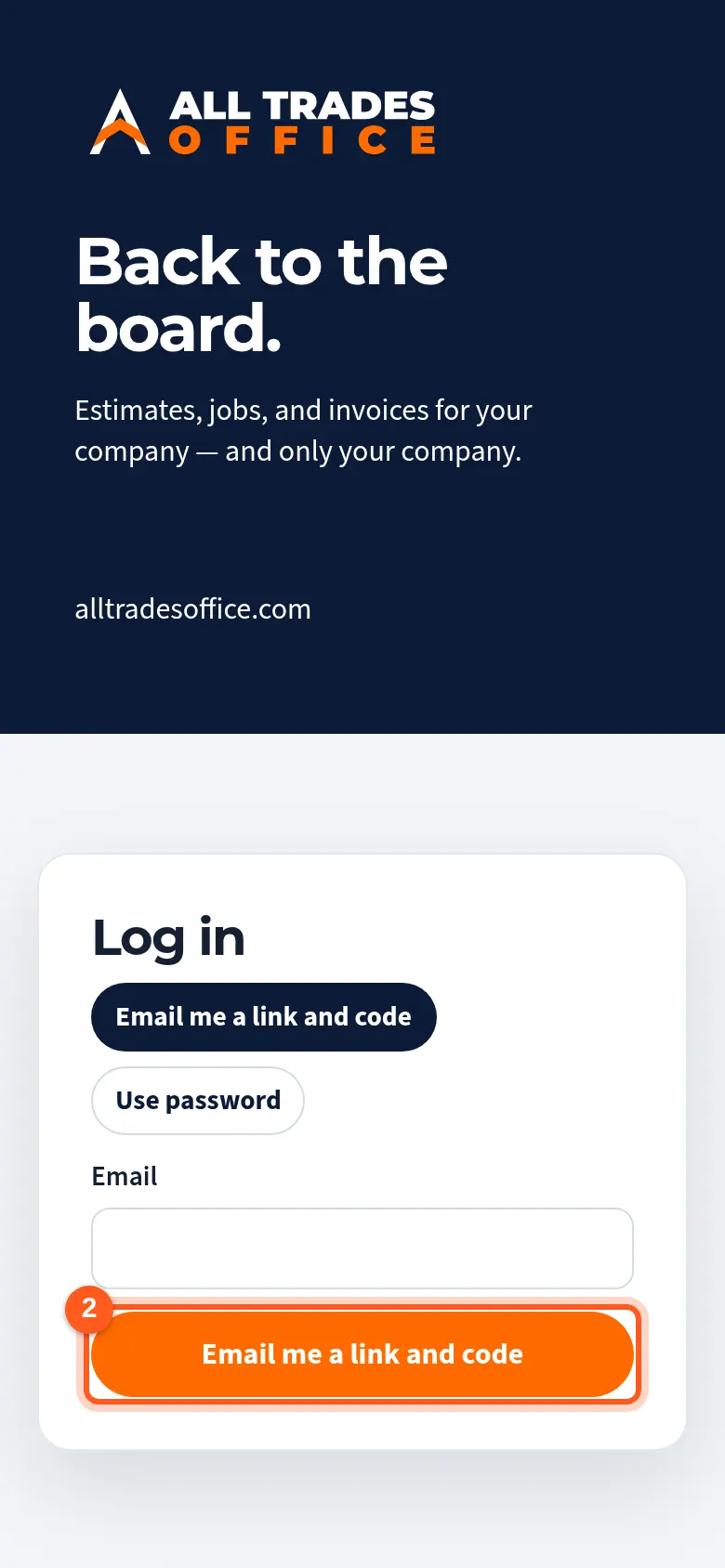
Tap Email me a link and code. Open the email on any device and tap the link, or type the code on this screen.
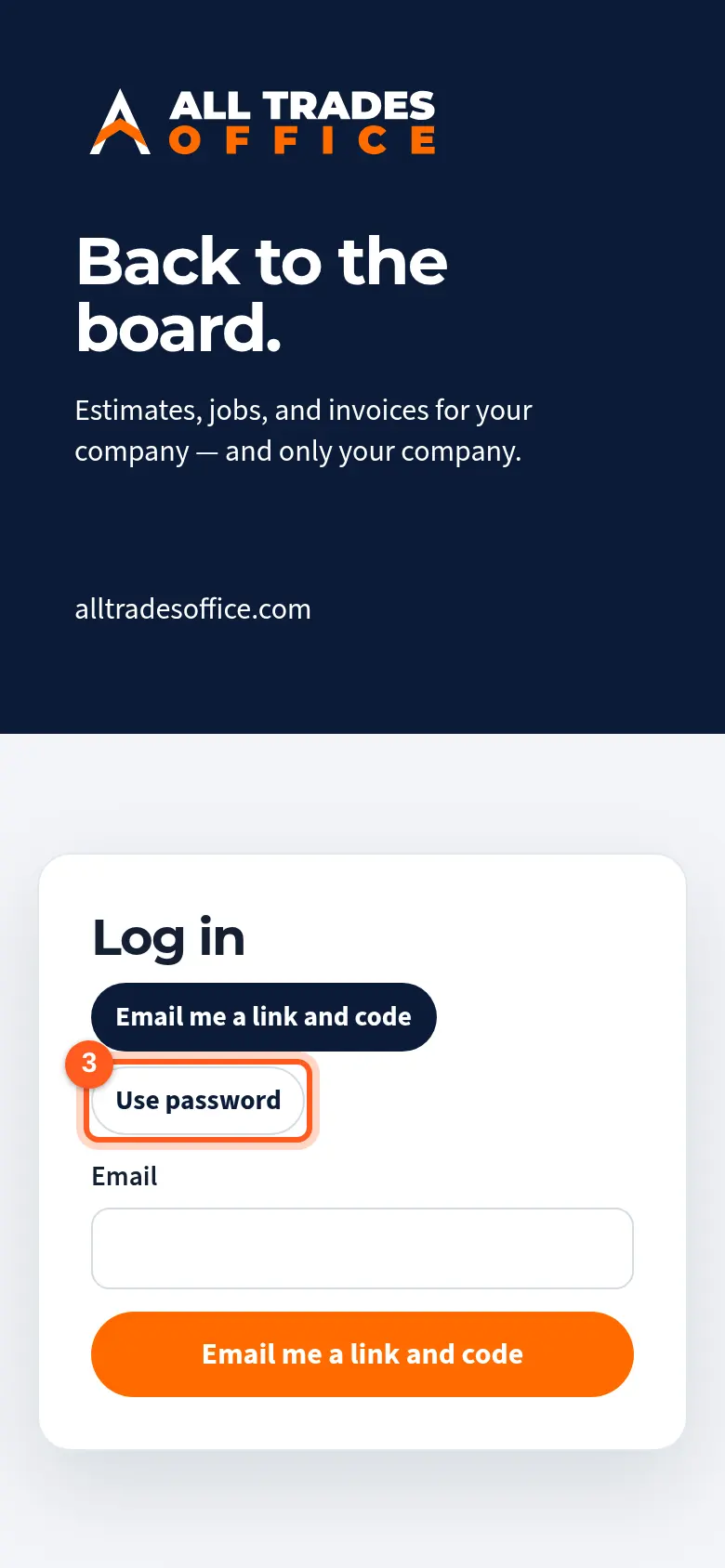
Prefer a password? Tap Use password. You can set one after signing in: Owners and office staff use Settings → Your sign-in, and people in the field use Set a password on My day.
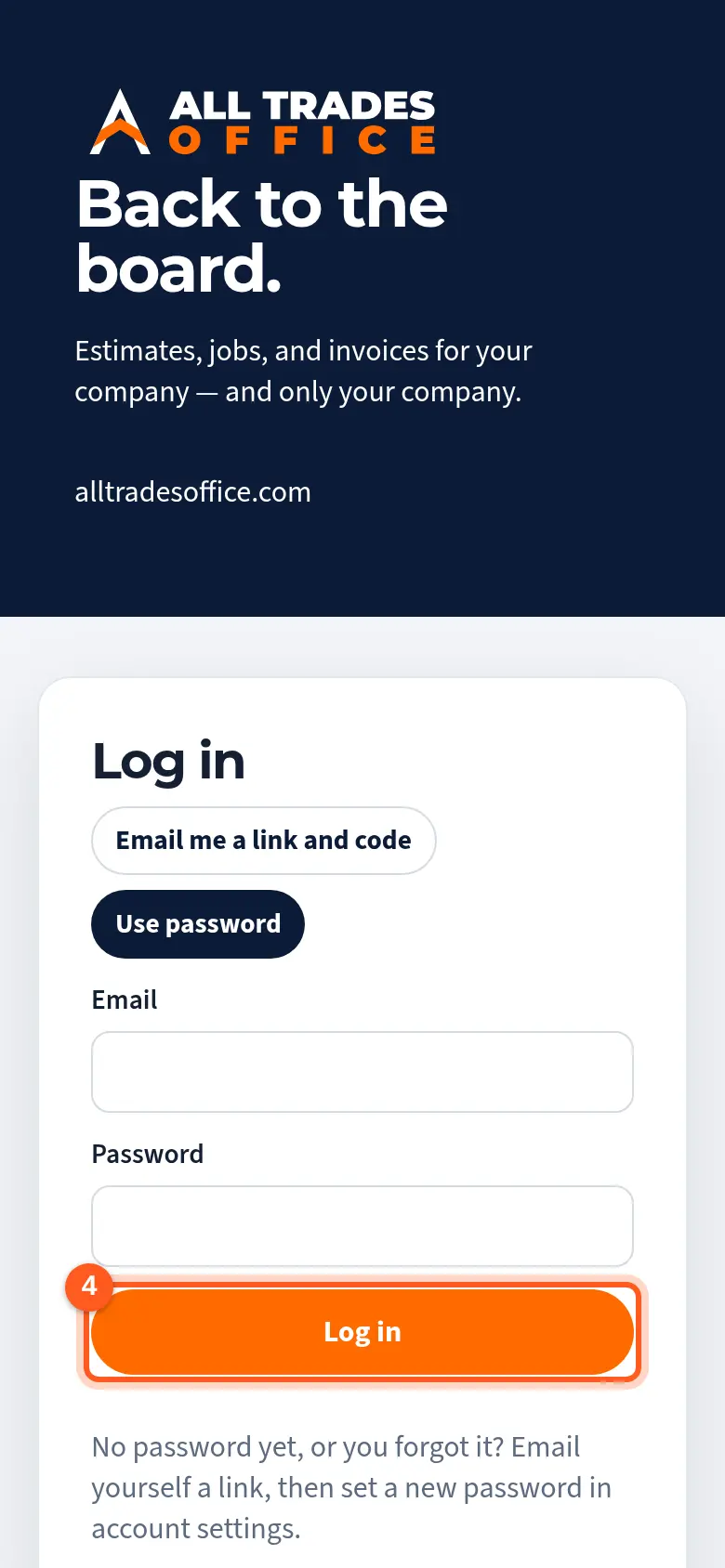
Type your email and password and tap Log in.
Good to know
- The link works for 20 minutes and the code for 10 minutes. If one expires, just ask for a new one.
- If you work for more than one company, switch between them from the account menu.
Related
- My sign-in link expiredSign-in links last 20 minutes and codes last 10. Ask for a new one.