
Check the columns and bring it in
After you add your files: check how the columns were matched, look over the preview, and bring your records in.
Who can do this: Owner, Admin.
Last updated
Nothing is saved until you tap Bring it in, so it's safe to look around first.
Only an Owner or Admin can import.
Steps
On Settings → Import your data, add your files. Each one shows what we think it holds. If it's wrong, pick Customers or Price book next to it.
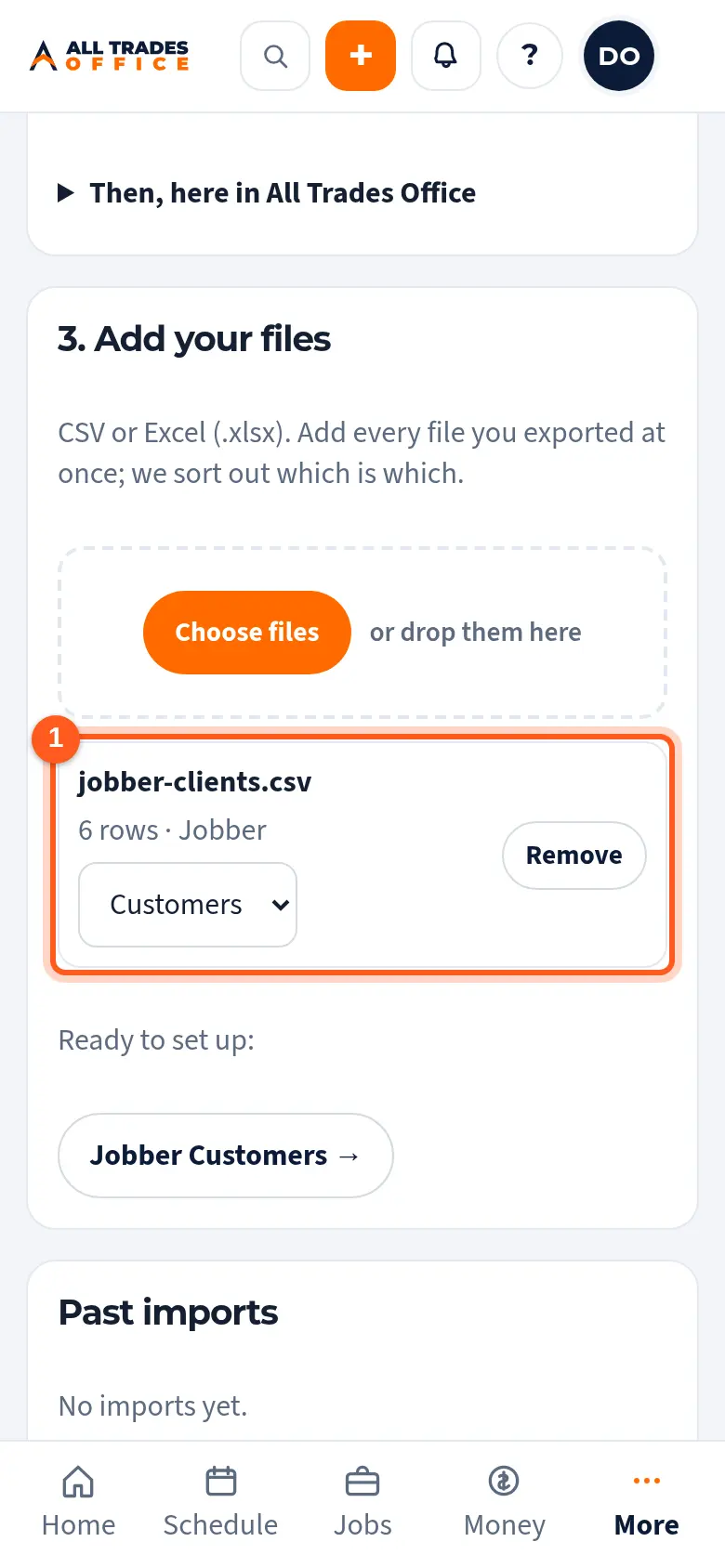
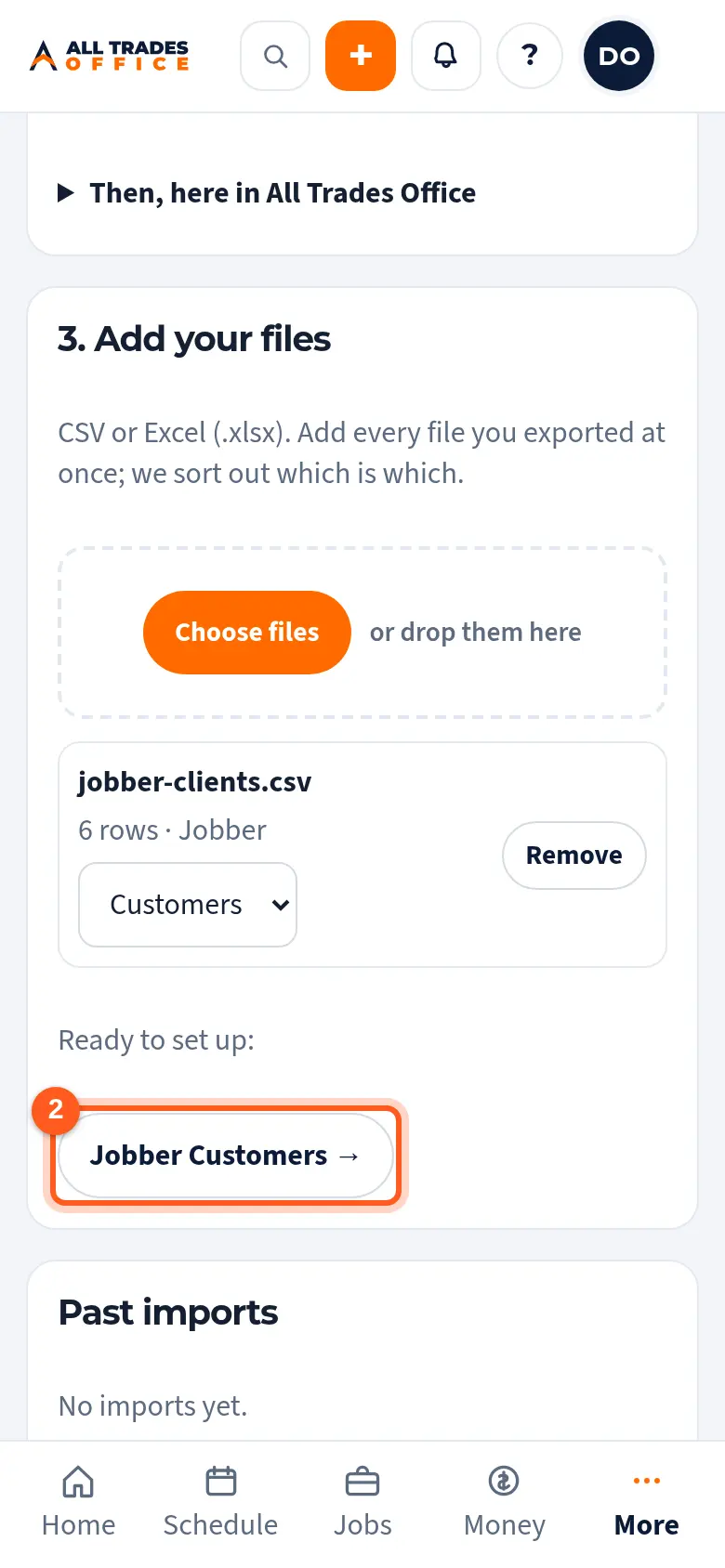
Tap the list you want to bring in first, like Jobber Customers.
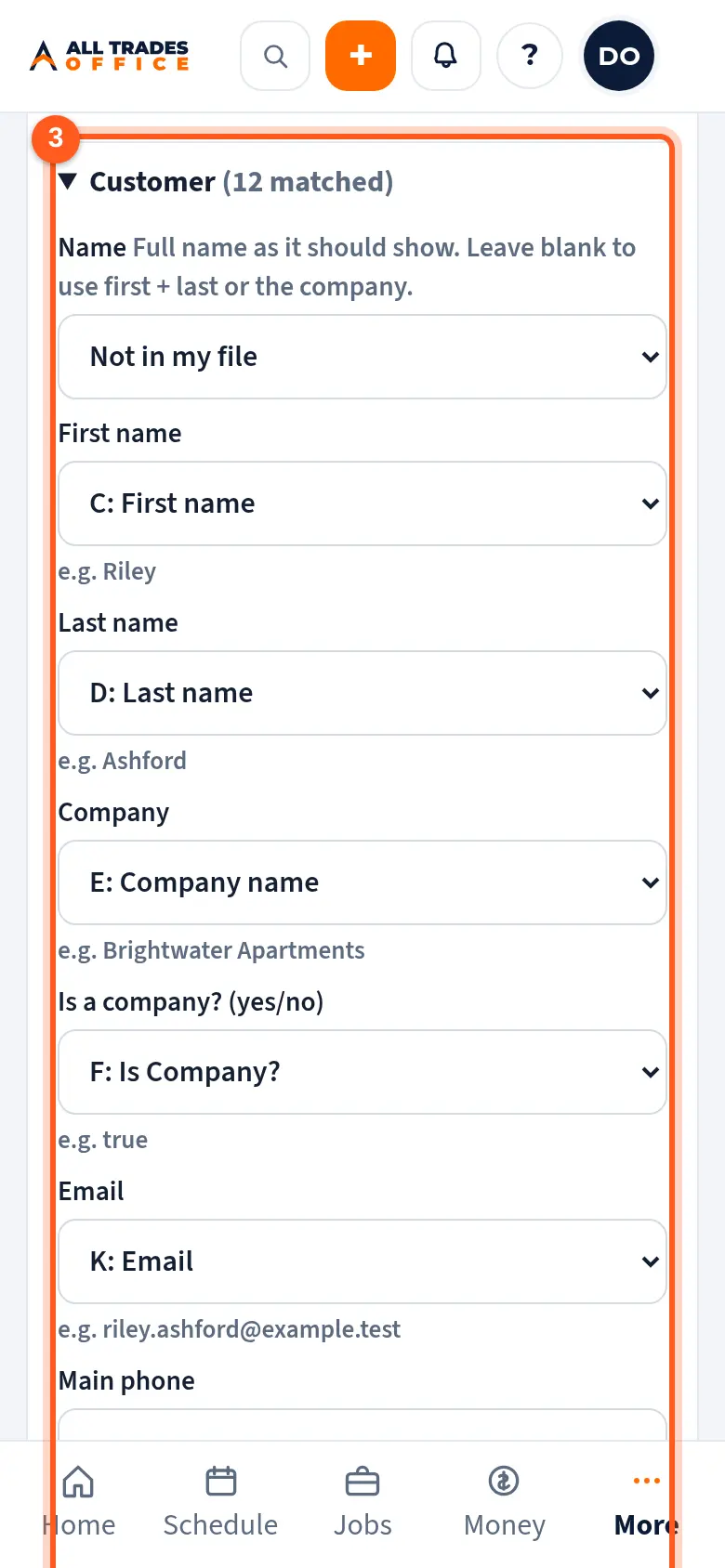
Check the columns. Each of our fields shows the column we matched from your file and an example from it. Change any that look wrong, or pick Not in my file.
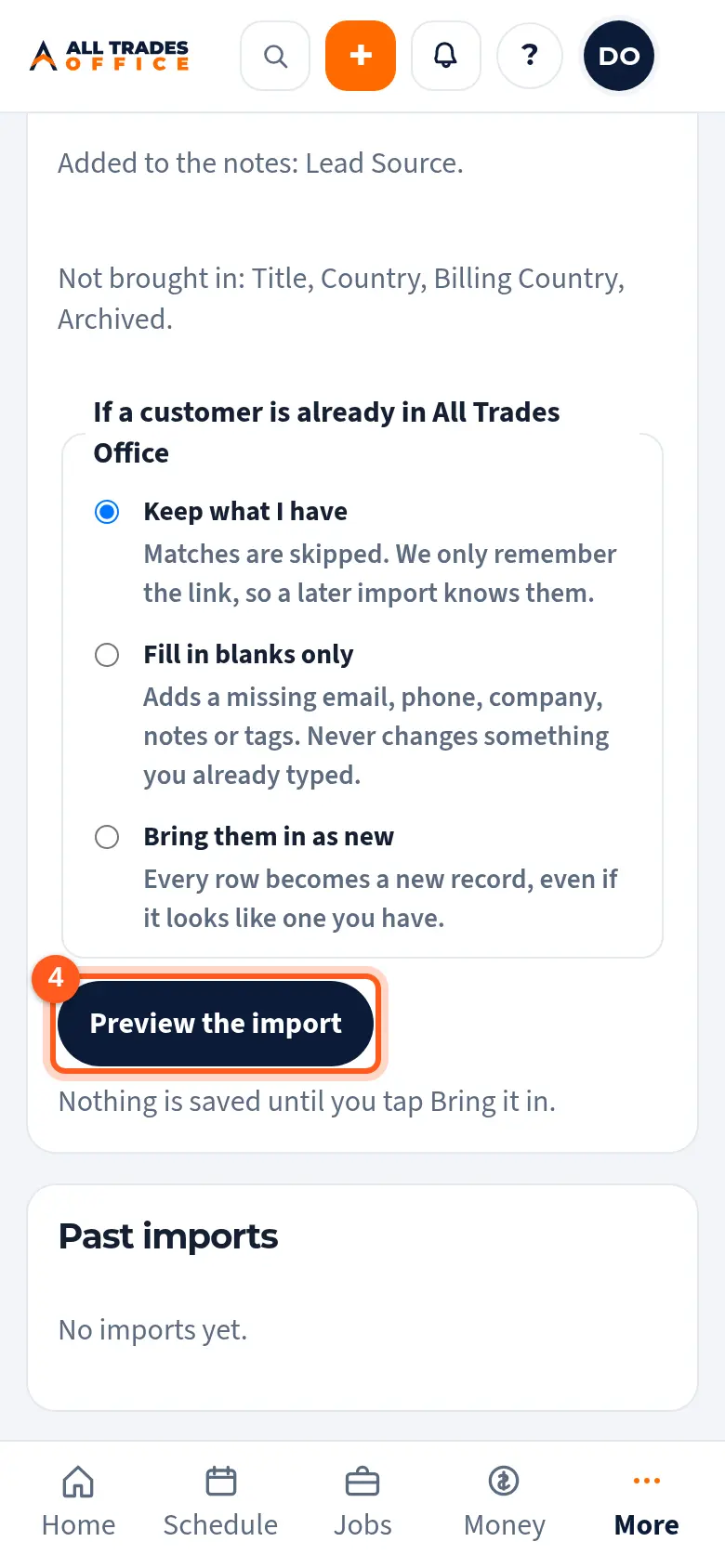
Choose what happens when a record is already here: Keep what I have, Fill in blanks only, or Bring them in as new. Then tap Preview the import.
Look over the preview: new records, matches with ones you already have (and how they matched), rows that repeat in your file, and rows that won't come in.
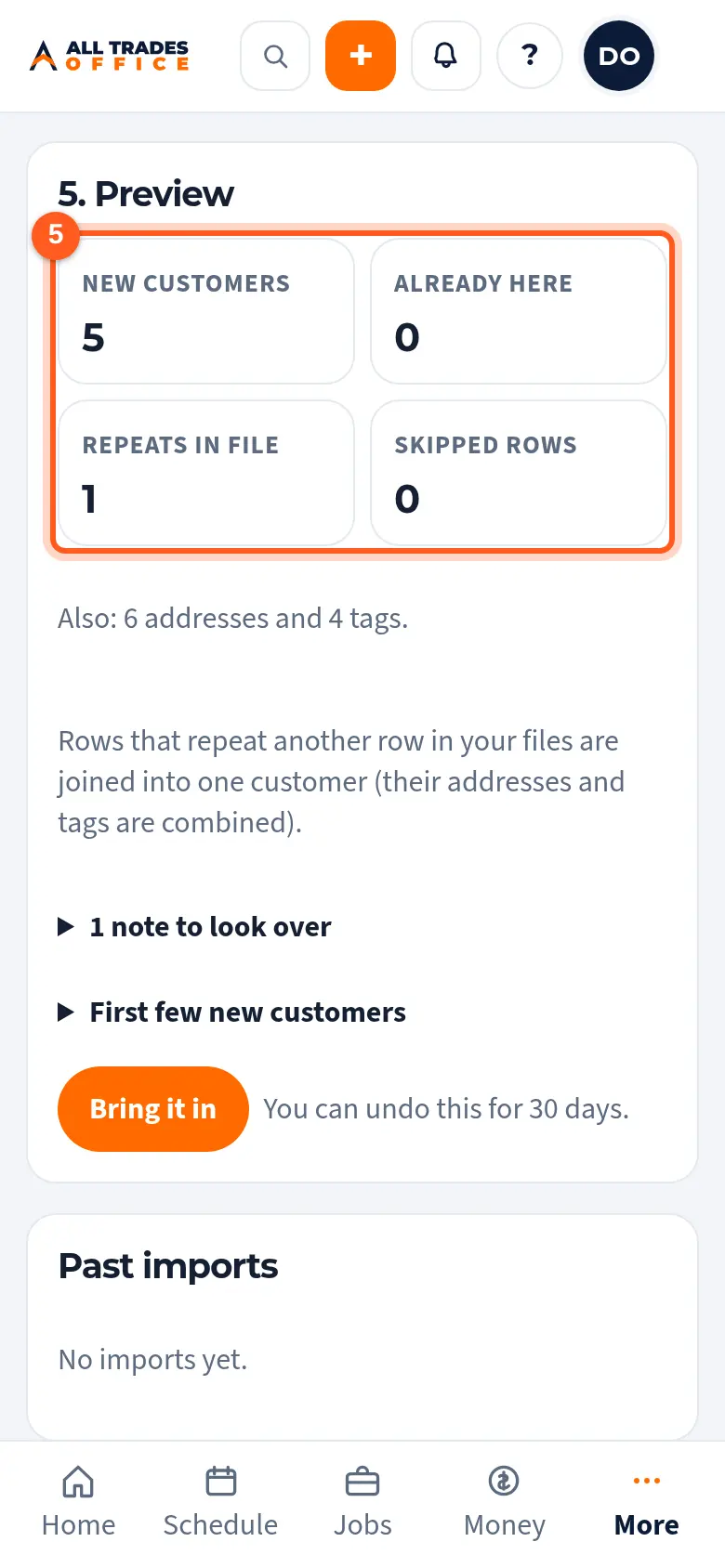
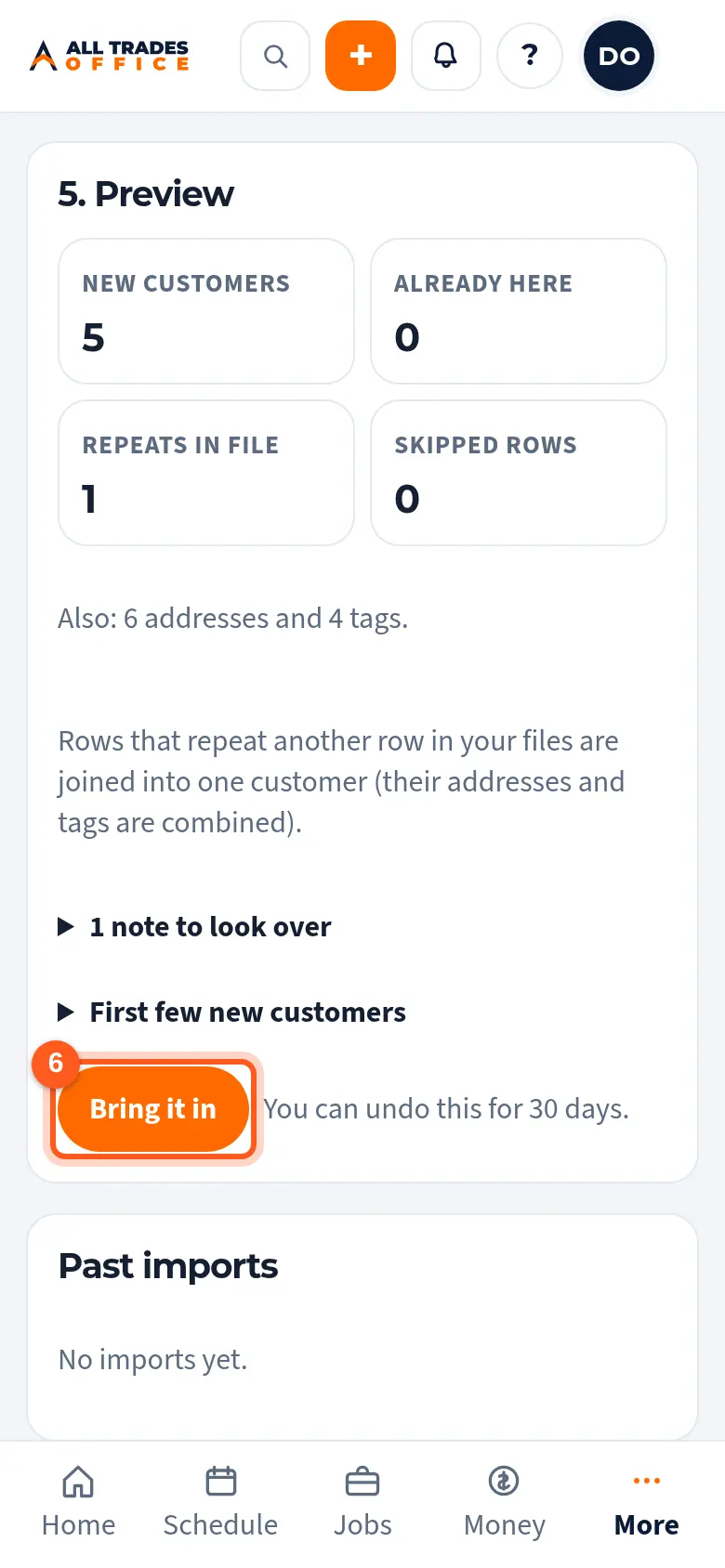
Tap Bring it in. Keep the page open until it says Done.
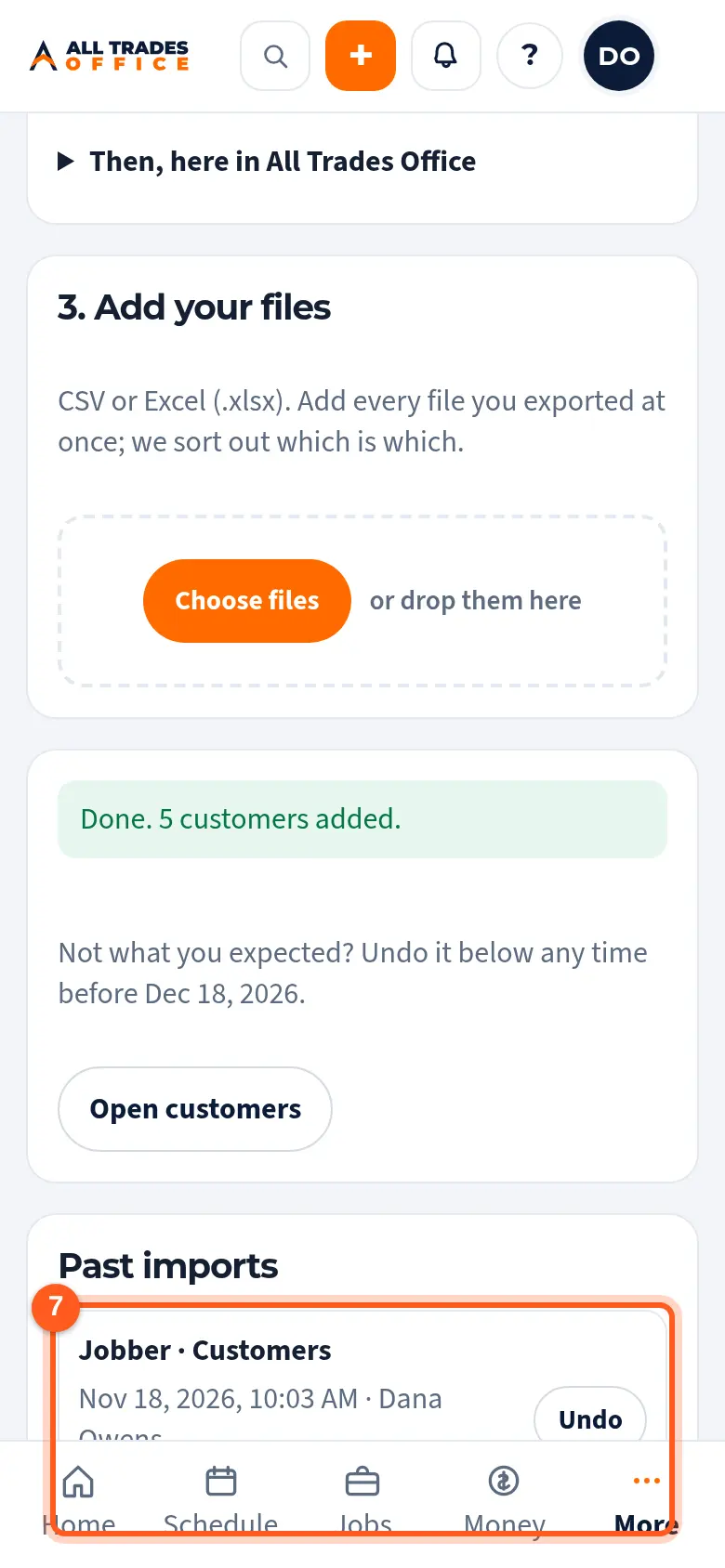
Your import shows under Past imports, with what came in and an Undo button for 30 days.
How we spot a customer you already have
We check in this order and stop at the first match:
- The same ID from your old app (from an earlier import).
- The same email.
- The same phone number.
- The same name and street.
Rows in your own files that repeat each other (like one client with two properties) become one customer with all of their addresses and tags.
Good to know
- We remember your column choices for your company, so the next file from the same app is already set up.
- Fill in blanks only adds a missing email, phone, company, notes or tags. It never changes something you already typed.
- Big lists come in 500 rows at a time. If it stops partway, what came in so far is listed under Past imports and can be undone.
- Imports never email or text your customers, set off reminders, or send anything to QuickBooks.
- Changed your mind? See Undo an import.
Related
- Undo an importTake back an import for up to 30 days. Anything your team has used or changed since is kept.
- Bring in a list from another app or a spreadsheetBring customers or a price book in from any CSV or Excel list, from any app.
- Coming from Jobber?Export your clients and your products and services from Jobber, then bring them into All Trades Office.
- Coming from Housecall Pro?Export your customers and your price book from Housecall Pro, then bring them into All Trades Office.
- Coming from QuickBooks Online?Export your customers and your products and services from QuickBooks Online, then bring them into All Trades Office.