
Field notes and job photos
Add notes and photos from the job on your phone. The office sees them on the job right away.
Who can do this: Owner, Admin, Office, Service Tech, Field Worker. Needs: Service jobs turned on in Settings → Features.
Last updated
Notes are a running log for the job. Photos are shrunk on your phone before they upload, so they don't eat your data.
Steps
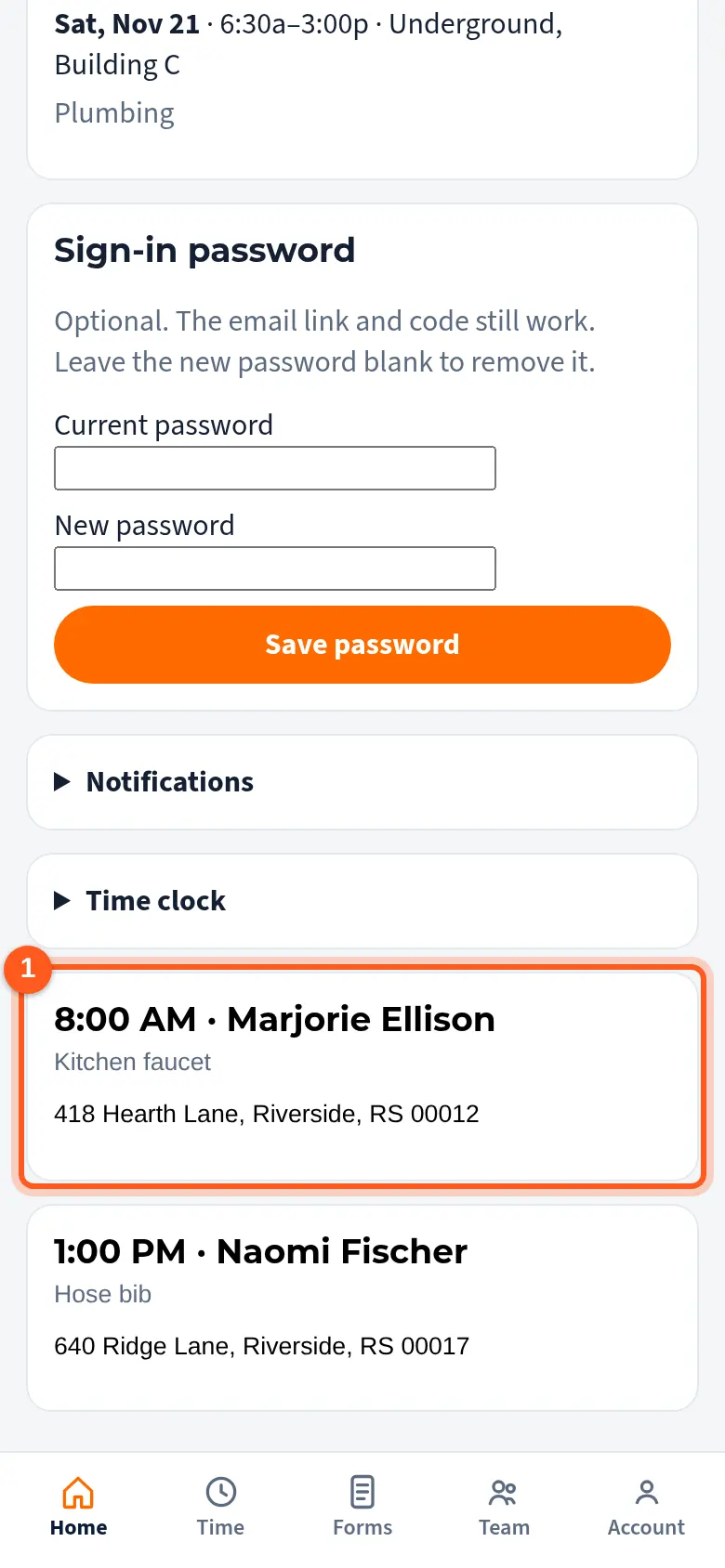
On My day, tap the job.
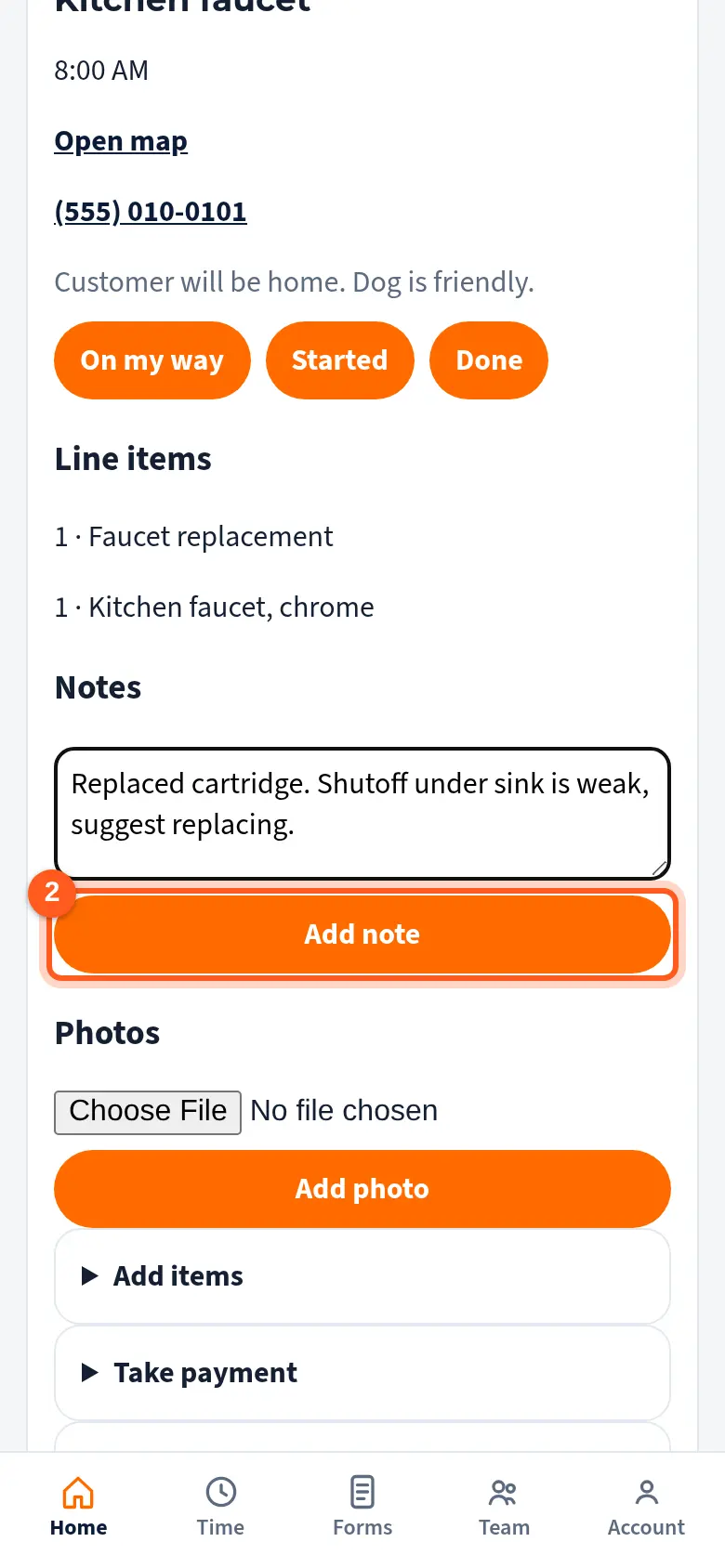
Type in Add a note and tap Add note.
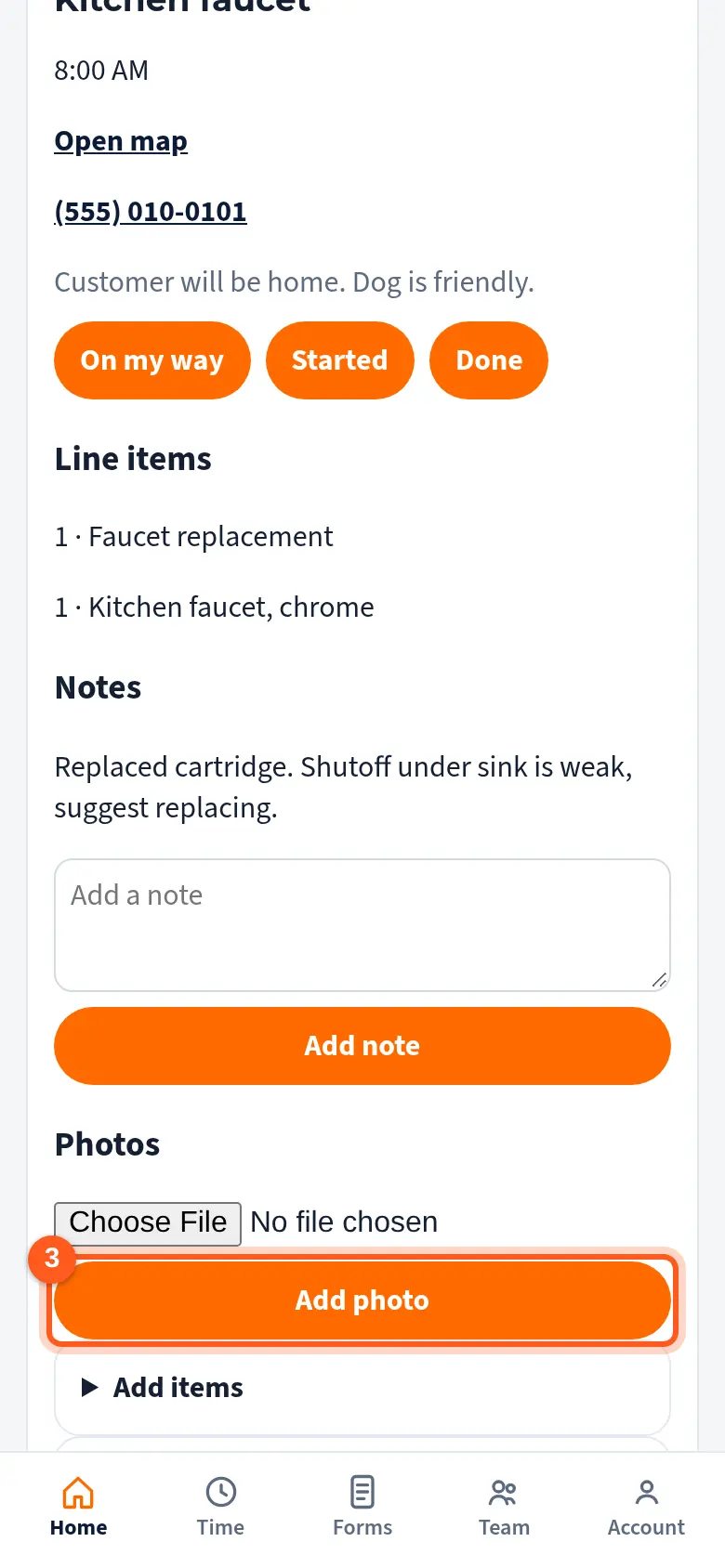
Under Photos, choose a picture or take one, then tap Add photo.
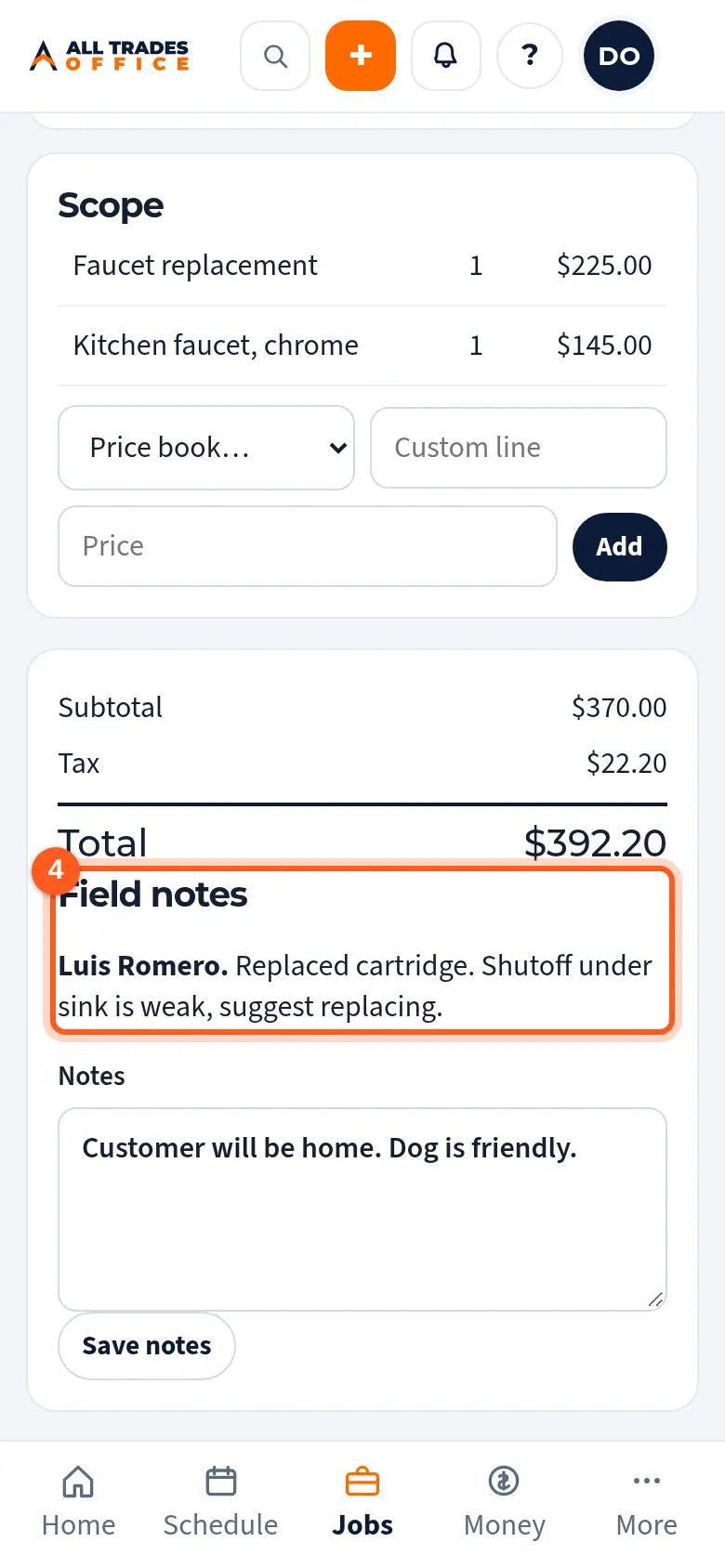
In the office, the notes and photos show on the job under Field notes and Photos.
Good to know
- Notes and status changes save on your phone with no signal and sync later. Photos need a signal.
Related
- Getting started as a Service TechYour day on your phone, opening a job, adding items, and taking a payment.
- Working with no signalWhat still works in a basement or out in the country, and what waits for a signal.