
Add a customer, contacts, and service addresses
Add a person or business, then the people you deal with and every address you work at.
Who can do this: Owner, Admin, Office.
Last updated
Every job, estimate, invoice, and project hangs off a customer, so this is usually the first thing you add.
Steps
Open Customers and tap New customer.
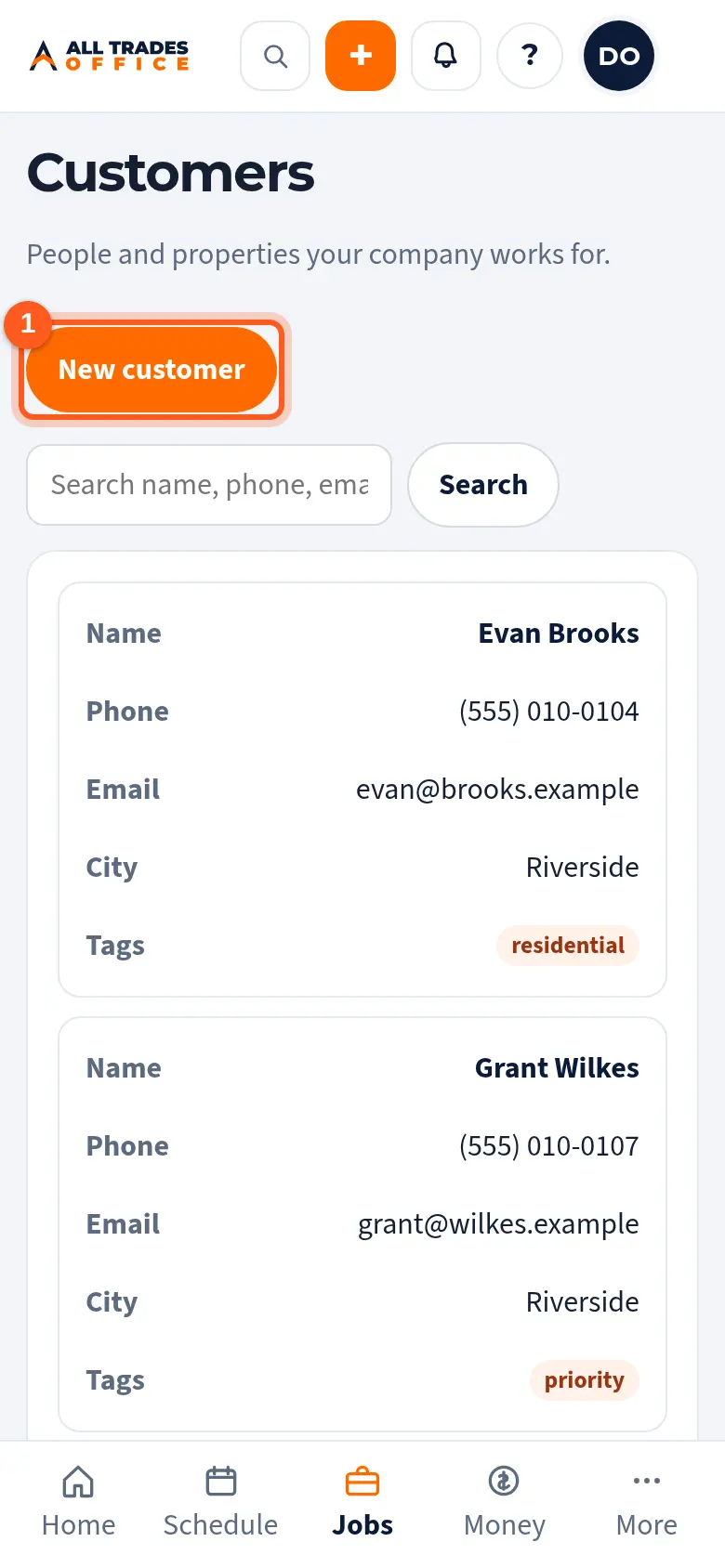
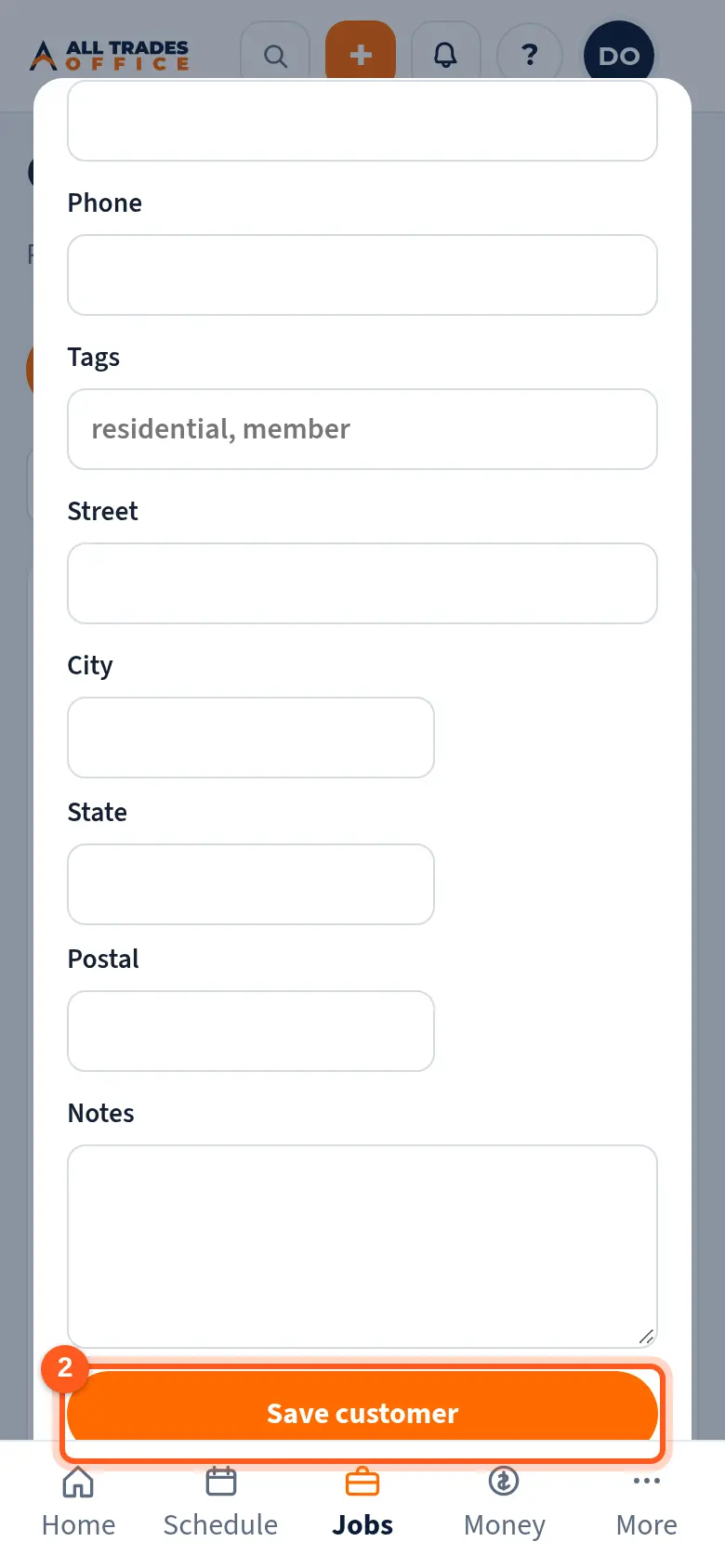
Choose Person or household or Business, fill in the name, email, phone, and first address, then tap Save customer.
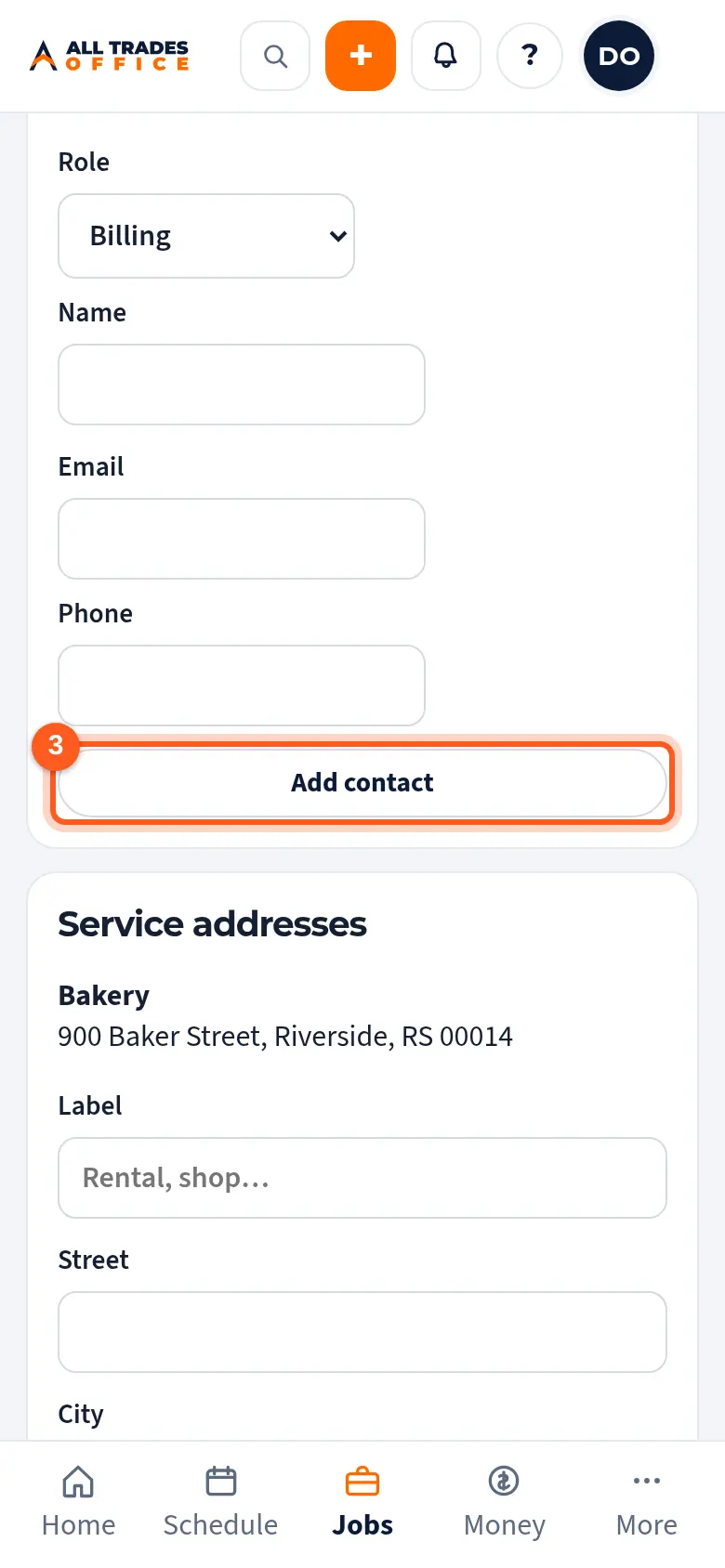
To add the people you deal with, open the customer and use Contacts. Pick a role (Billing, Project manager, Site super), type the name, and tap Add contact.
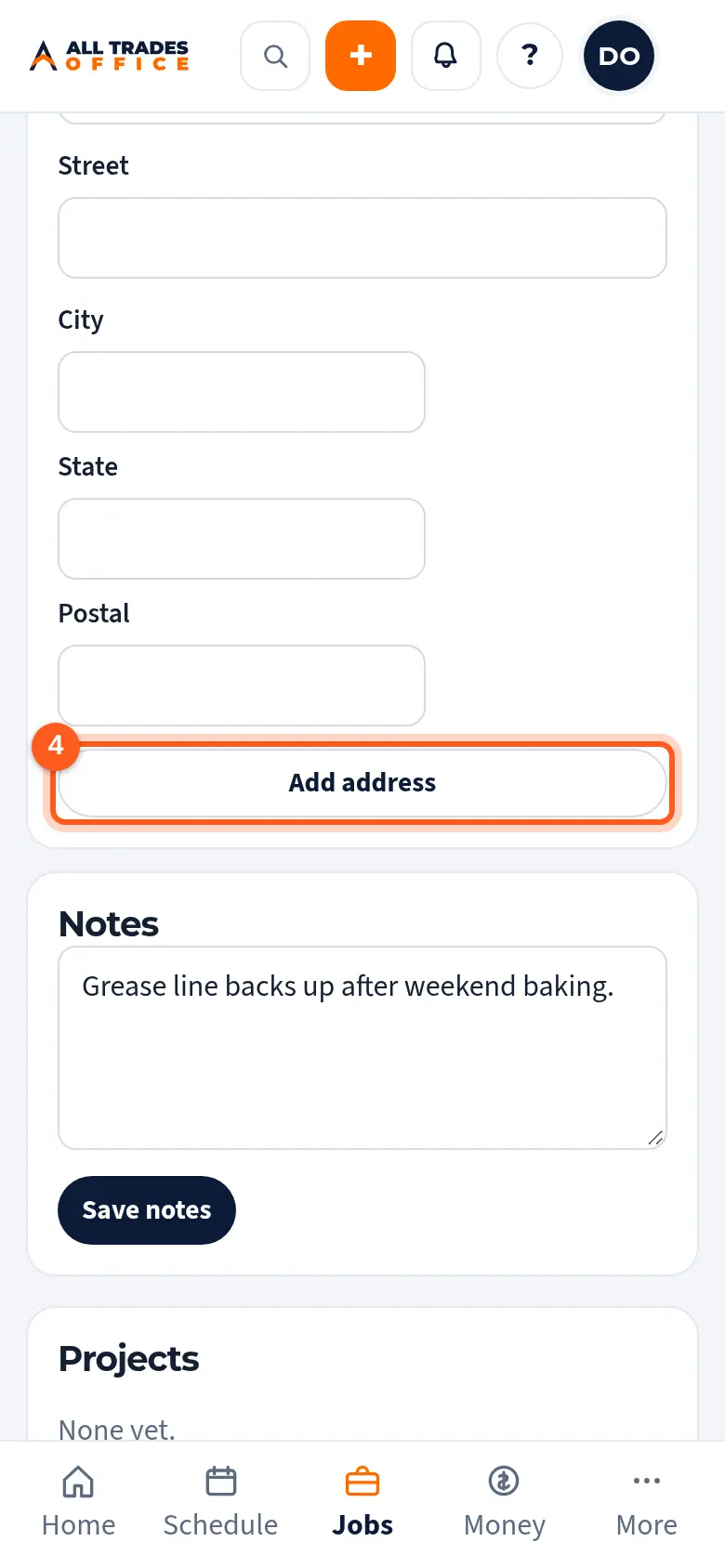
Add each place you work under Service addresses (for a business, Properties and sites) and tap Add address.
Good to know
- A business can have many contacts. Billing contacts are used when you send invoices.
- If you turn a person into a business later, tap Make this a business on their page. Nothing is lost.
- Tags make customers easy to find. See Tag customers and find them fast.
Related
- Tag customers and find them fastAdd tags like "member" or "commercial" and search by name, phone, email, or tag.
- Read a customer's history and balancesSee every project, estimate, job, and invoice for a customer, with totals and what they still owe.