
Add the app to your iPhone Home Screen
Add All Trades Office to your Home Screen so it opens full screen and can send notifications.
Who can do this: Owner, Admin, Office, Service Tech, Field Worker.
Last updated
On iPhone, All Trades Office runs from your Home Screen. Notifications only work when you open it from that icon.
Steps
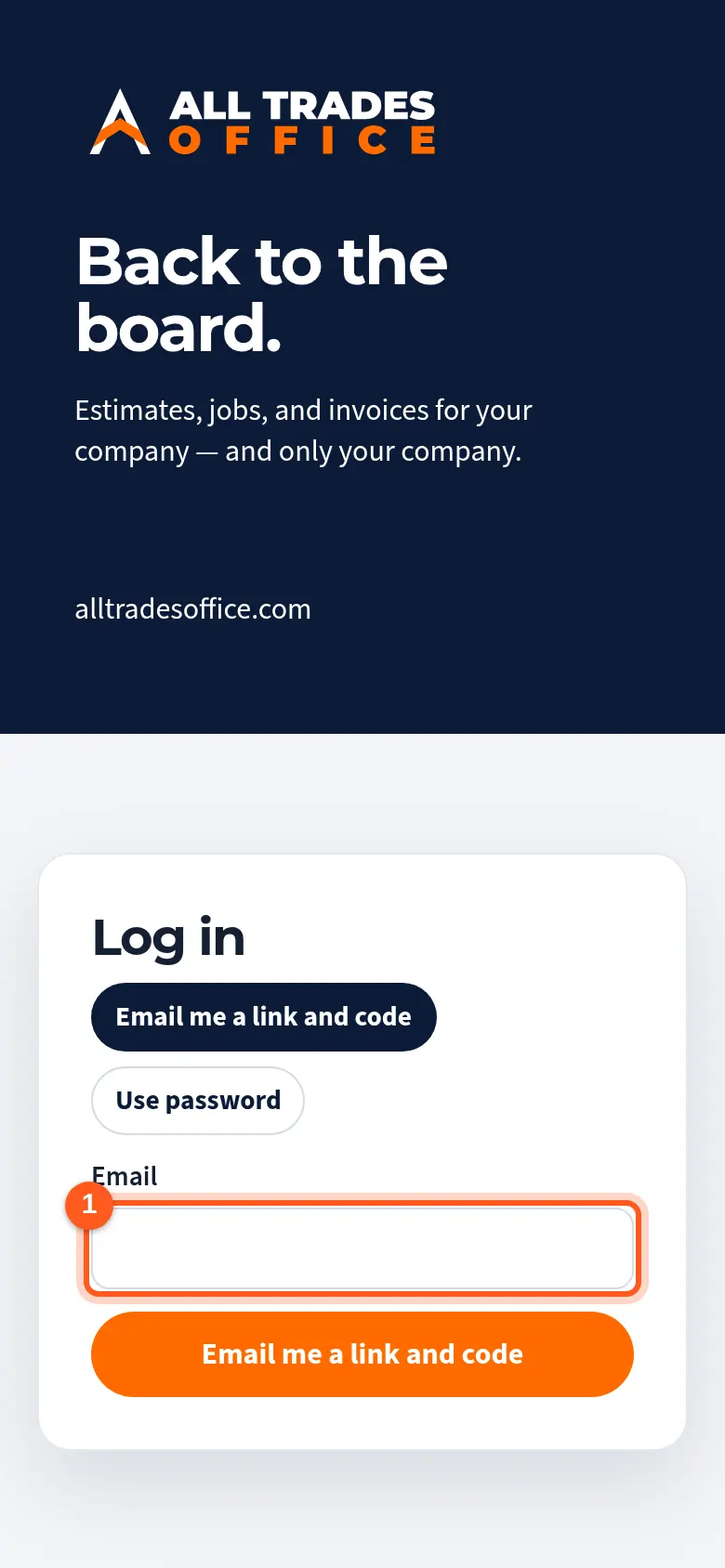
Open Safari on your iPhone and go to the sign-in page. Sign in with your work email.
Tap the Share button at the bottom of Safari, scroll down, and tap Add to Home Screen, then Add.
This step happens on your phone, outside All Trades Office.
Open All Trades Office from the new icon on your Home Screen. Use that icon from now on.
This step happens on your phone, outside All Trades Office.
Good to know
- Phone notifications on iPhone need iOS 16.4 or newer.
- Safari is the surest way to do this step. On older iOS versions, only Safari can add apps to the Home Screen.
Related
- Notifications on iPhoneNot getting alerts on your iPhone? Check these three things.
- Turn on phone notificationsGet a buzz when you're put on a job, someone @mentions you, or there's a new announcement.