
Create an invoice and record payments
Make an invoice from a finished job, send the customer a link, and record checks or cash.
Who can do this: Owner, Admin, Office. Needs: Service jobs turned on in Settings → Features.
Last updated
The balance updates as soon as you save a payment, and it shows on the customer's page.
Steps
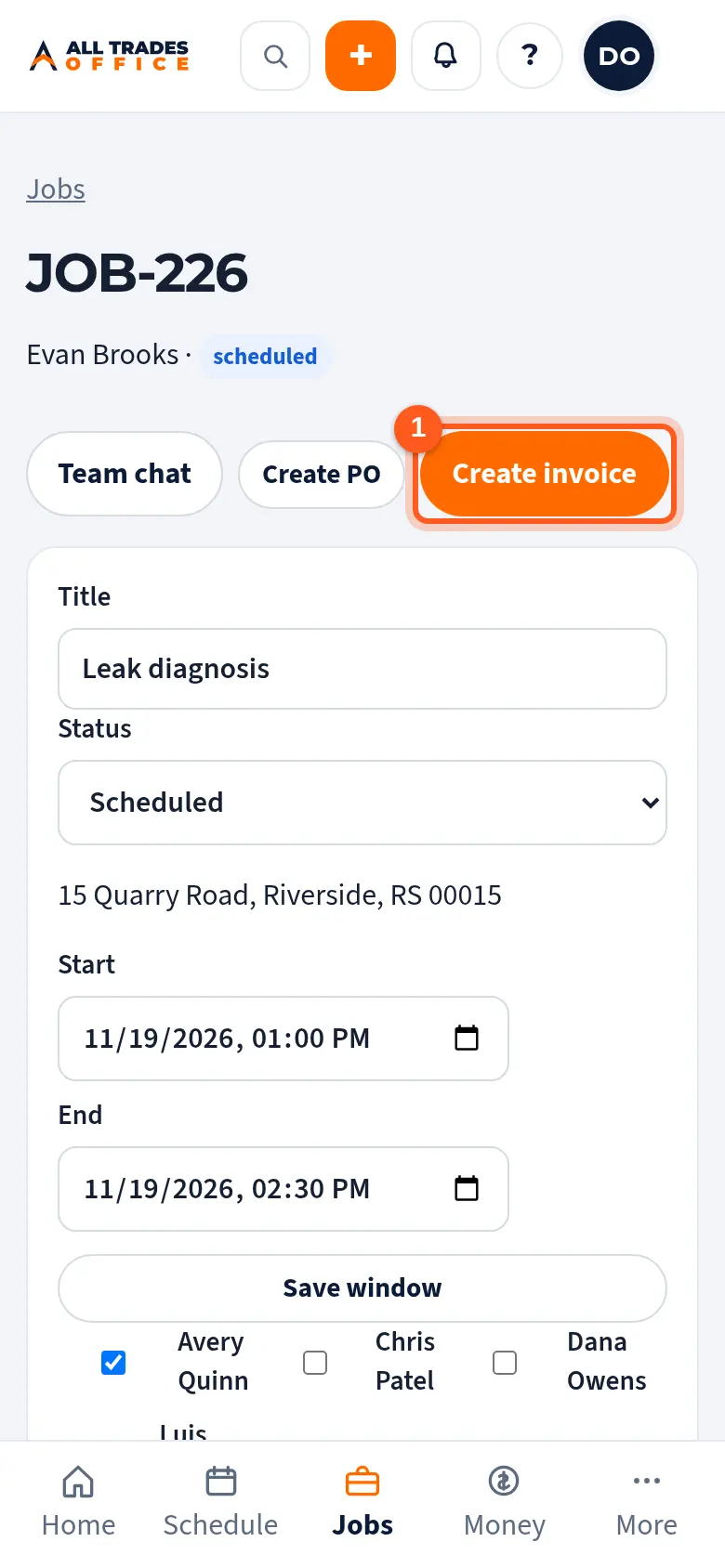
On the finished job, tap Create invoice. The job's scope becomes the invoice lines.
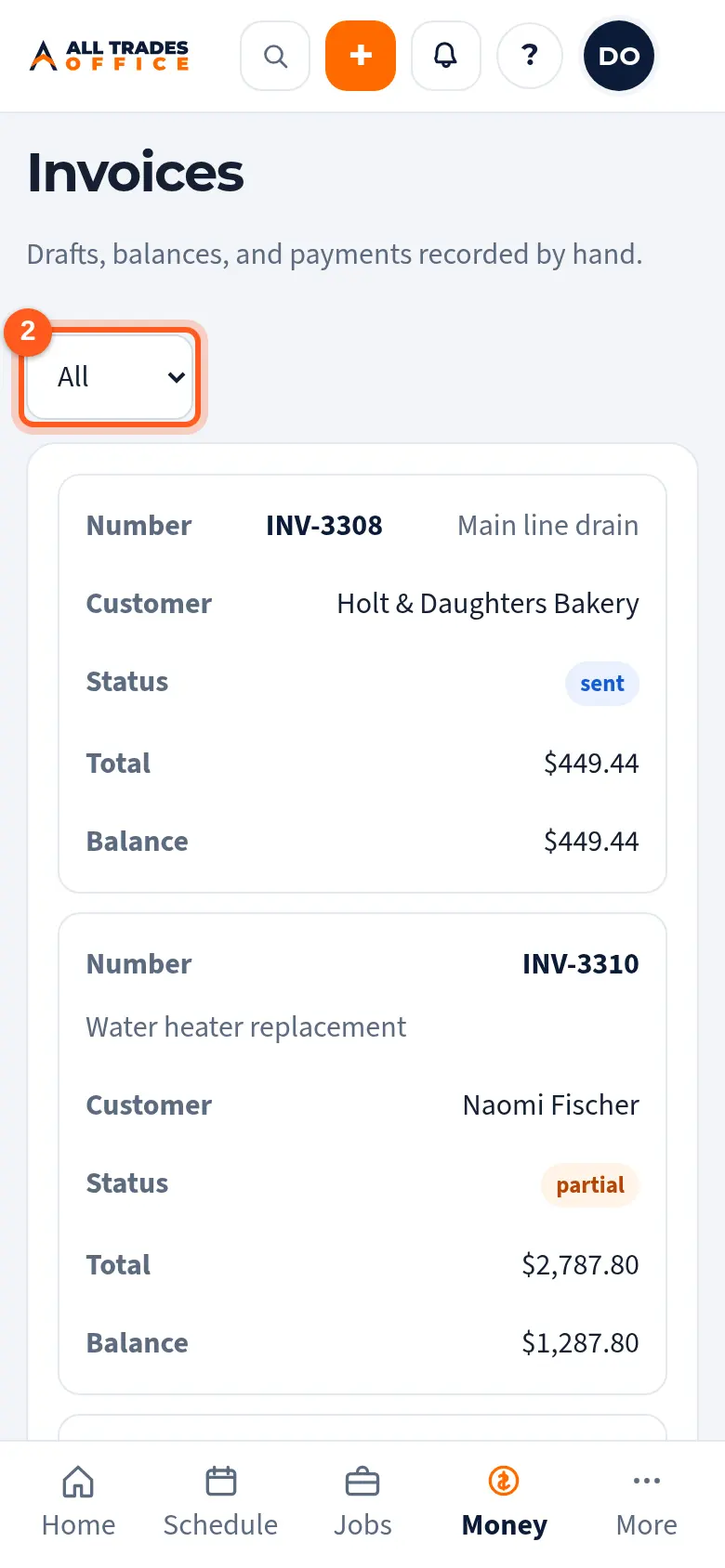
Open Invoices to see every invoice. Use the menu to show only drafts, sent, partial, paid, or void.
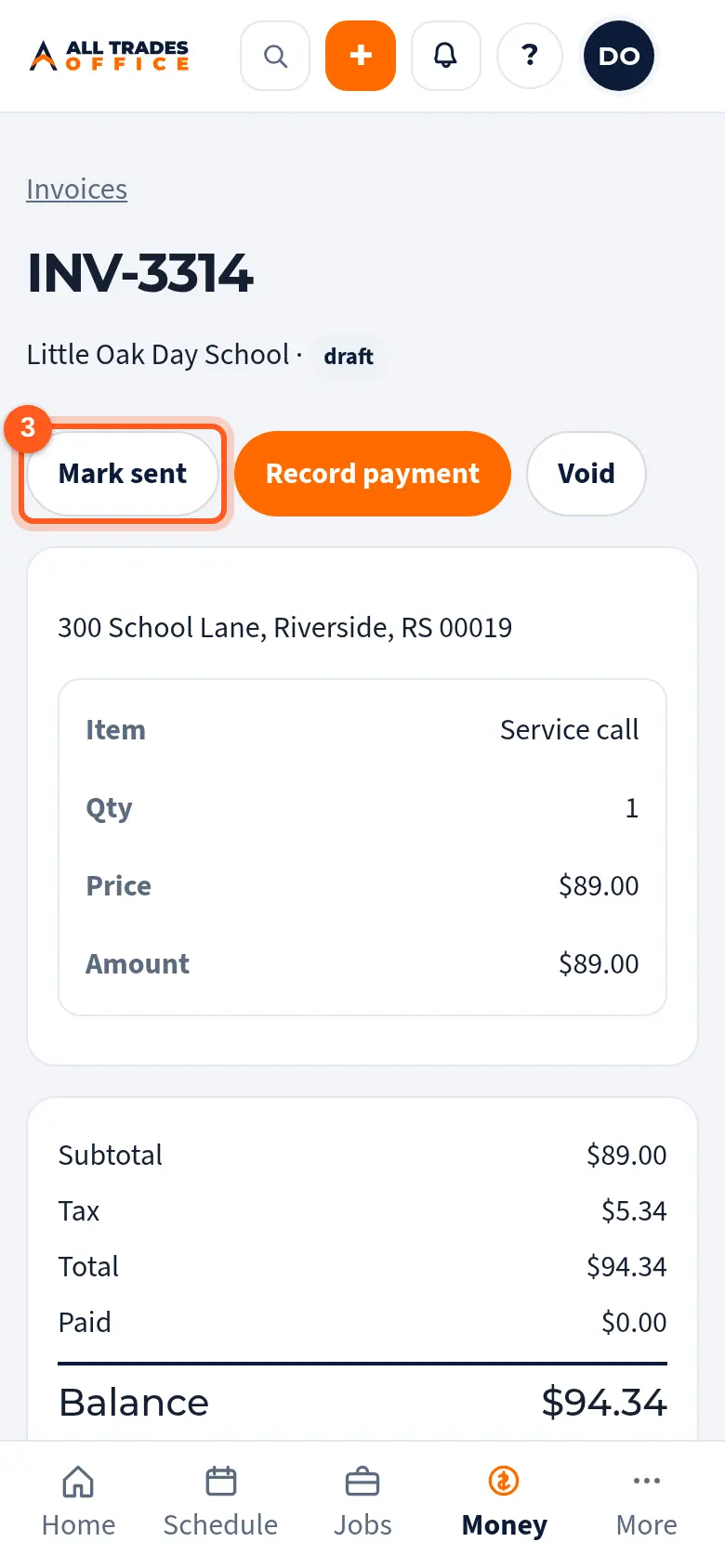
On an invoice, send the customer a link to view it, or tap Mark sent if you handed it over another way.
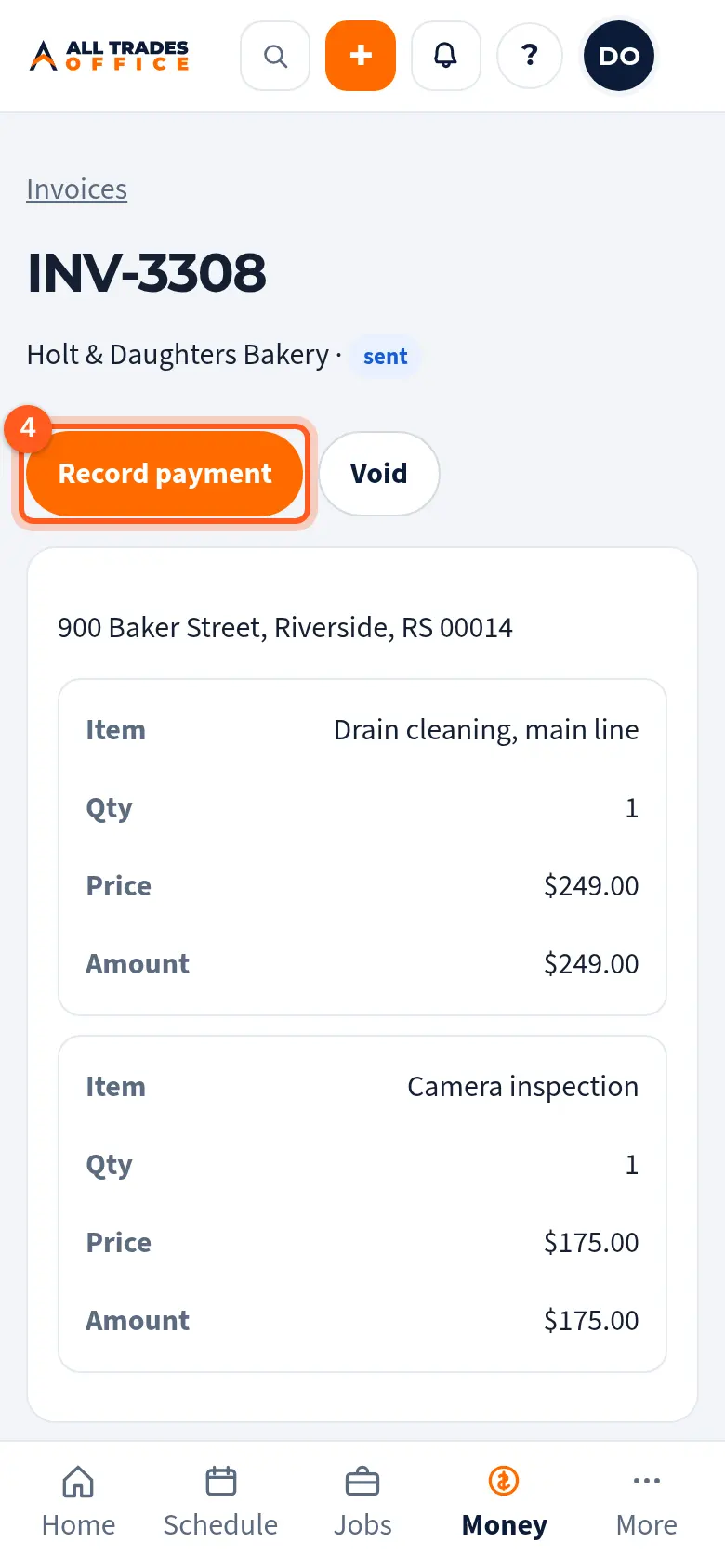
When money comes in, tap Record payment, enter the amount, pick Check or Cash, add the check number, and tap Save payment.
Good to know
- Card payments aren't turned on. Record cash and checks here.
- Tap Void to cancel an invoice. It stays on file, marked void.
- Payments your techs take in the field show up here too.
Related
- Take a payment in the fieldRecord cash, a check, or a card you ran on your own terminal, right from the job.
- Read a customer's history and balancesSee every project, estimate, job, and invoice for a customer, with totals and what they still owe.
- What syncs with QuickBooks, and what never doesInvoices and payments go to QuickBooks. QuickBooks never emails your customers.