
Create and schedule a service job
Start a job for a customer, set the time window, and add the scope.
Who can do this: Owner, Admin, Office. Needs: Service jobs turned on in Settings → Features.
Last updated
A job is one service visit (or a few) for one customer. Once it has a time window, it shows on the schedule.
Steps
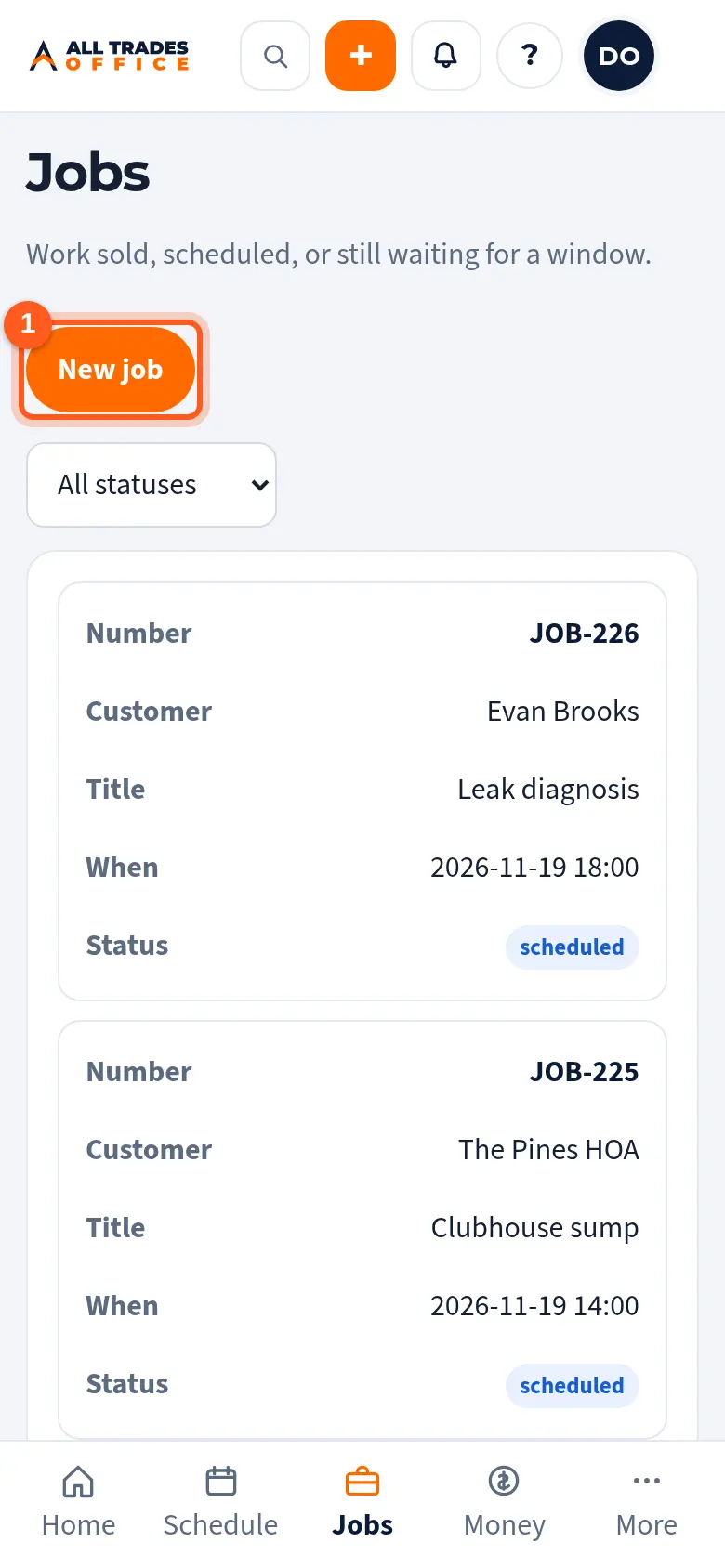
Open Jobs and tap New job.
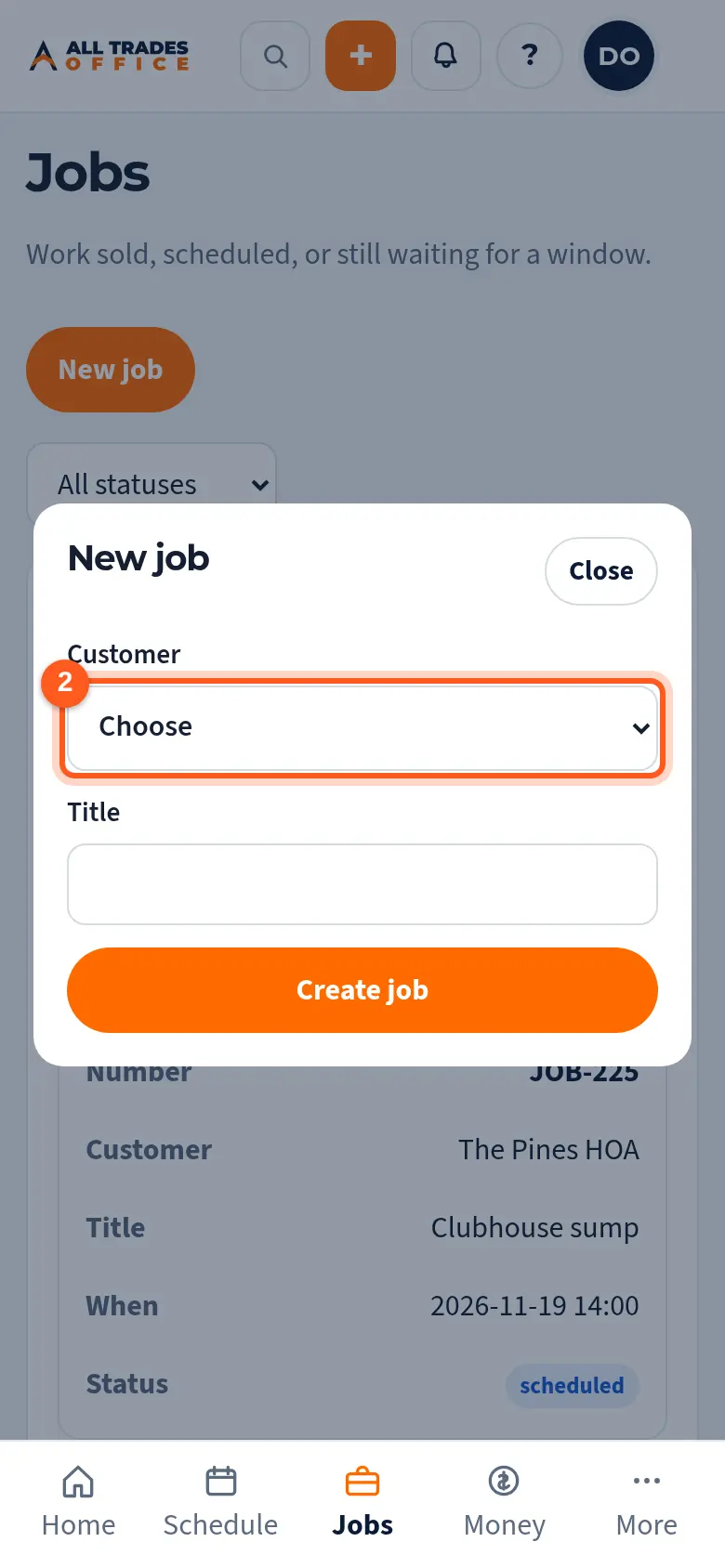
Pick the customer, type a short title like "Water heater swap", and tap Create job.
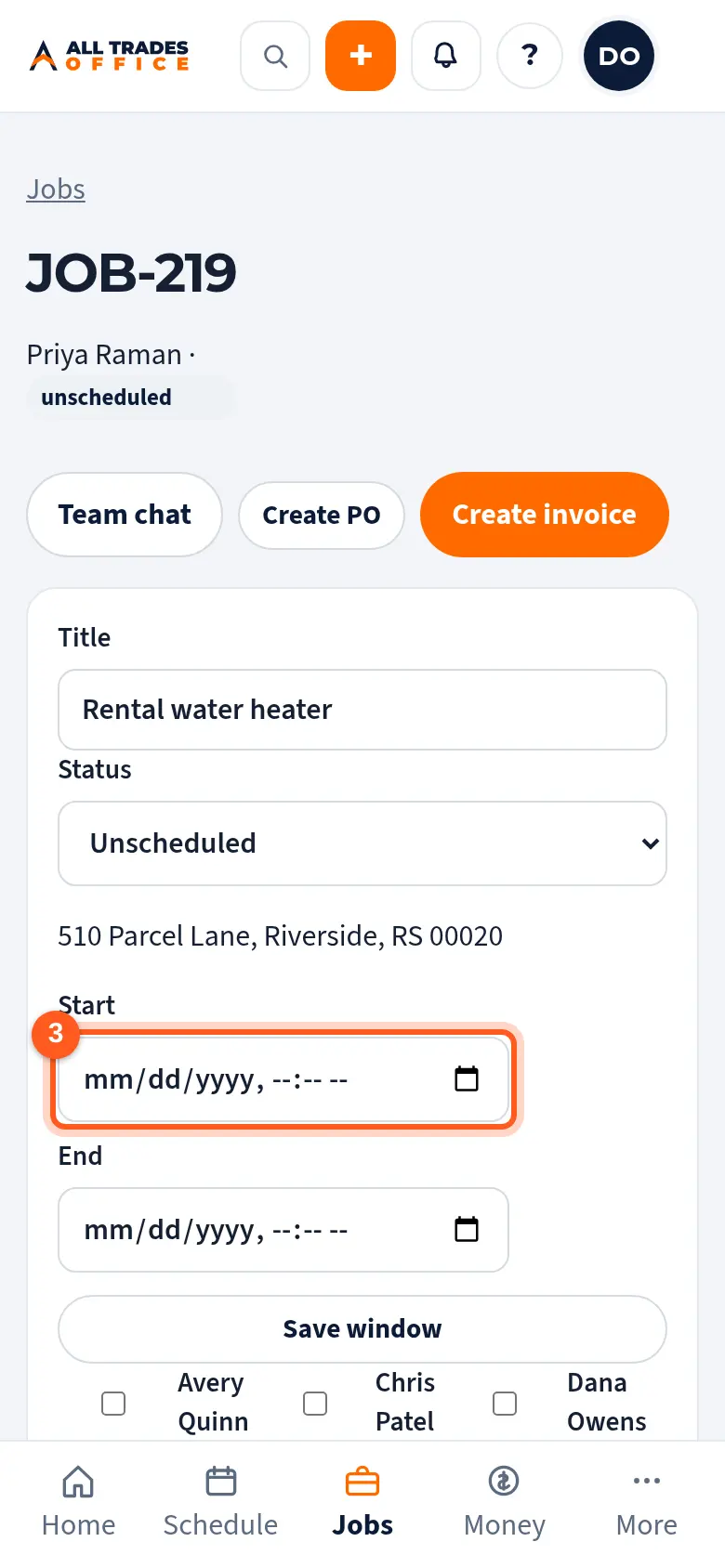
On the job, set the Start and End of the visit and tap Save window.
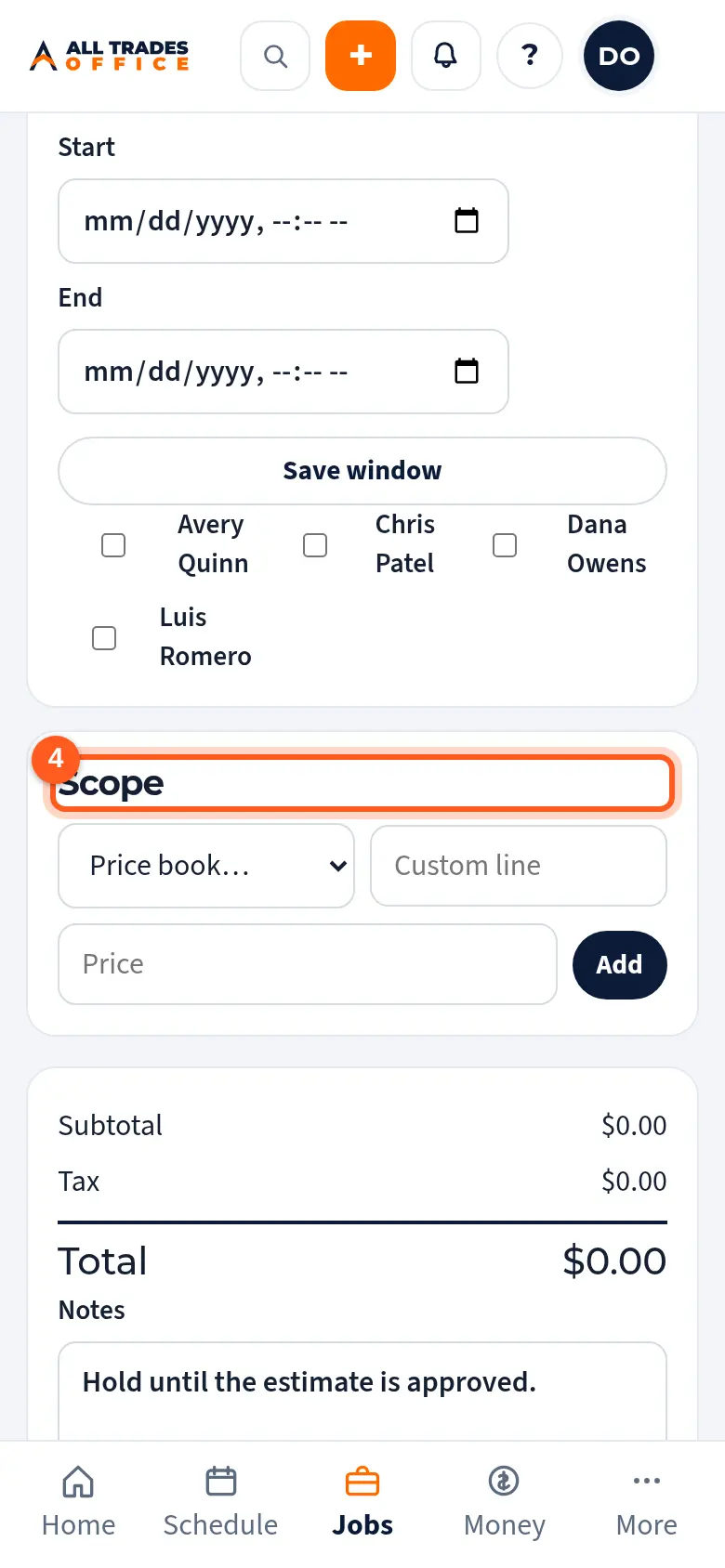
Add the work under Scope from the price book or as a custom line, then tap Add.
Good to know
- Set Status on the job as it moves along. Techs tap On my way, Started, and Done on their phones, and you see it on the job.
- Tap Create invoice on the job when the work is done. The scope becomes the invoice lines.
Related
- Assign techs and dispatch from the schedulePut the right people on each job and see the whole day or week at a glance.
- Turn an approved estimate into a job or projectConvert the estimate so the lines carry over and nothing gets typed twice.