
Turn an approved estimate into a job or project
Convert the estimate so the lines carry over and nothing gets typed twice.
Who can do this: Owner, Admin, Office with “Create and edit estimates” turned on for their role. Needs: Estimates turned on in Settings → Features.
Last updated
Converting keeps the customer, address, and lines, and links the job or project back to the estimate.
Steps
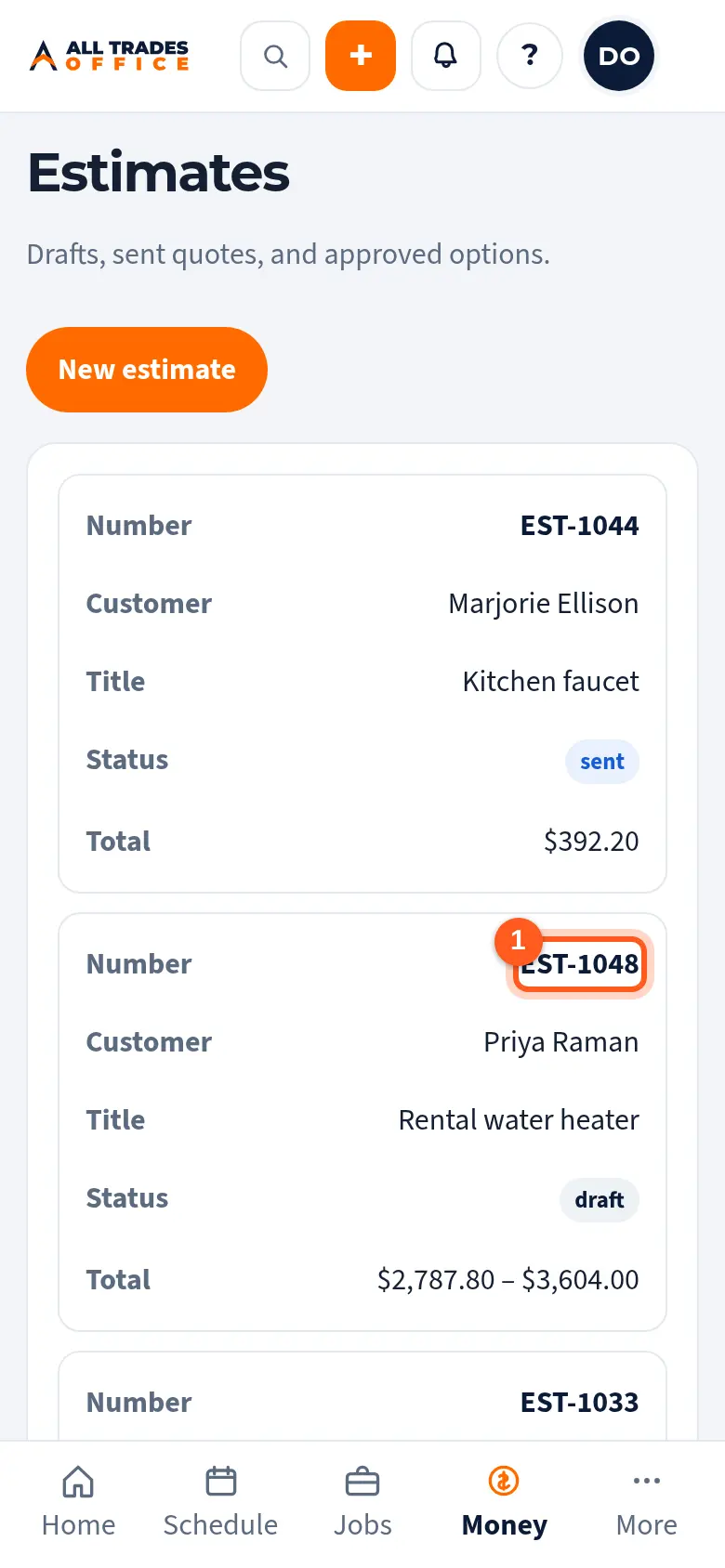
Open the estimate.
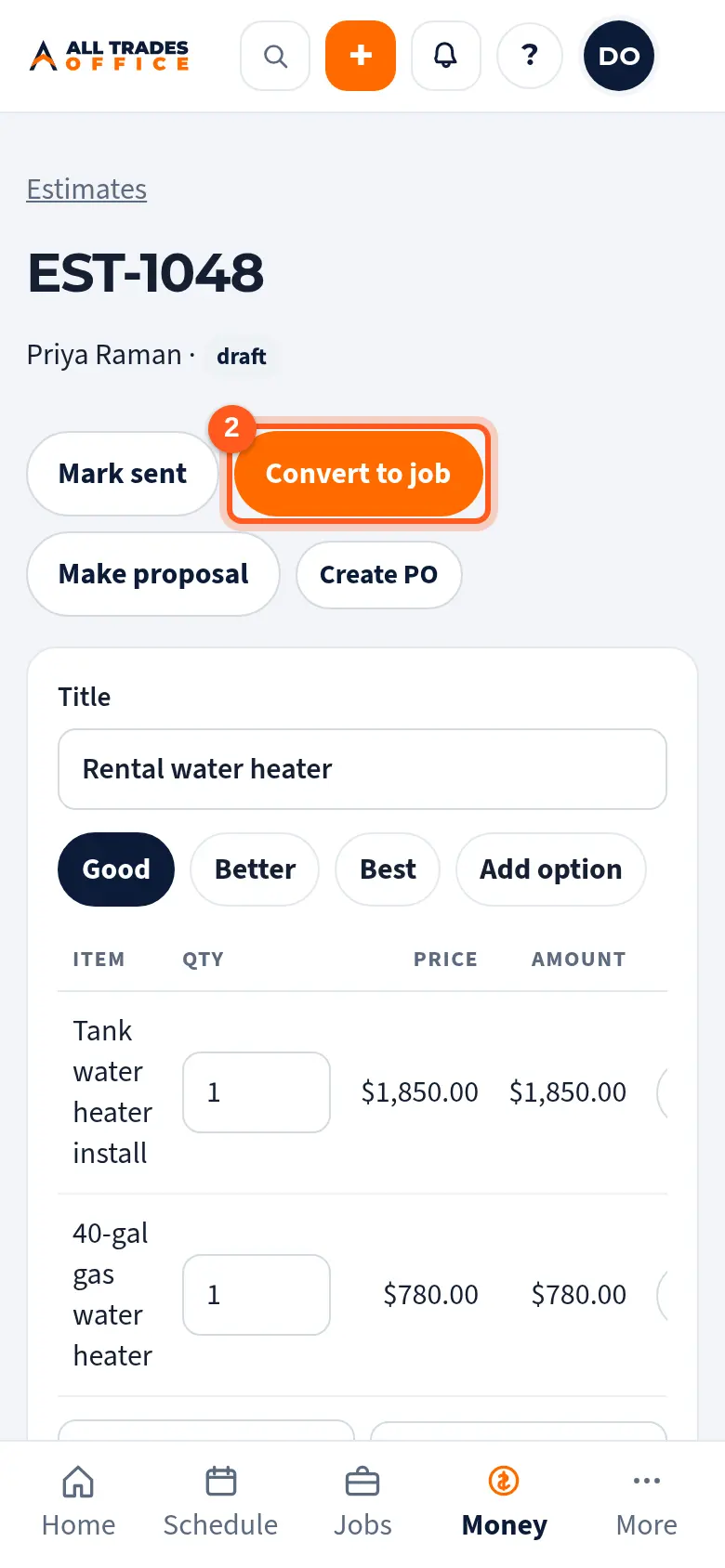
Tap Convert to job for service work. Make sure the option the customer picked is the one showing. Its lines become the job's scope.
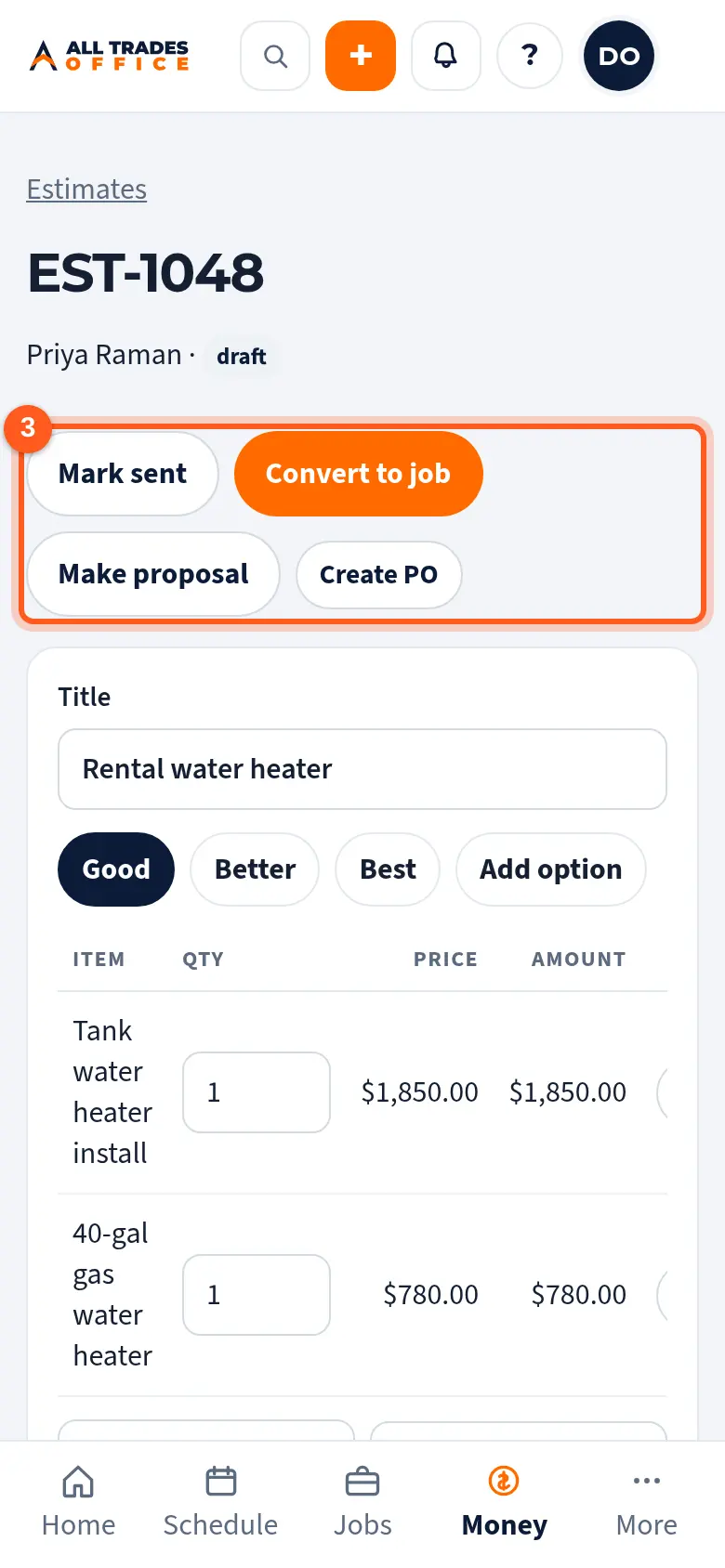
For construction or remodel work, wait until the estimate is approved, then tap Convert to project, pick the type and lead source, and save.
Good to know
- Convert to project shows up after the customer approves (Projects must be turned on).
- After converting, the estimate shows an Open job or Open project button.
Related
- Create and schedule a service jobStart a job for a customer, set the time window, and add the scope.
- Start a projectSet up a construction or remodel project with the GC or owner, contract value, and phases.