
Daily reports, inspection checklists, and safety checks
Fill out the day's report or a checklist from the project, then submit it for a PDF.
Who can do this: Owner, Admin, Office, Service Tech, Field Worker. Needs: Daily reports and forms turned on in Settings → Features.
Last updated
Forms are kept on the project by date so you can pull them up when a GC asks.
Steps
Open the project and scroll to Daily reports and forms.
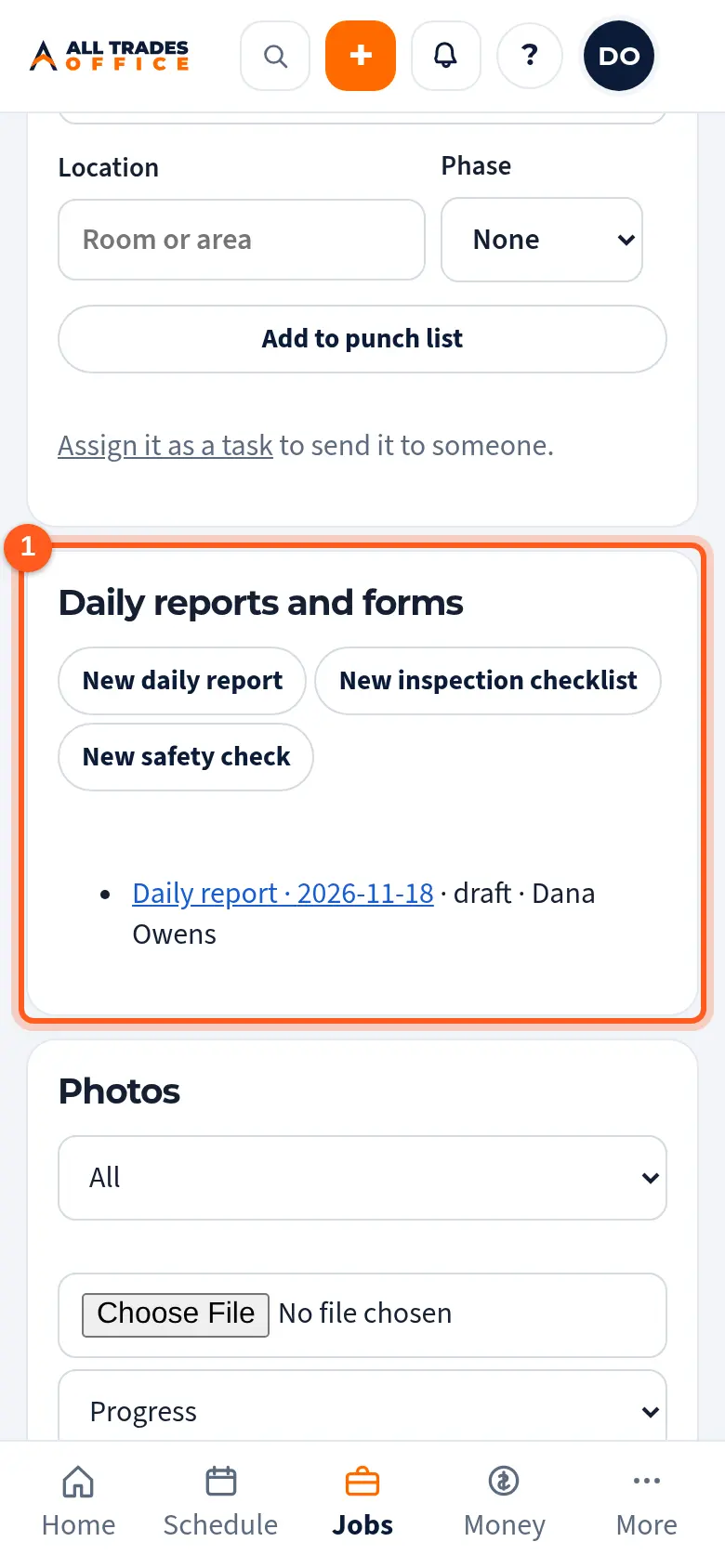
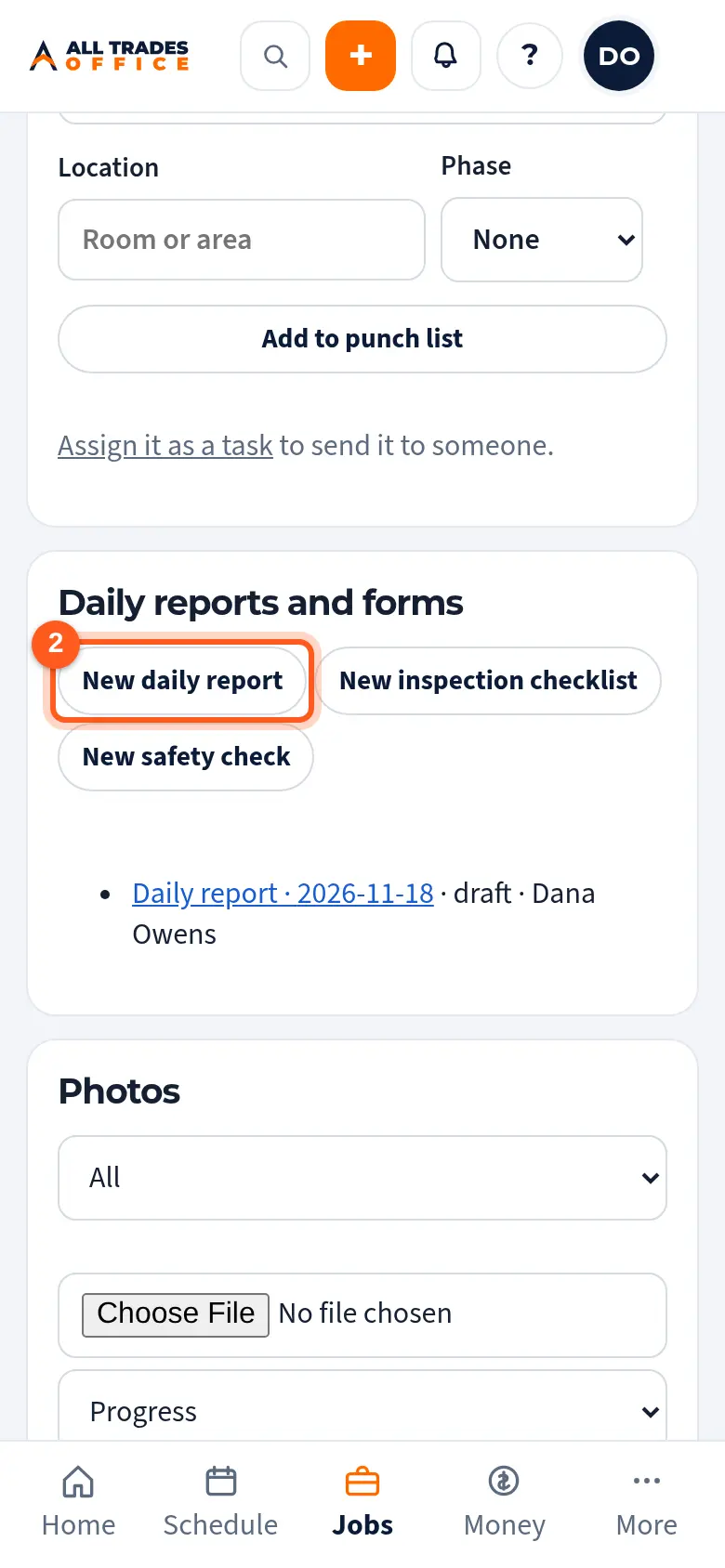
Tap New daily report, New inspection checklist, or New safety check.
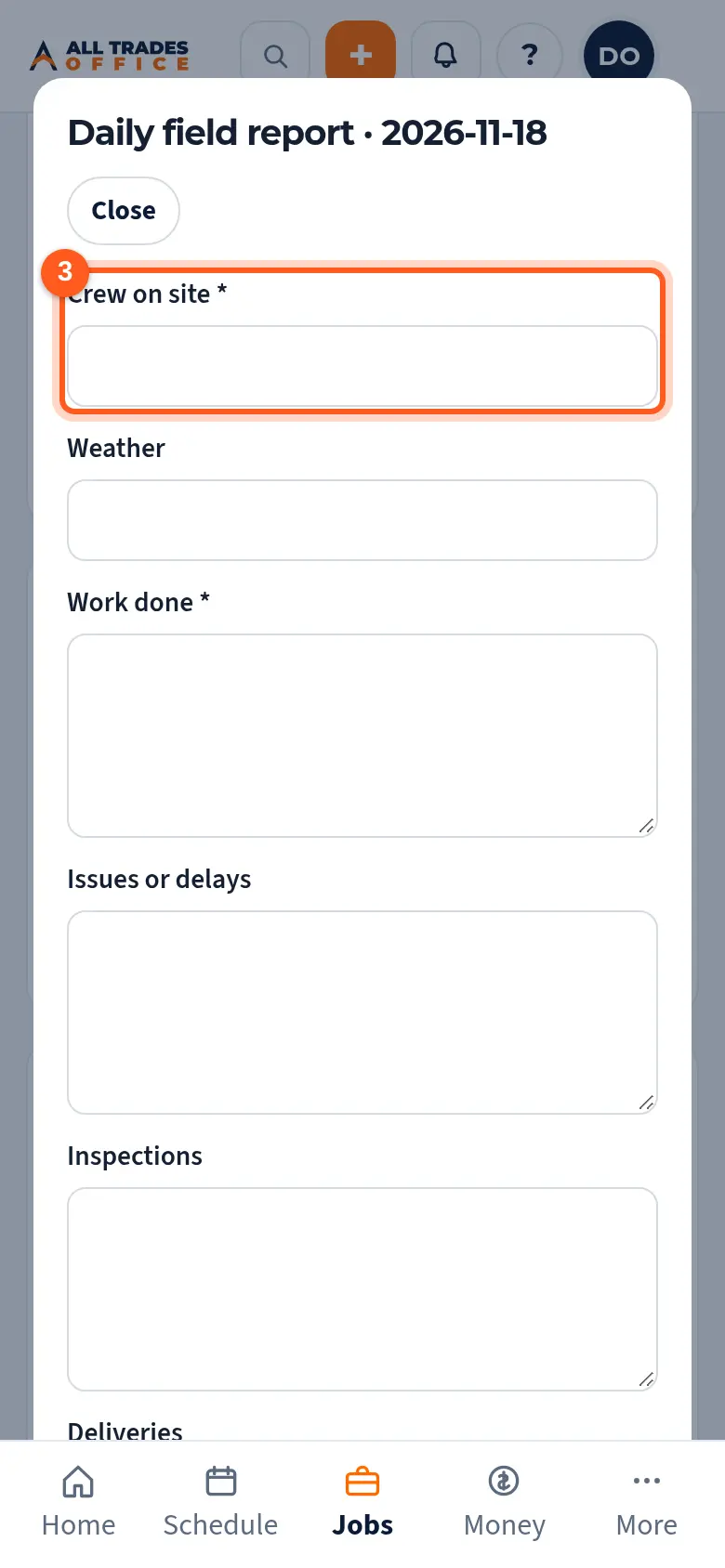
Fill in the fields. Fields marked * are required. Hours from the time clock are filled in for you.
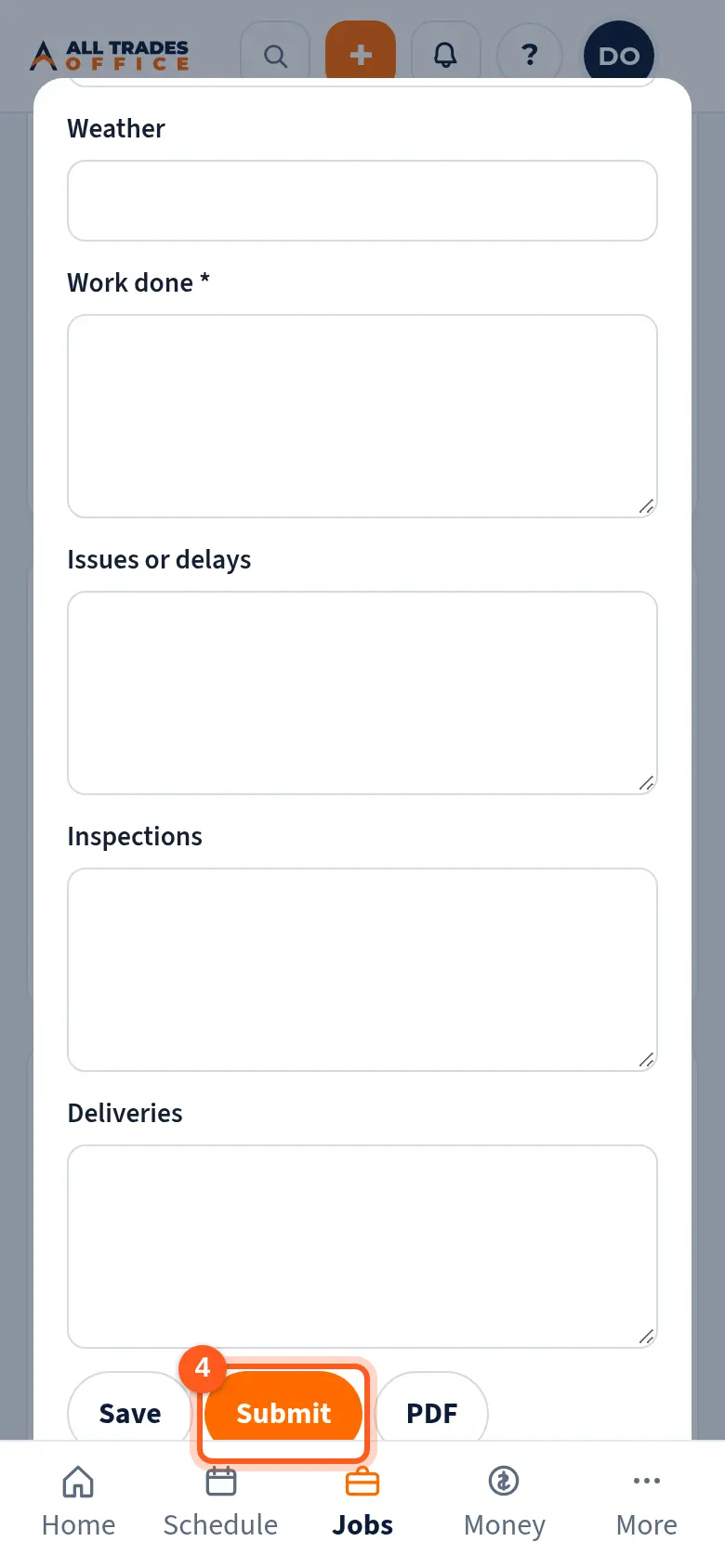
Tap Save to finish later, or Submit when it's done. Tap PDF for a printable copy.
Good to know
- Once submitted, a form is locked.
Related
- Inspections on phasesLog a city or GC inspection on a phase and track failed ones until they pass.
- Project photos with tagsUpload photos to a project, tag them before, progress, after, or issue, and filter later.