
Inspections on phases
Log a city or GC inspection on a phase and track failed ones until they pass.
Who can do this: Owner, Admin, Office. Needs: Inspections turned on in Settings → Features.
Last updated
Inspections also show on the schedule and in the project's Inspection results chart.
Steps
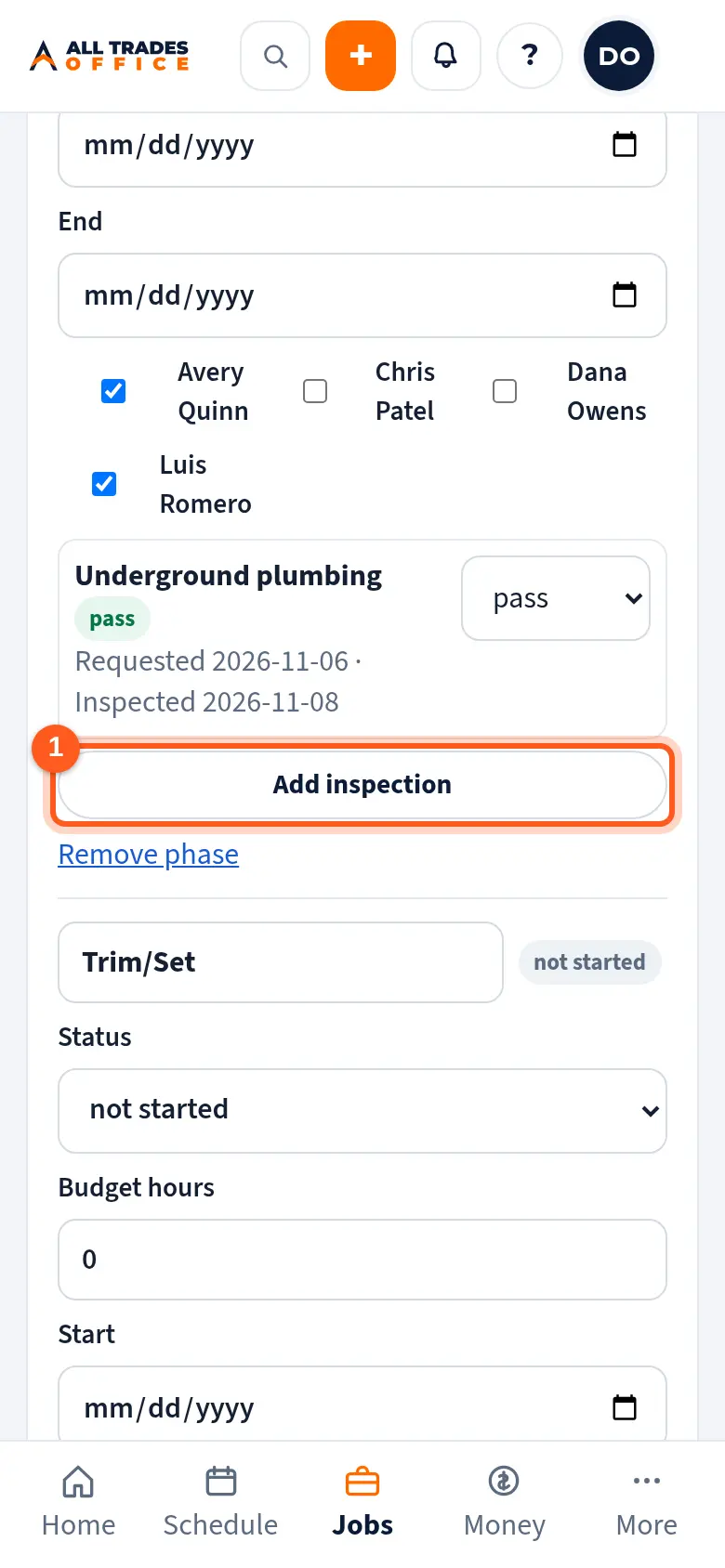
Open the project. Under Phases, find the phase and tap Add inspection.
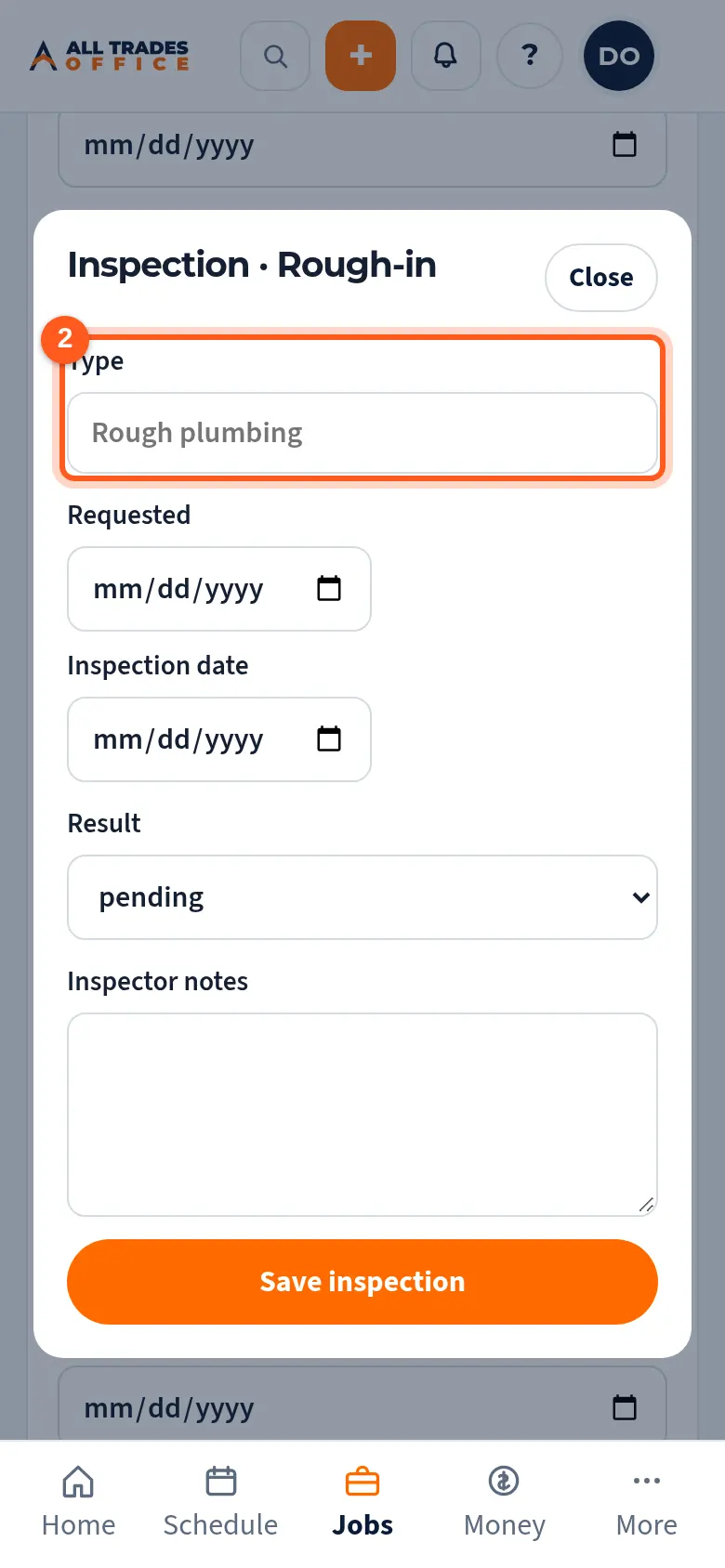
Type the inspection (like "Rough plumbing"), the dates, the result, and any inspector notes, then tap Save inspection.
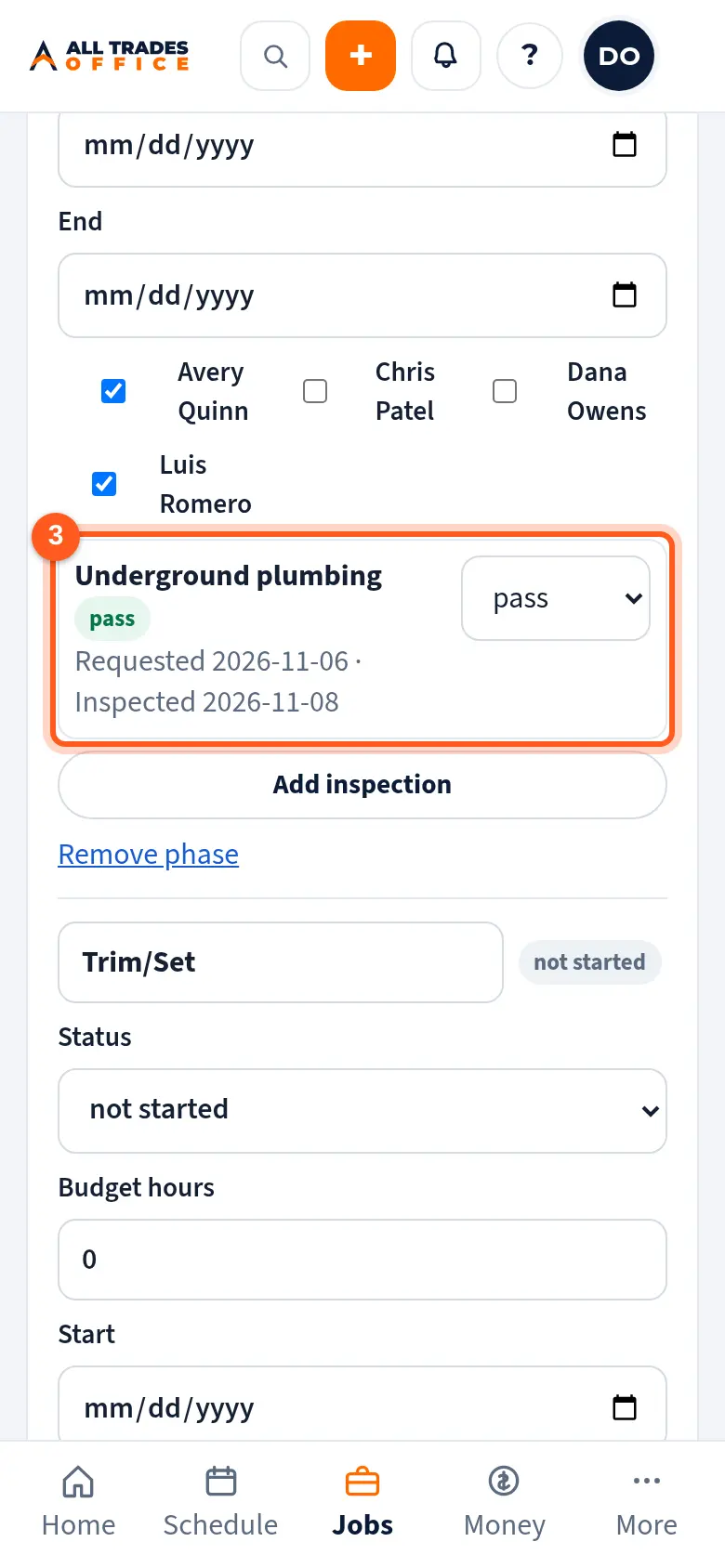
Change the result on the phase when you hear back. A failed inspection shows a red badge on the project until you tap Log re-inspection.
Related
- Start a projectSet up a construction or remodel project with the GC or owner, contract value, and phases.
- Daily reports, inspection checklists, and safety checksFill out the day's report or a checklist from the project, then submit it for a PDF.