
Project photos with tags
Upload photos to a project, tag them before, progress, after, or issue, and filter later.
Who can do this: Owner, Admin, Office, Service Tech, Field Worker. Needs: Photos turned on in Settings → Features.
Last updated
Tap a photo to see it full size.
Steps
Open the project and scroll to Photos.
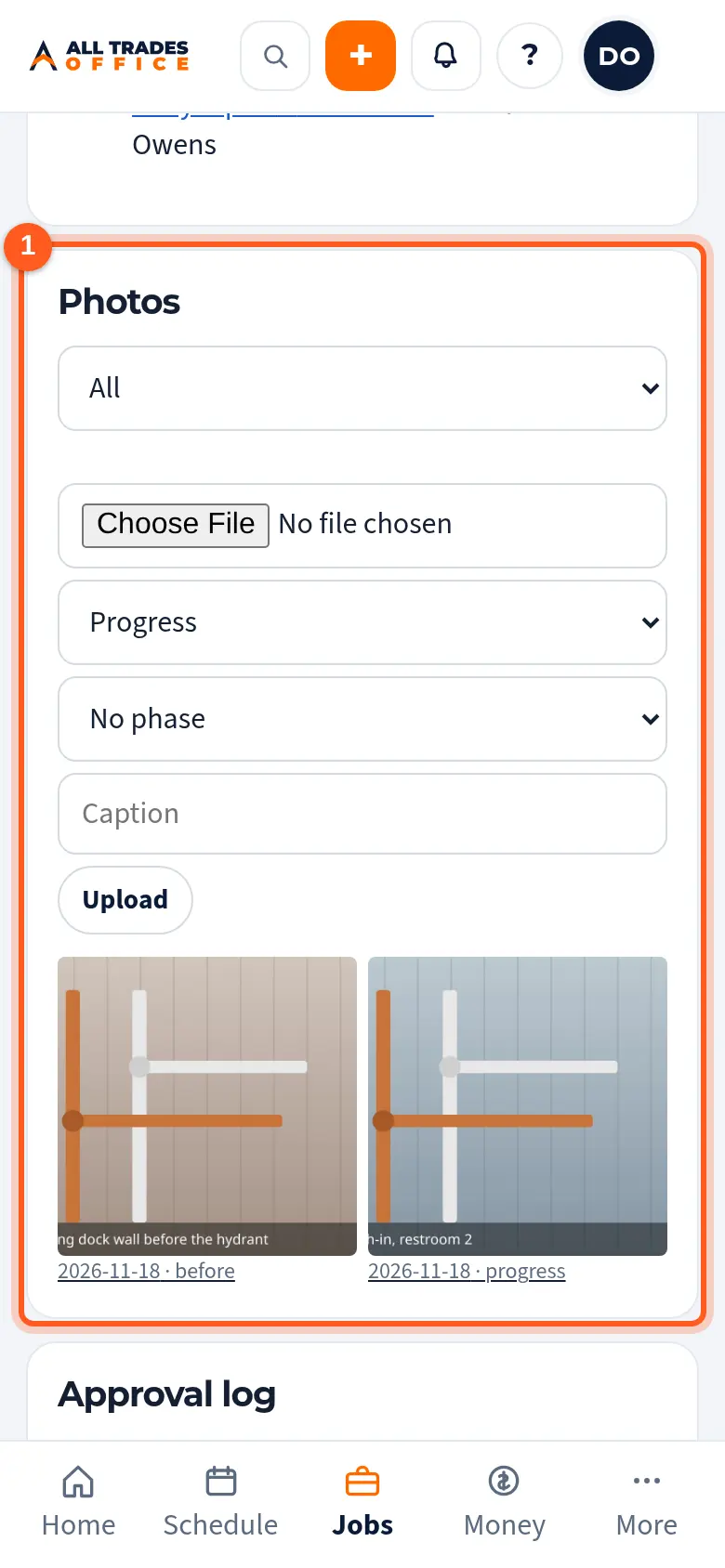
Choose a picture or take one, pick the tag and phase, add a caption, and tap Upload.
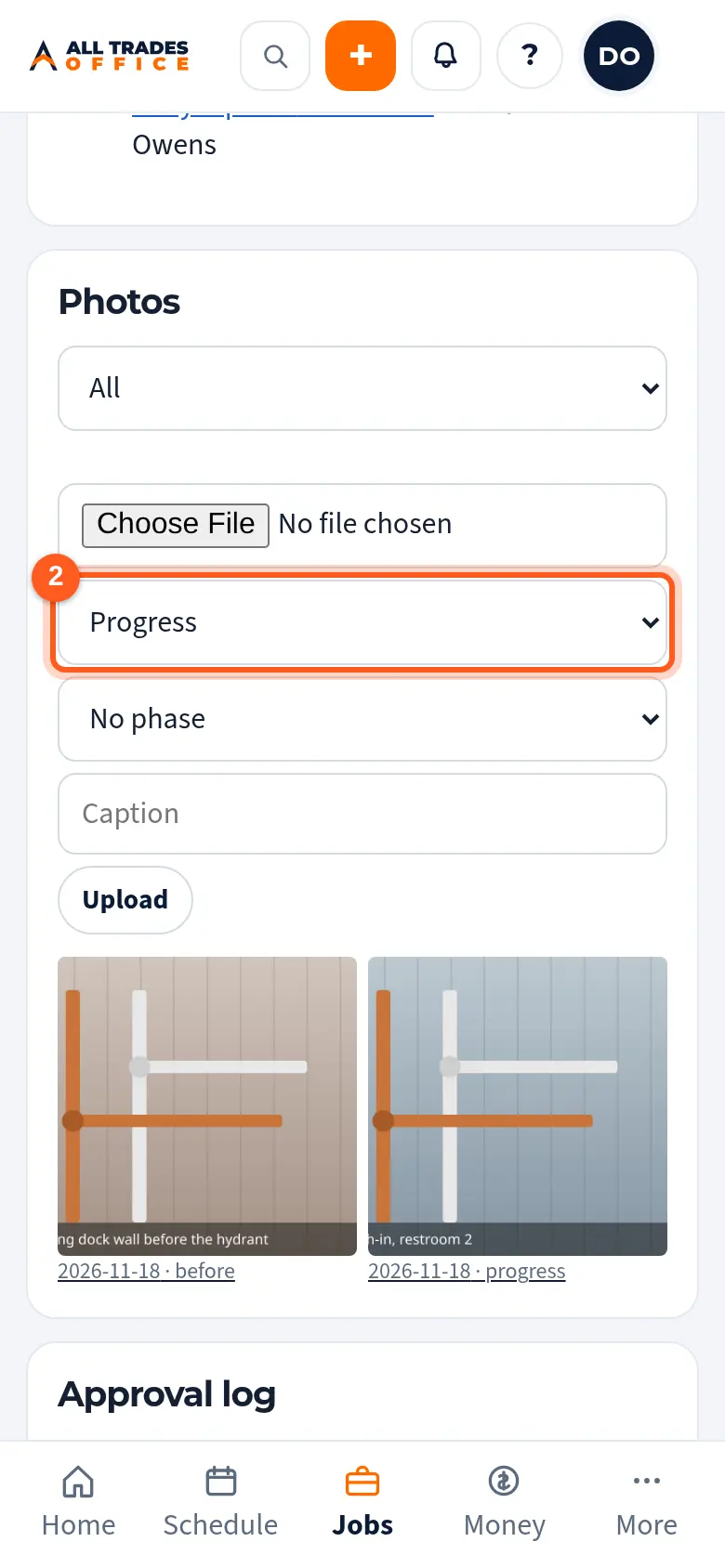
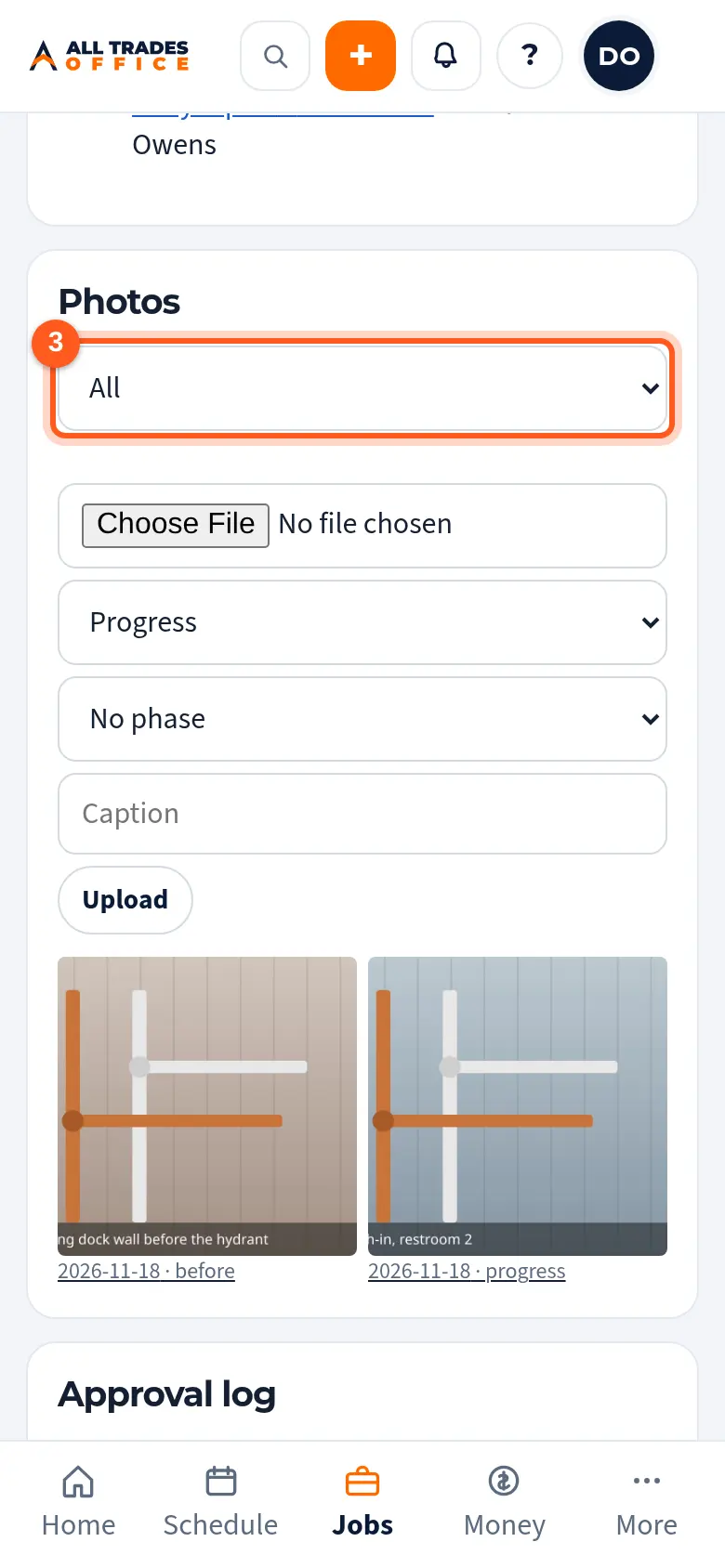
Use the menu next to Photos to show only Before, Progress, After, or Issue photos.
Related
- Field notes and job photosAdd notes and photos from the job on your phone. The office sees them on the job right away.
- Daily reports, inspection checklists, and safety checksFill out the day's report or a checklist from the project, then submit it for a PDF.