
Find your way around the menu
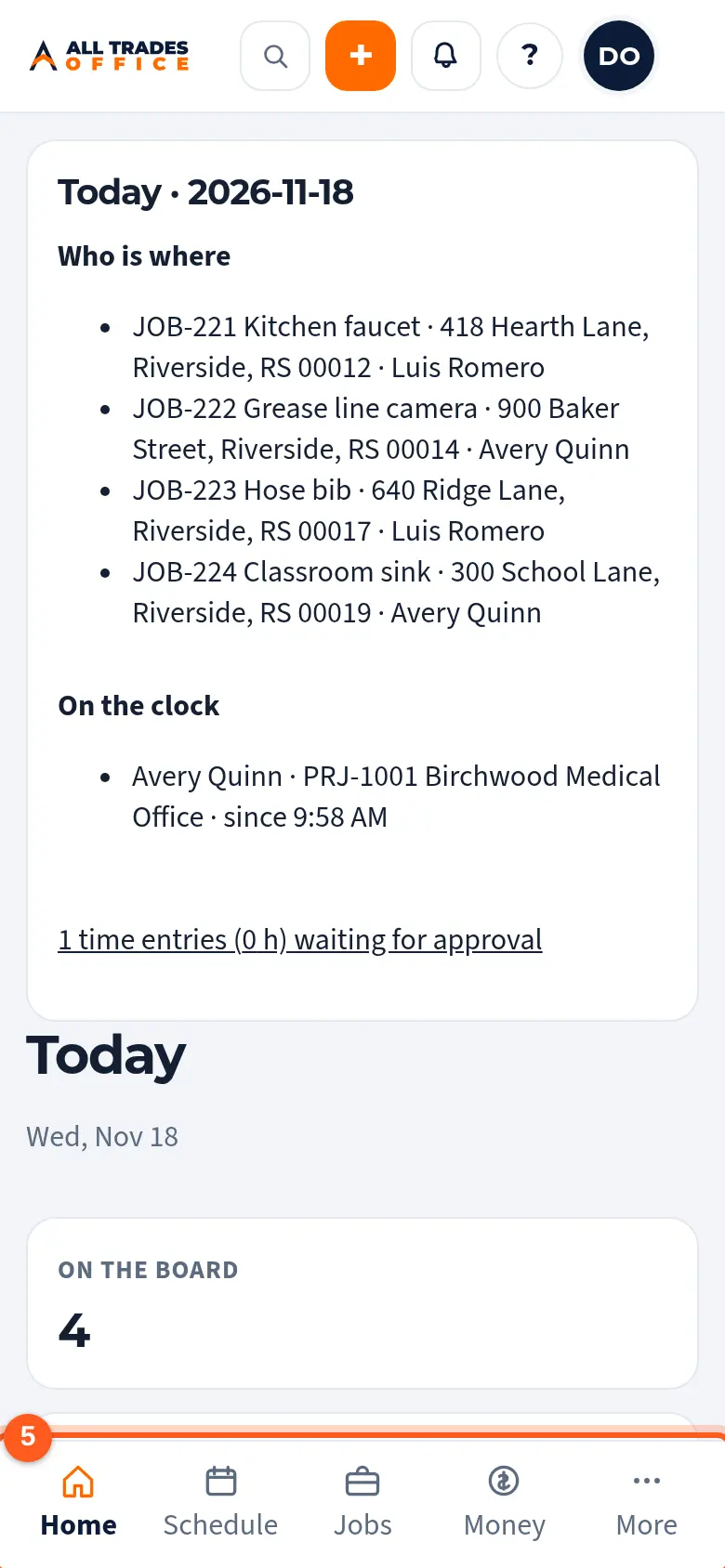
The menu is grouped into Home, Schedule, Jobs, Money, Paperwork, Team and Settings. Search and + are at the top.
Who can do this: Owner, Admin, Office, Service Tech, Field Worker.
Last updated
The menu is a set of shortcuts. Estimates, invoices, forms and T&M tickets are still linked on the customer, job or project they belong to, so you can always find them from there too.
Steps
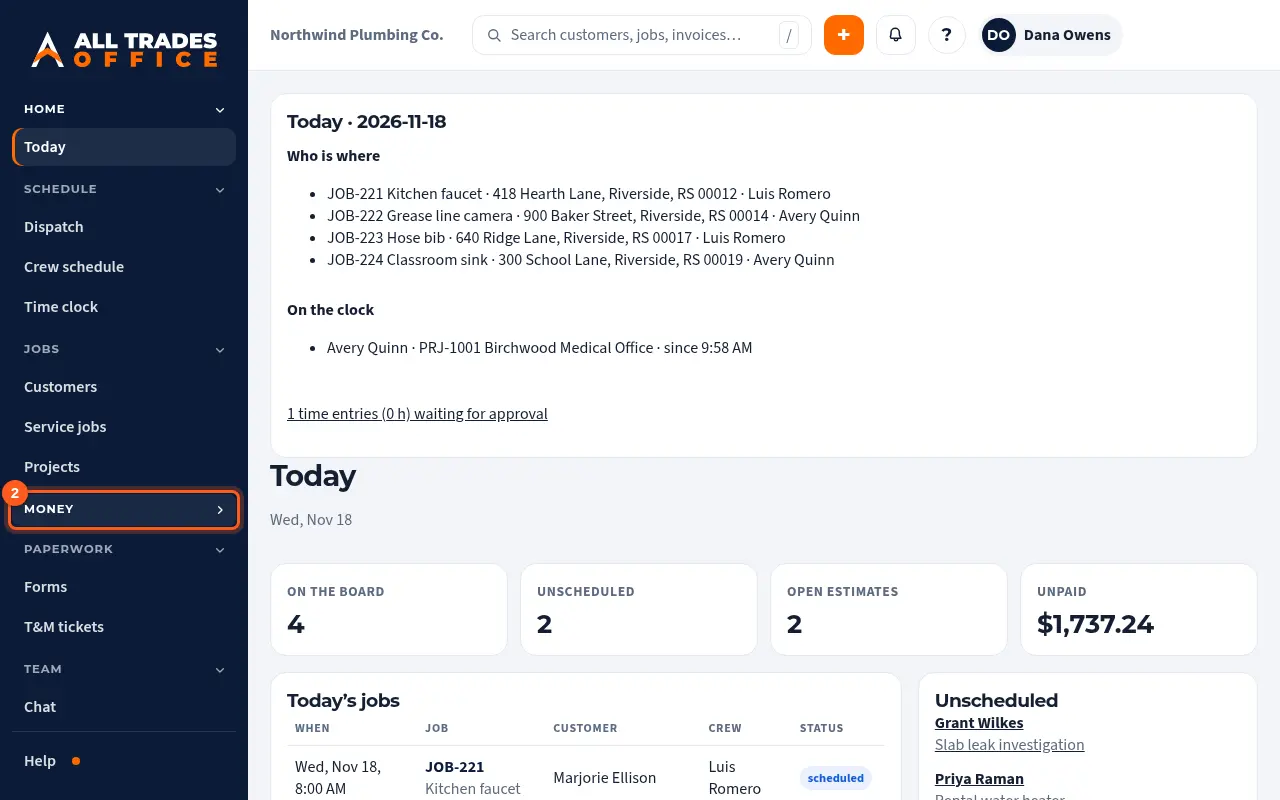
On a computer, the menu down the left side is split into groups. Click a group name, like Money, to hide or show what's in it. ATO remembers which groups you closed on this computer.
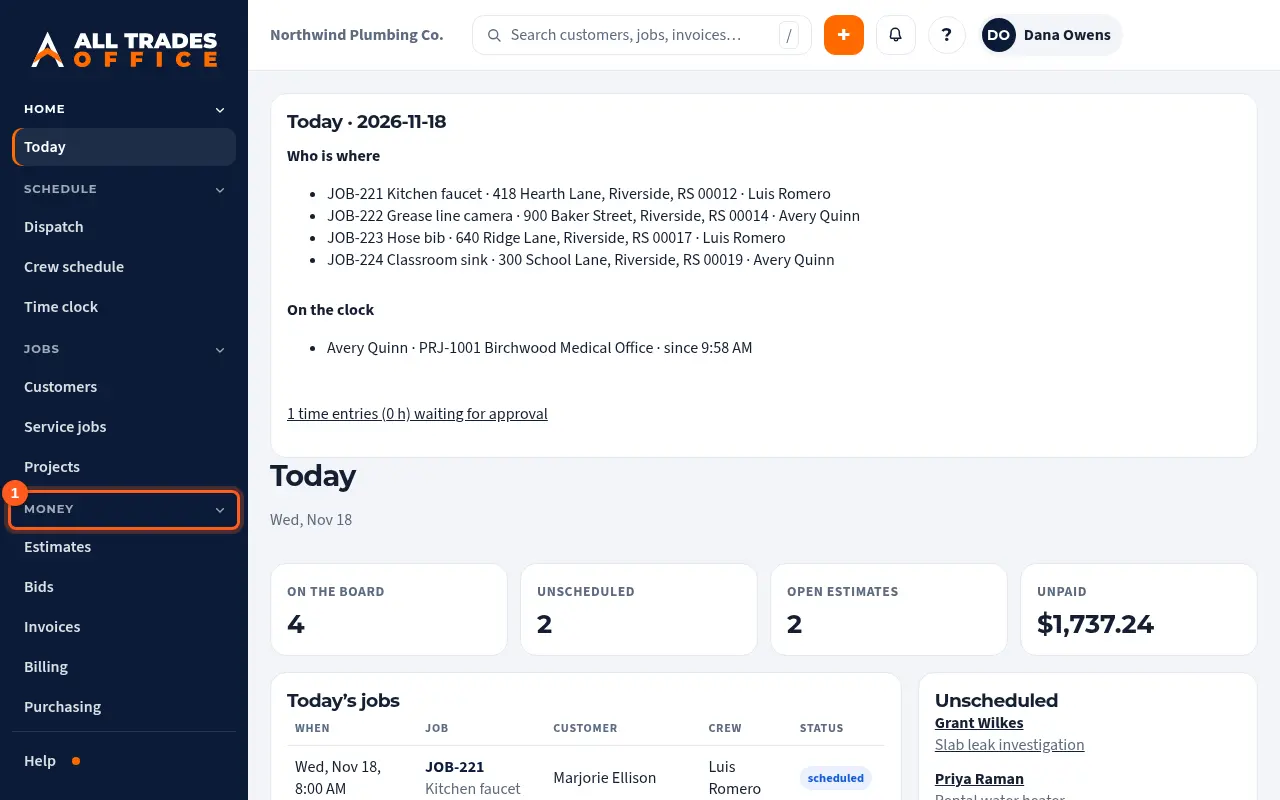
Closed groups fold down to just their name, so the menu stays short. Click the name again to open it.
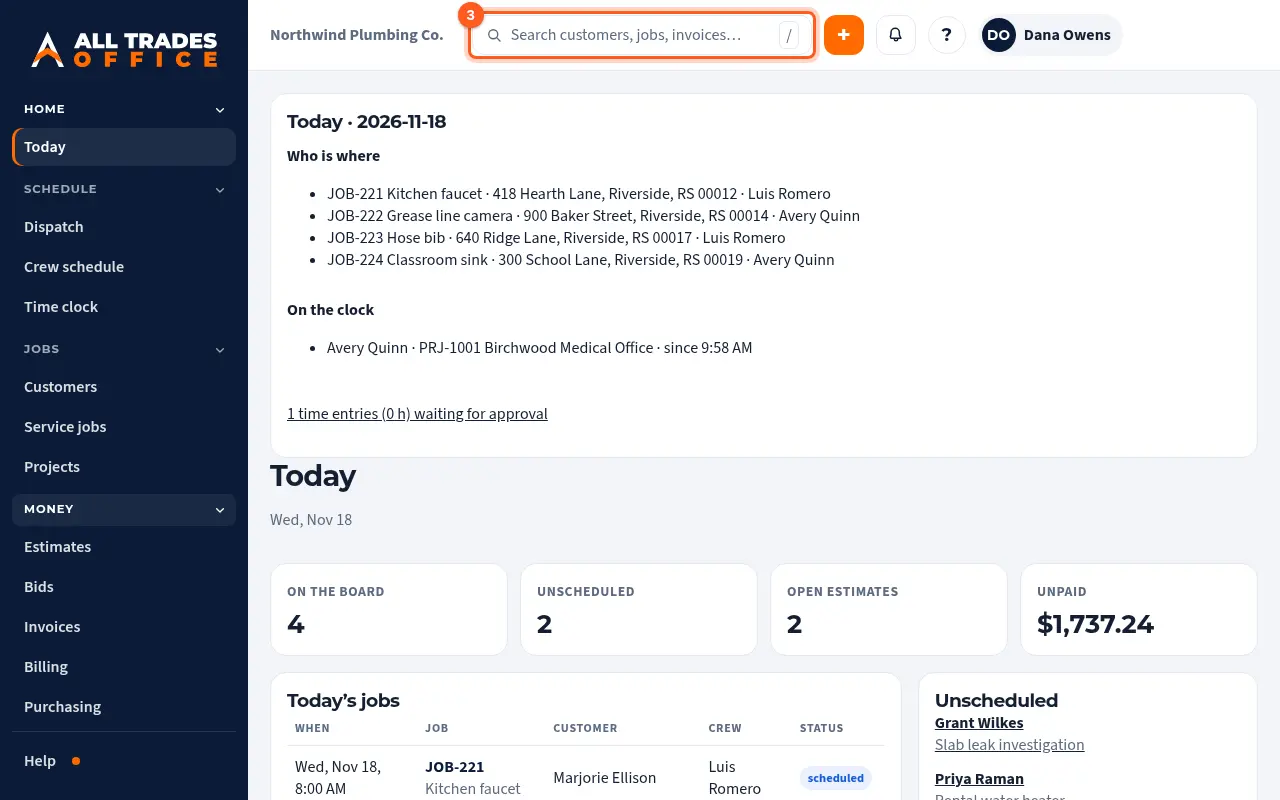
Use Search at the top to jump to a screen, customer, job, project, estimate or invoice. On a computer you can also press / or Ctrl+K.
Tap + to start something new, like a customer, job, estimate or shift, from any screen.
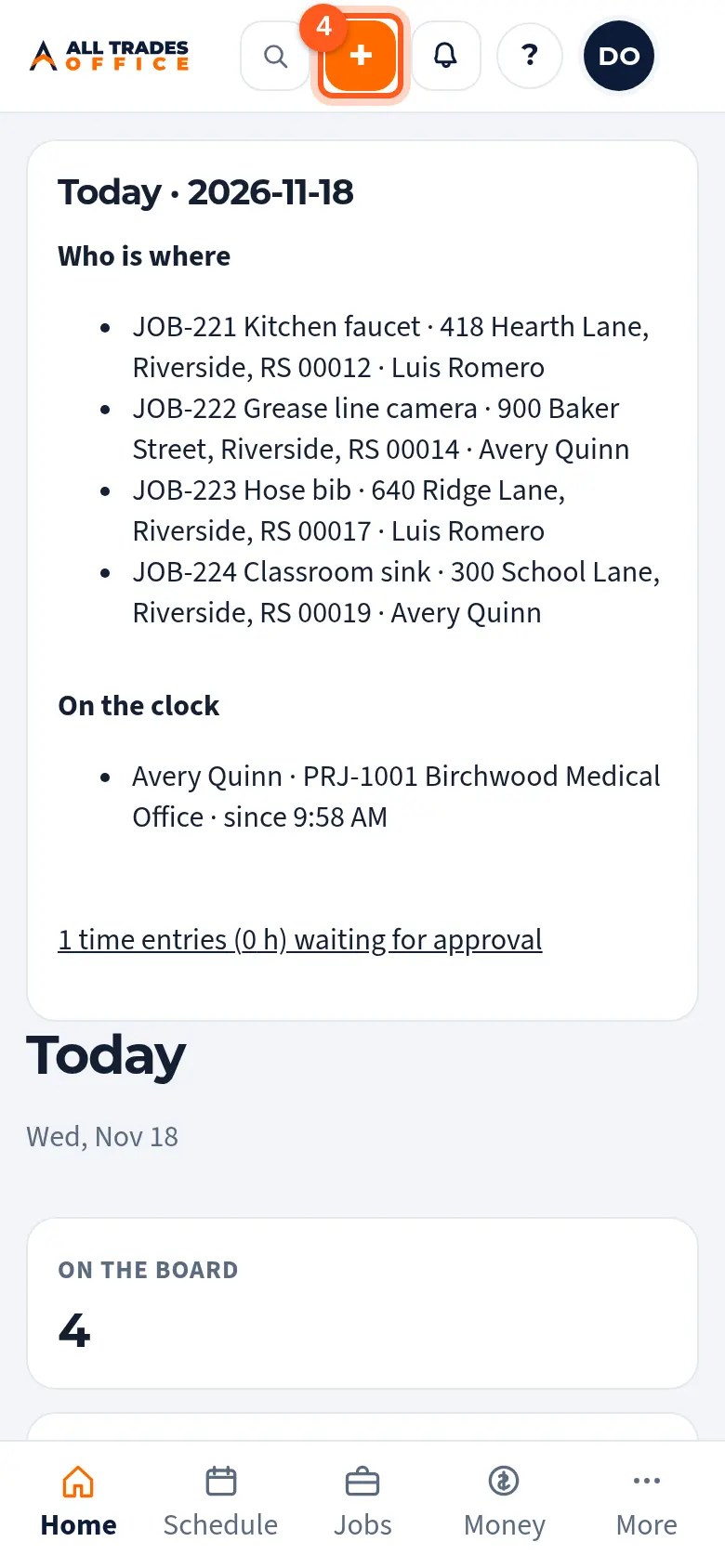
On a phone, the bar at the bottom has Home, Schedule, Jobs, Money and More. More opens the rest of the menu.
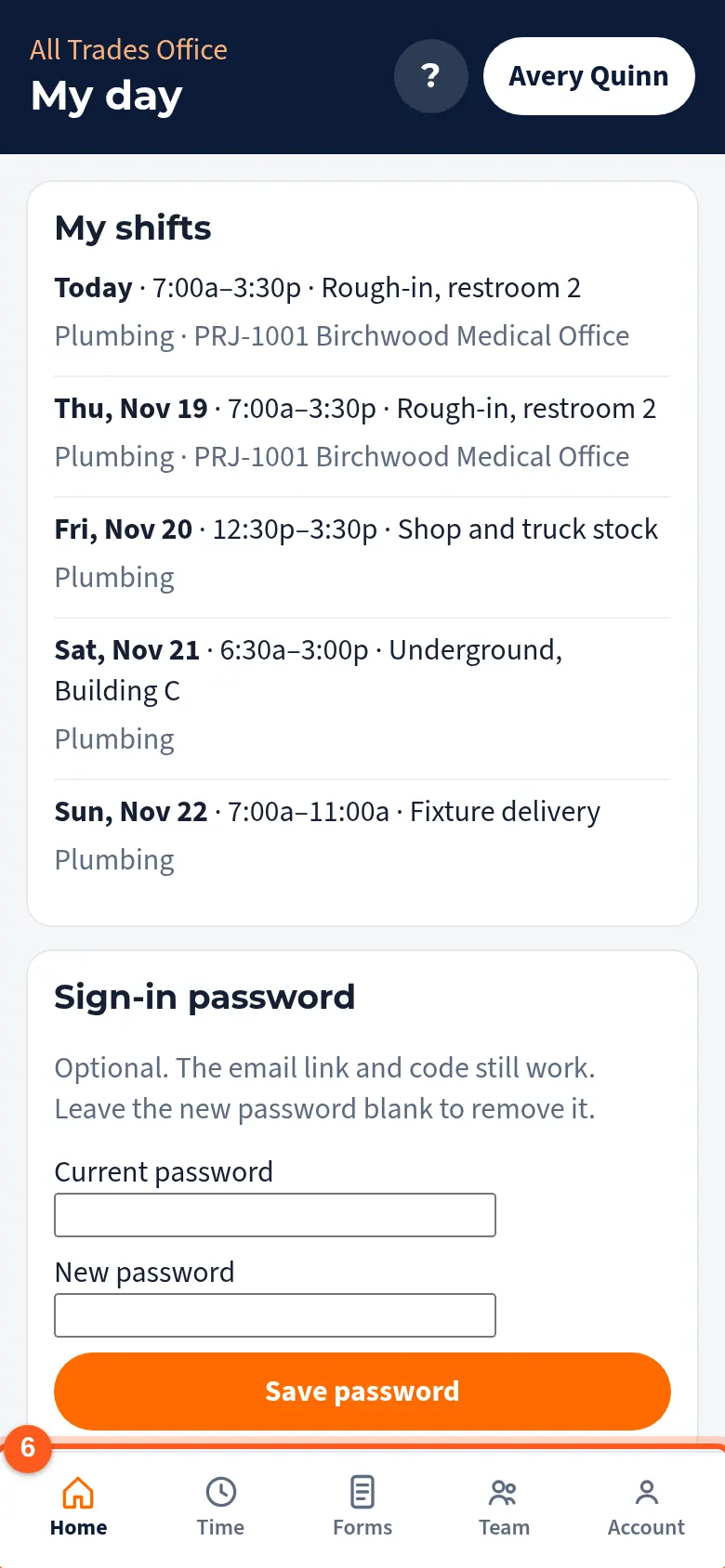
Service Techs and Field Workers get Home, Time, Forms, Team and Account instead. Account has Help, notifications and Log out.
Where things went
- Schedule holds Dispatch (the job calendar), Crew schedule (who works when) and the Time clock.
- Jobs holds Customers, Service jobs and Projects.
- Money holds Estimates, Bids, Invoices, Billing, Purchasing and the Price book.
- Paperwork lists every form and T&M ticket in one place.
- Team holds Chat, Announcements, Tasks, the Directory and People & access.
- Reminders moved to the bell at the top of the screen.
- Help is at the bottom of the menu, and the ? at the top of every screen opens help for that screen.
Good to know
- You only see groups and screens your role and your company's features include. People in the field never see Money or Settings.
- Closed groups are remembered per person on each computer or phone.
Related
- A menu item is missingWhy you might not see a screen, like Projects or Purchasing, and how to get it.
- "That page moved"Why the app sometimes sends you to your dashboard or your day.
- Build the crew schedulePlan who works when, by week or day, then publish so your crew sees their shifts.
- Paperwork in one placeSee every form and T&M ticket across your jobs and projects on one screen.