
Build the crew schedule
Plan who works when, by week or day, then publish so your crew sees their shifts.
Who can do this: Owner, Admin, Office. Needs: Crew schedule turned on in Settings → Features.
Last updated
The crew schedule is for planning people's working hours. It sits next to Dispatch, which plans service jobs and project phases.
Steps
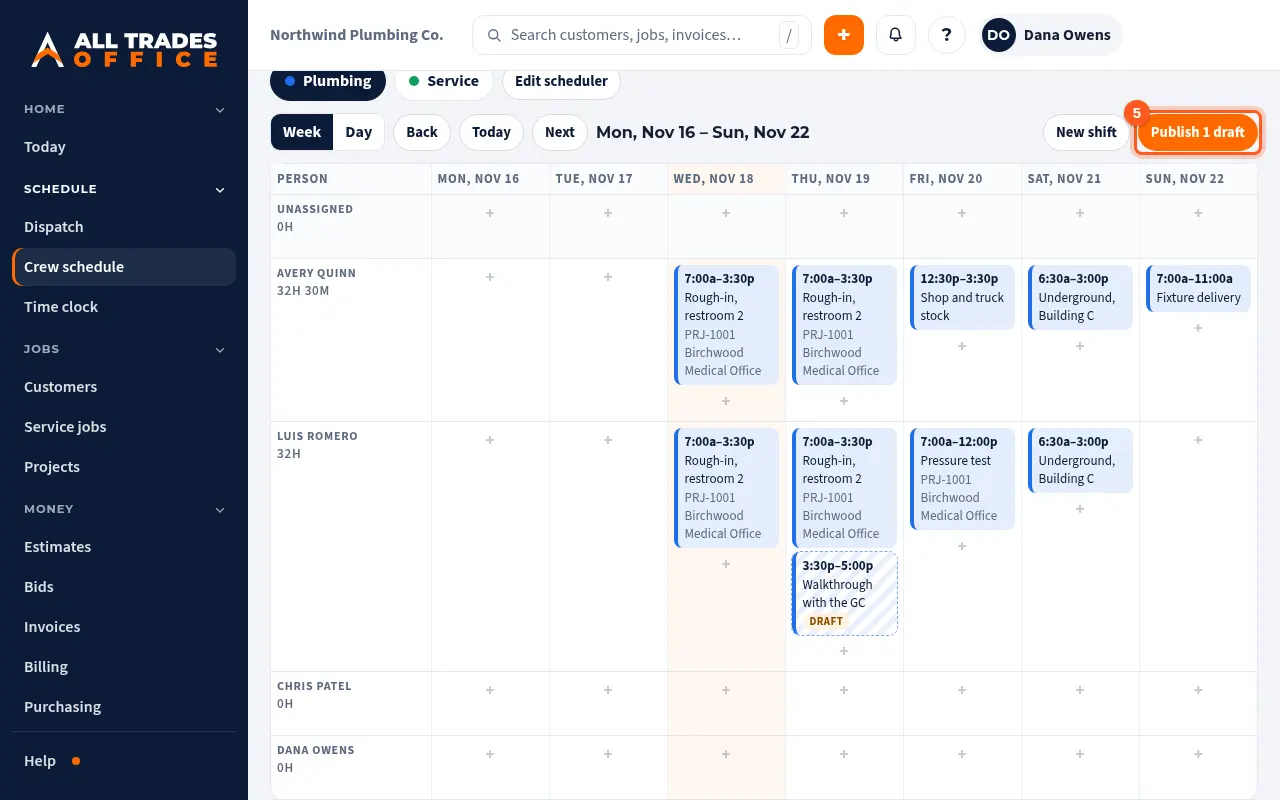
Open Schedule and pick the Crew schedule tab. Dispatch is the job calendar; Crew schedule is who works when.
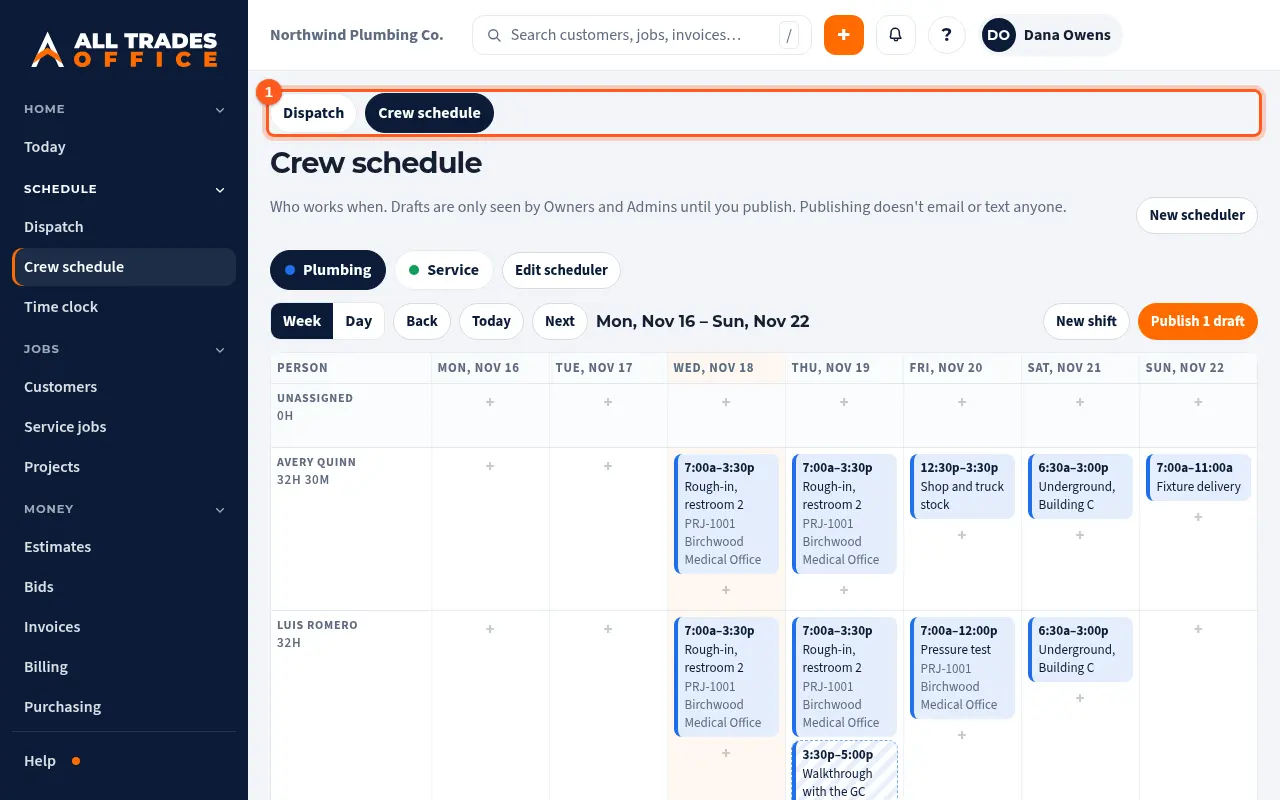
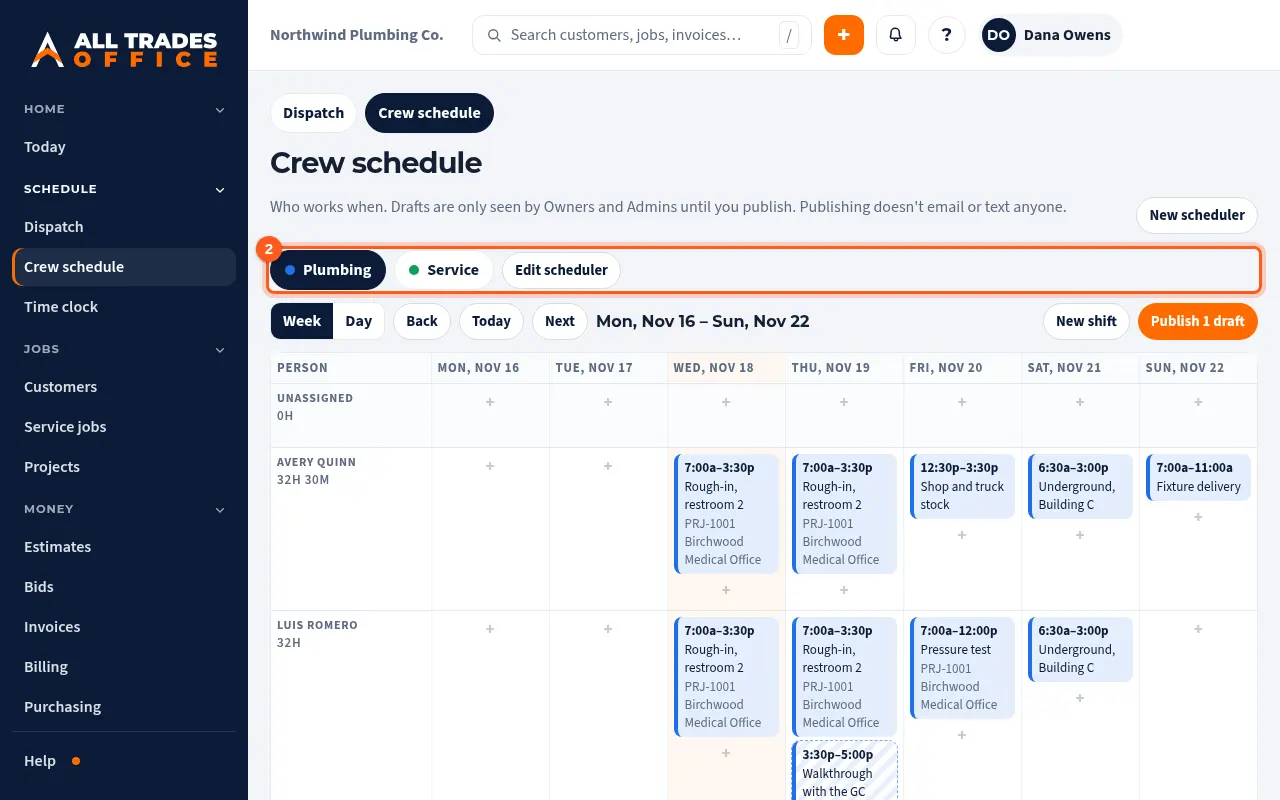
Each scheduler is its own board, like Plumbing or Service. Pick one at the top. Owners and Admins can add one with New scheduler.
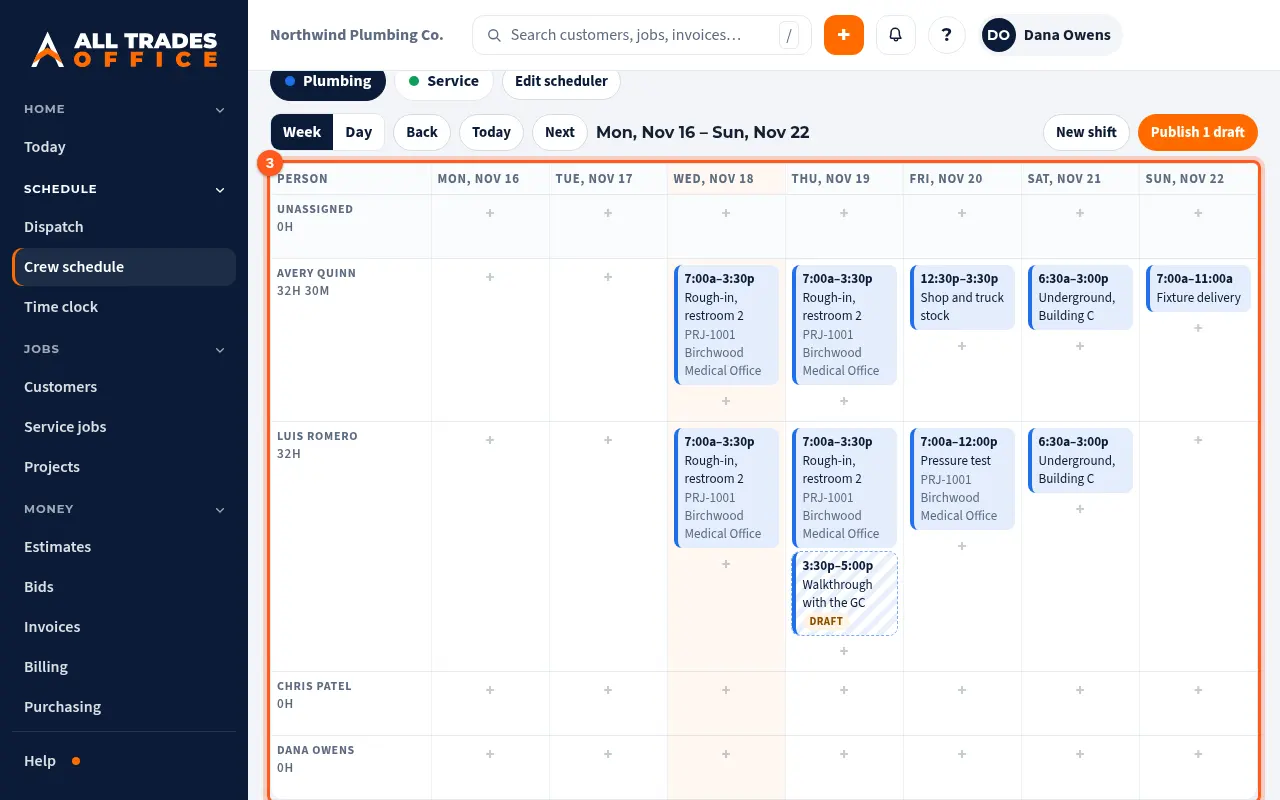
The week shows one row per person, with their hours for the week. Use Week and Day, and Back, Today and Next to move around.
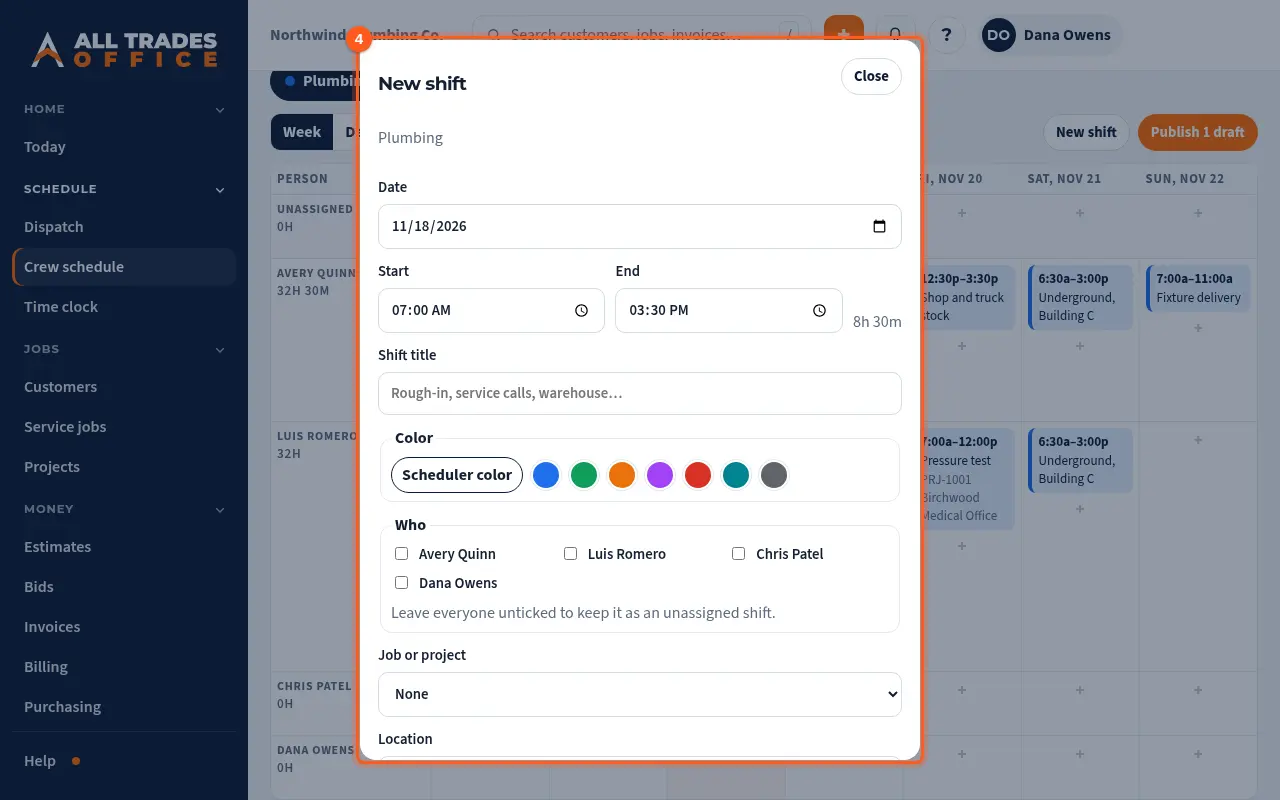
Click + in a person's day, or New shift, to add a shift. Set the date, start and end, a title and color, who's on it, and link a job or project if you like.
New shifts are drafts until you publish. Only Owners and Admins see drafts. When the week looks right, click Publish.
Good to know
- Only Owners and Admins can add, change, publish or delete shifts. Office sees published shifts.
- Publishing doesn't email, text or send phone notifications. Your crew sees their published shifts on My day and the Time screen.
- A shift marked Overlap has someone booked twice at the same time.
- Shifts can run past midnight. Hours count to the end time the next morning.
- A scheduler that has shifts can't be deleted, but you can archive it. Archived schedulers stay readable.
- Turn the crew schedule on or off in Settings → Features.
Related
- See your shiftsYour published shifts show on My day and on the Time screen.
- Assign techs and dispatch from the schedulePut the right people on each job and see the whole day or week at a glance.
- Clock in and out by job, phase, and cost codeTrack your hours against the right job so job costing stays accurate.