
Install ATO on Windows with Chrome
Put All Trades Office on your taskbar and Start menu so it opens in its own window.
Who can do this: Owner, Admin, Office, Service Tech, Field Worker.
Last updated
Installing doesn't change anything about your account. It's the same All Trades Office, just in its own window with its own icon. You can still use it in a normal Chrome tab.
Steps
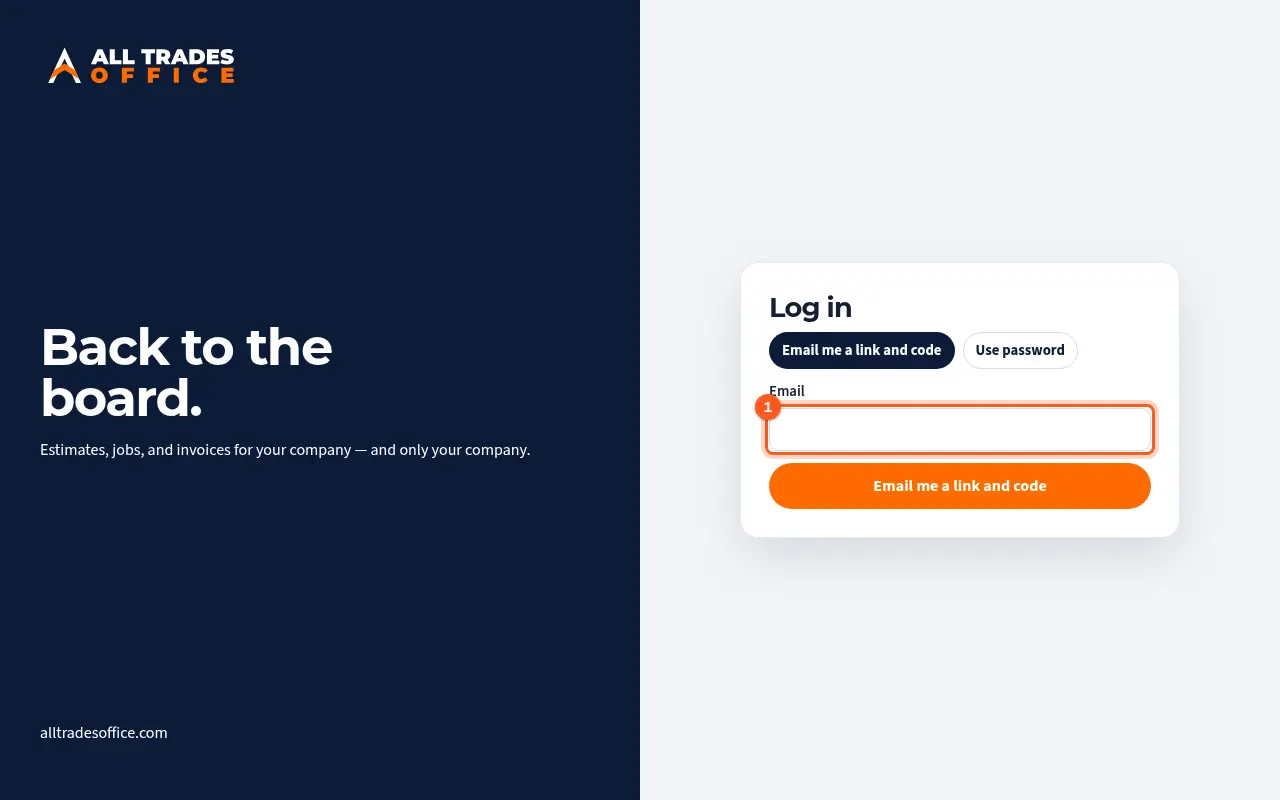
On your Windows computer, open Google Chrome and go to alltradesoffice.com. Sign in with your work email.
In Chrome's address bar, click the Install icon on the right. If you don't see it, click More (the three dots, top right), then Cast, save, and share, then Install page as app.
This step happens on your phone, outside All Trades Office.
Click Install. All Trades Office opens in its own window.
This step happens on your phone, outside All Trades Office.
To keep it on your taskbar, right-click the All Trades Office icon on the taskbar and choose Pin to taskbar.
This step happens on your phone, outside All Trades Office.
To add it to Start, open the Start menu, find All Trades Office under All apps, right-click it and choose Pin to Start.
This step happens on your phone, outside All Trades Office.
Using Microsoft Edge
In Edge, click Settings and more (the three dots), then Apps, then Install this site as an app. Pinning to the taskbar and Start works the same way.
Good to know
- Chrome's menu names change from time to time. If a name looks different, look for Install in the address bar or the three-dot menu.
- When you use ATO in Chrome or Edge on Windows, a small tip on your dashboard links here. Click Not now to hide it on that computer.
- To remove it, open All Trades Office, click the three dots in its window, and choose Uninstall.
Related
- Signing inSign in with a link and code sent to your email, or with a password.
- Find your way around the menuThe menu is grouped into Home, Schedule, Jobs, Money, Paperwork, Team and Settings. Search and + are at the top.