
Match customers, items, and deposit accounts
Tell QuickBooks which customer, item, and bank account each thing belongs to before the first sync.
Who can do this: Owner. Needs: QuickBooks Online turned on in Settings → Features.
Last updated
After you connect, three tabs show below the connection: Items and accounts, Customers, and Sync log.
Steps
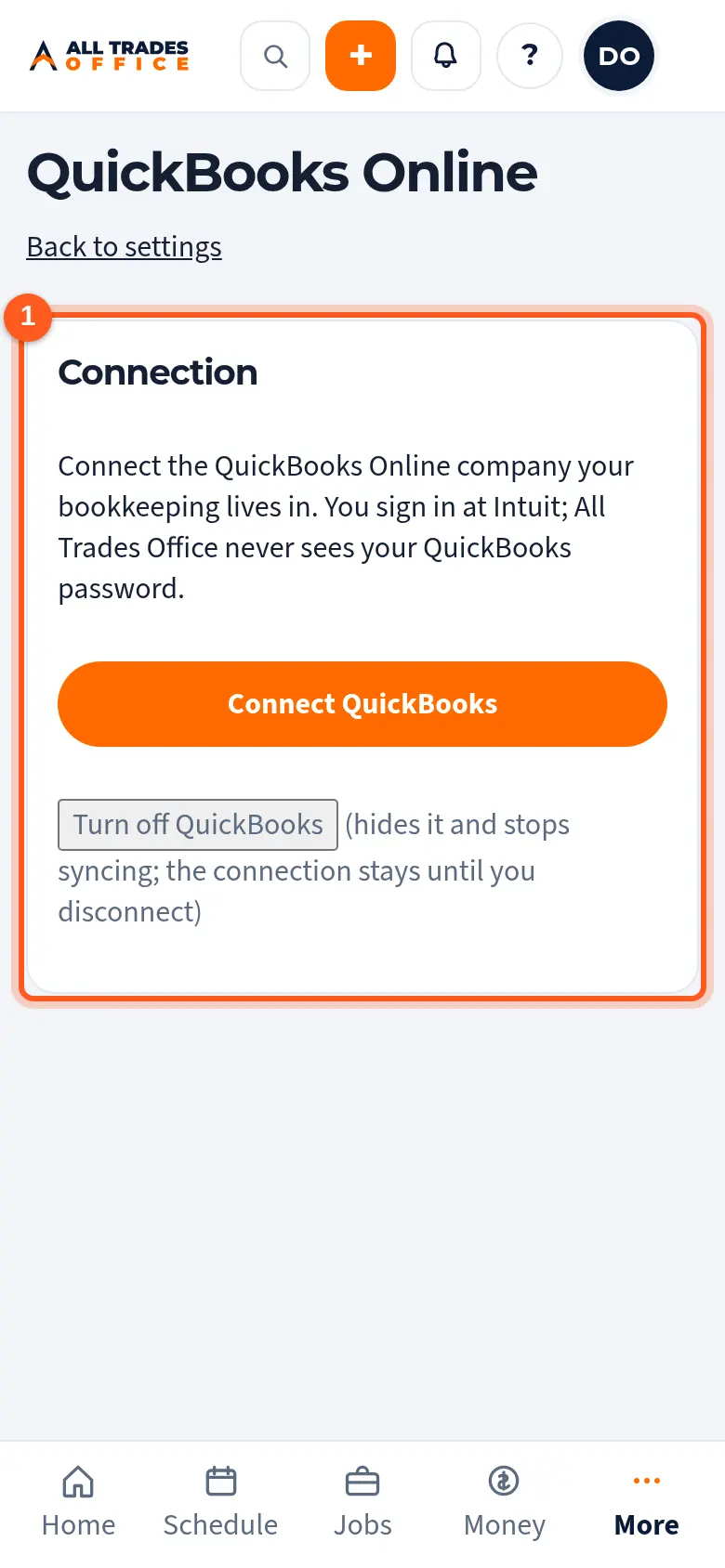
Open Settings → Integrations. Once QuickBooks is connected, the matching tabs show under Connection.
Items and accounts
- Under Items, pick the QuickBooks product or service item for each kind of invoice line. The item decides the income account.
- If you don't have a good item, tap New item, name it, pick the account, and tap Create in QuickBooks.
- Under Deposit accounts, pick where each kind of payment lands. Leave it blank to use QuickBooks' default, usually Undeposited Funds.
For retainage, use an item tied to a Retainage Receivable account your accountant set up.
Customers
- Open the Customers tab. Each of your customers shows a suggested QuickBooks match, by email first, then by name.
- Fix any wrong match, then tap Apply. Nothing is created or linked until you do.
- Tap Unlink to undo a match.
Invoices for customers that aren't matched wait until you match them.
Related
- Connect QuickBooks OnlineTurn on QuickBooks and connect the company your bookkeeping lives in.
- Fix "Needs attention" items in QuickBooksSee what didn't sync, fix it, and try again.