
Pay apps: schedule of values and progress billing
Set up the schedule of values, bill each period's progress, and export the continuation sheet.
Who can do this: Owner, Admin, Office with “See contract values, change order money and pay apps” turned on for their role. Needs: Pay apps turned on in Settings → Features.
Last updated
Pay apps bill against the schedule of values. Approved change orders add their own lines.
Steps
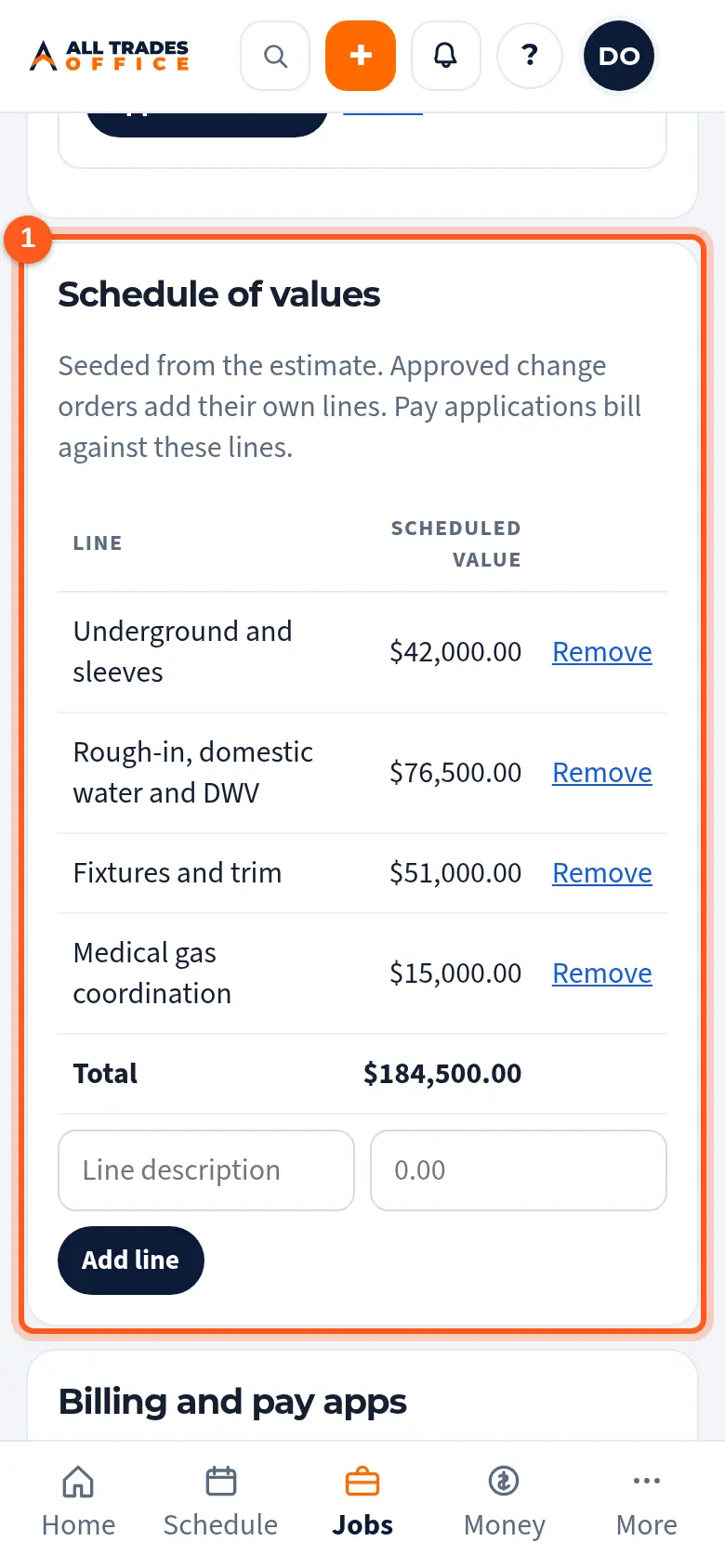
Open the project and check the Schedule of values. The lines must add up to the contract. Add a line with a description and amount, and tap Add line.
Under Billing and pay apps, tap Billing schedule to set the cycle, submit date, GC pay terms, retainage, and billing contact. Tap Save.
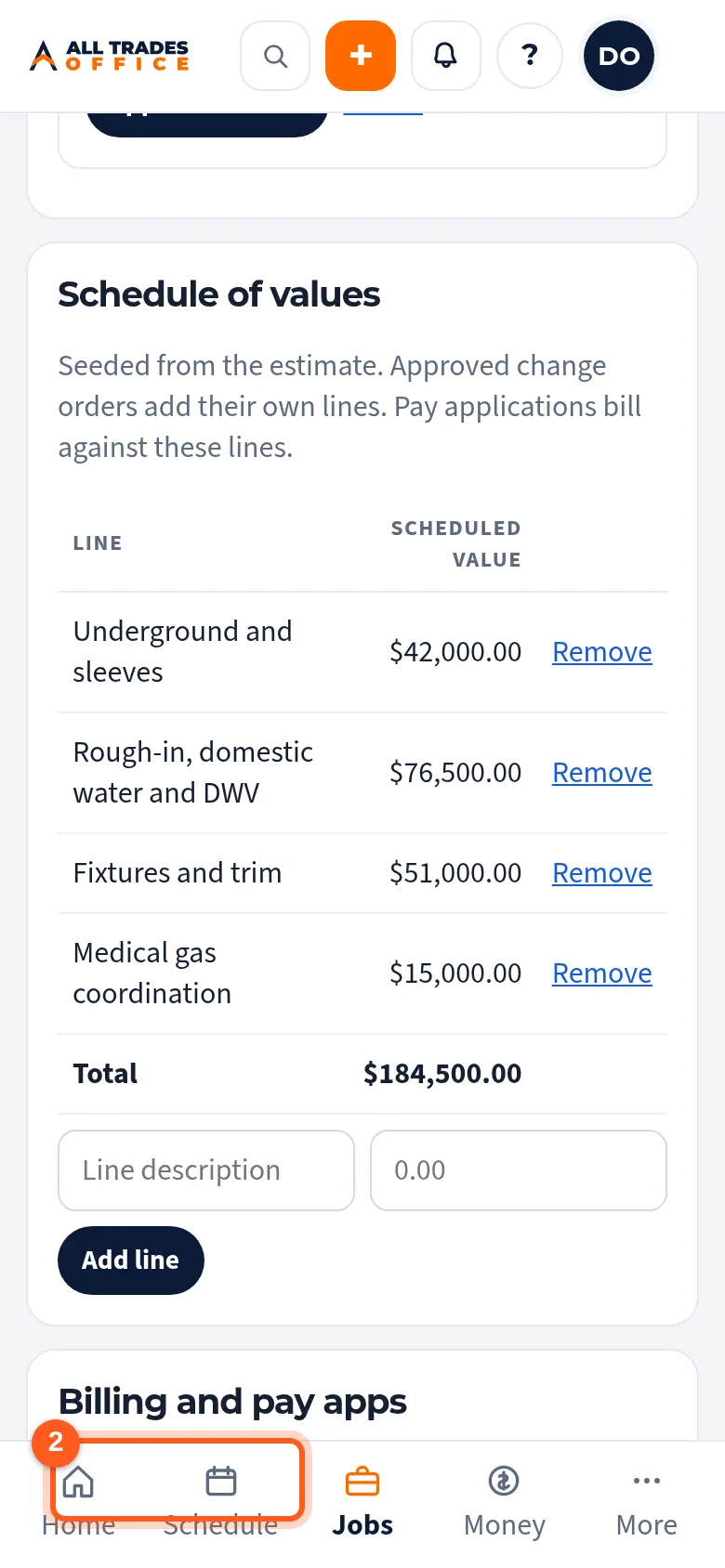
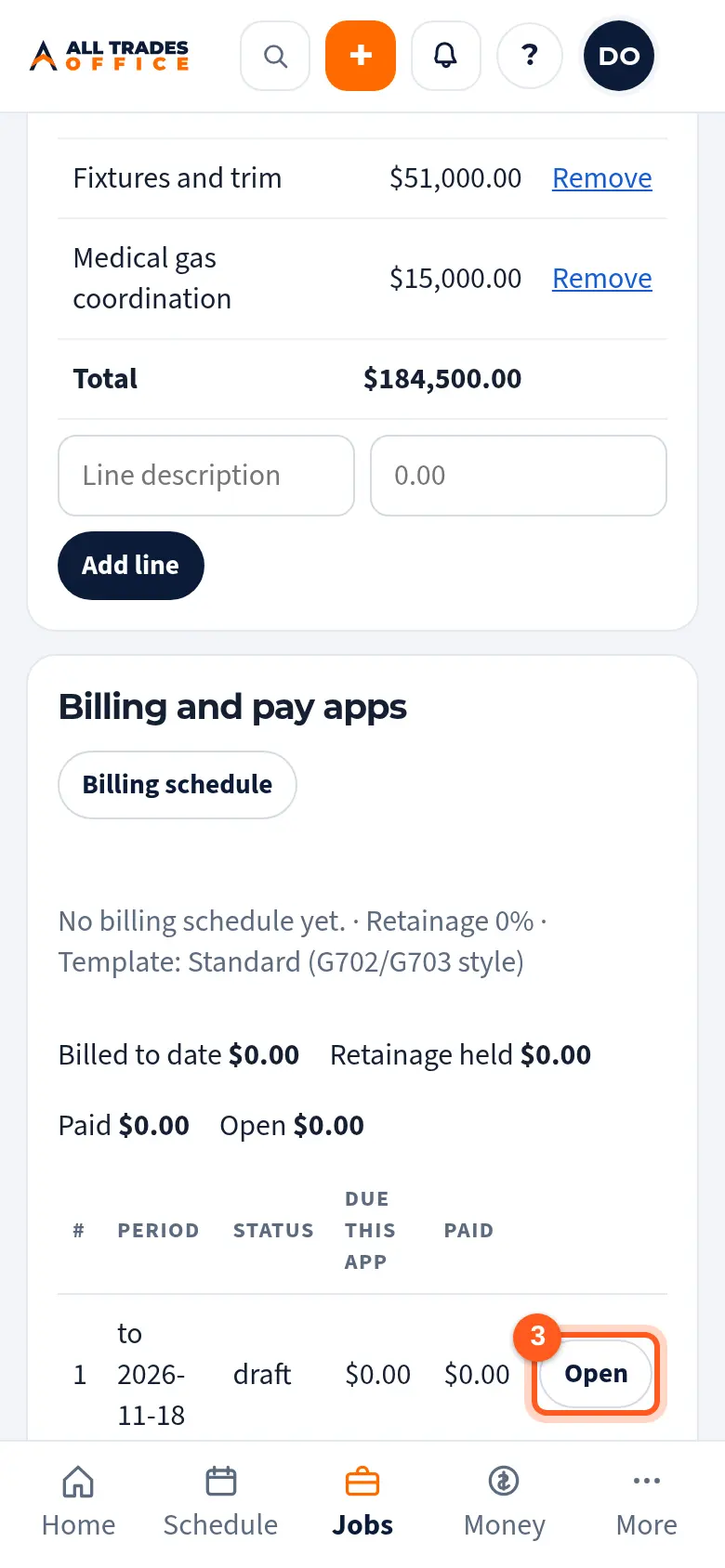
Tap Start pay app for the new period, or Open on one that's started.
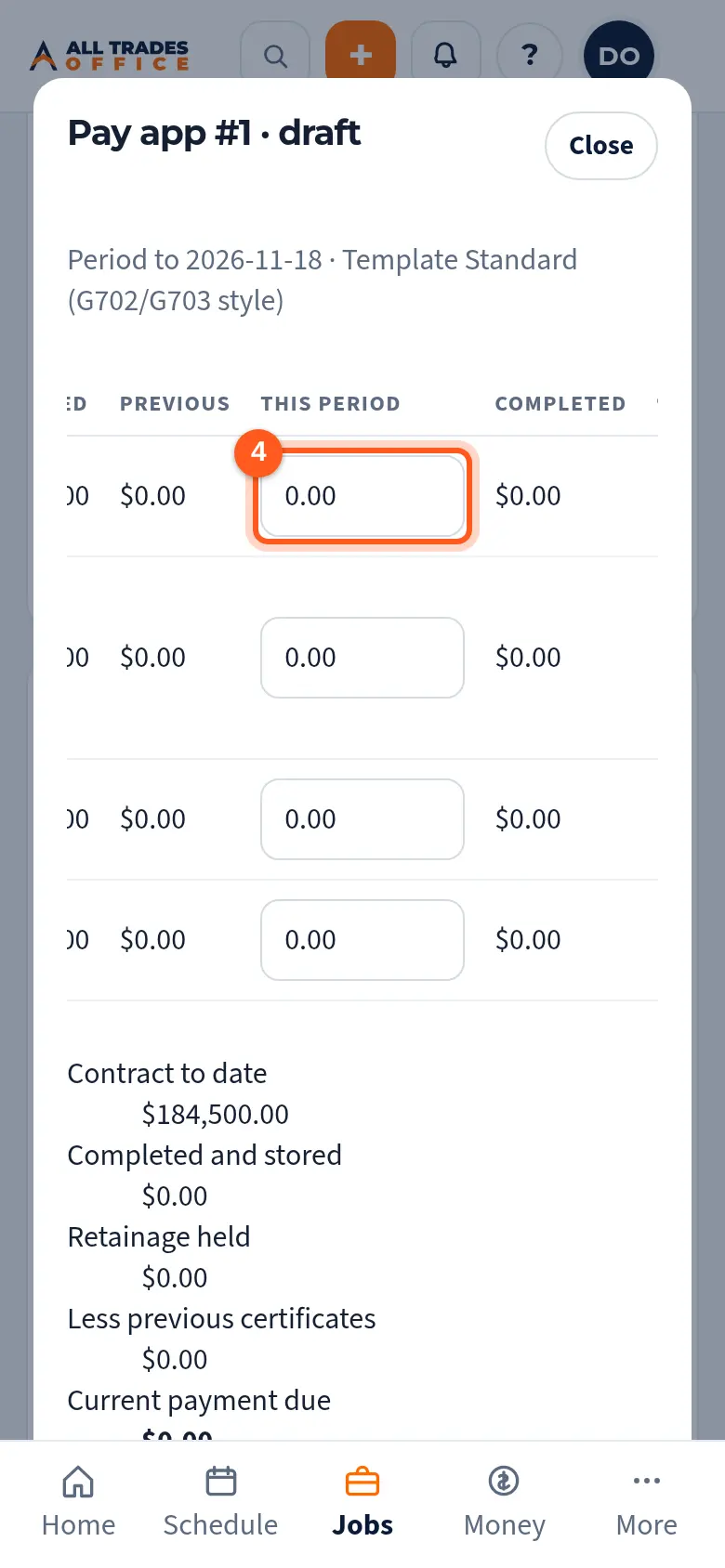
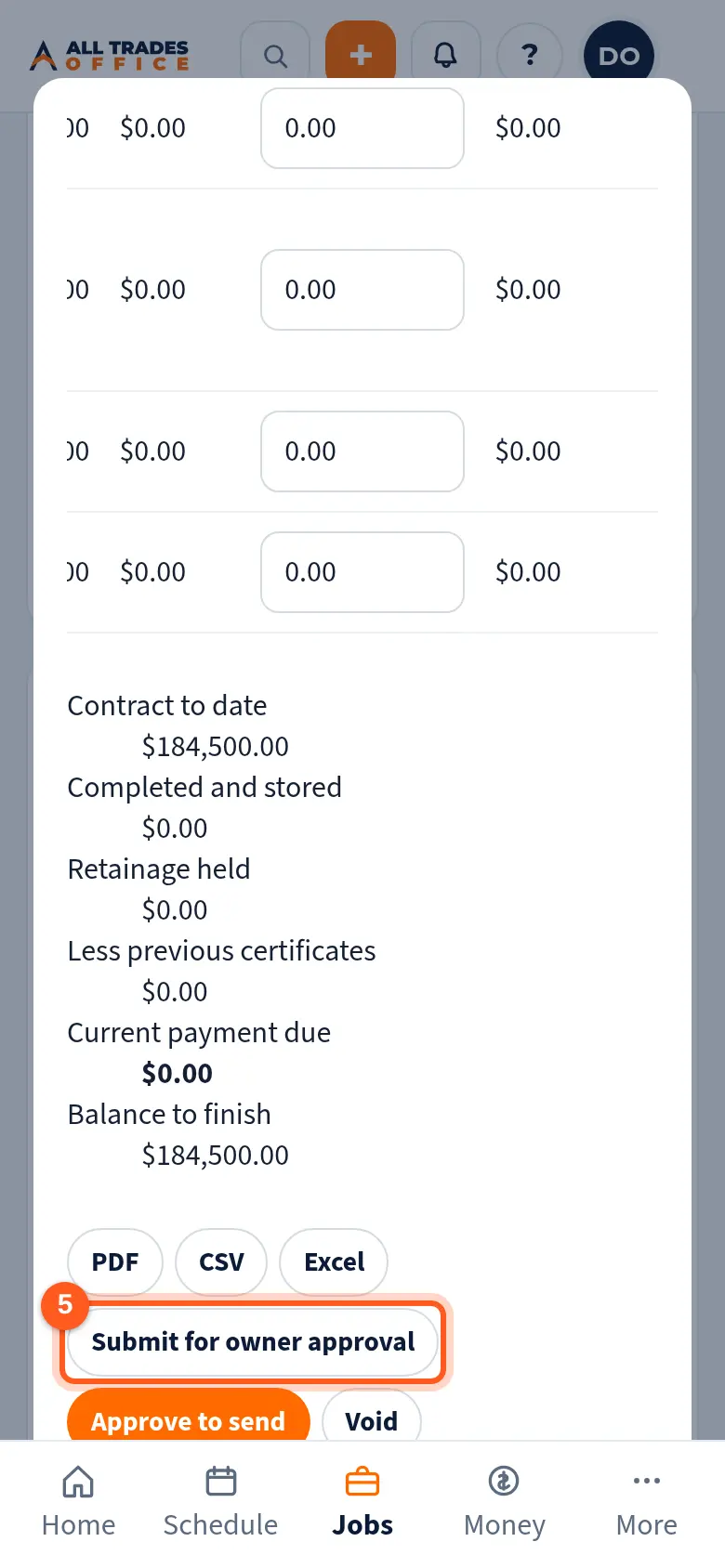
Enter the amount done This period on each line. Totals, retainage, and the current payment due update as you go.
Tap PDF, CSV, or Excel for the continuation sheet. Then tap Submit for owner approval. After the owner approves, send it by email or mark it sent through the GC's portal.
Good to know
- Nothing is sent to the GC until an owner approves the pay app.
- When the GC pays, open the pay app and tap Mark paid with the amount and check or reference number.
- Tap Bill retainage when the retainage held is due.
Related
- Billing tracker: aging, billed vs paid, and overdueSee every project's billing in one place, what's overdue, and which pay apps need a follow-up.
- Change orders: write, owner approves, sendWrite a change order, get the owner's OK inside the app, then send it to the GC or customer.
- Lien waivers with pay appsCheck the lien waiver form your company uses for pay apps.