
Change orders: write, owner approves, send
Write a change order, get the owner's OK inside the app, then send it to the GC or customer.
Who can do this: Owner, Admin, Office. Needs: Change orders turned on in Settings → Features.
Last updated
Change orders protect your money on extra work. Approved change orders are added to the revised contract and can be billed on a pay app.
Steps
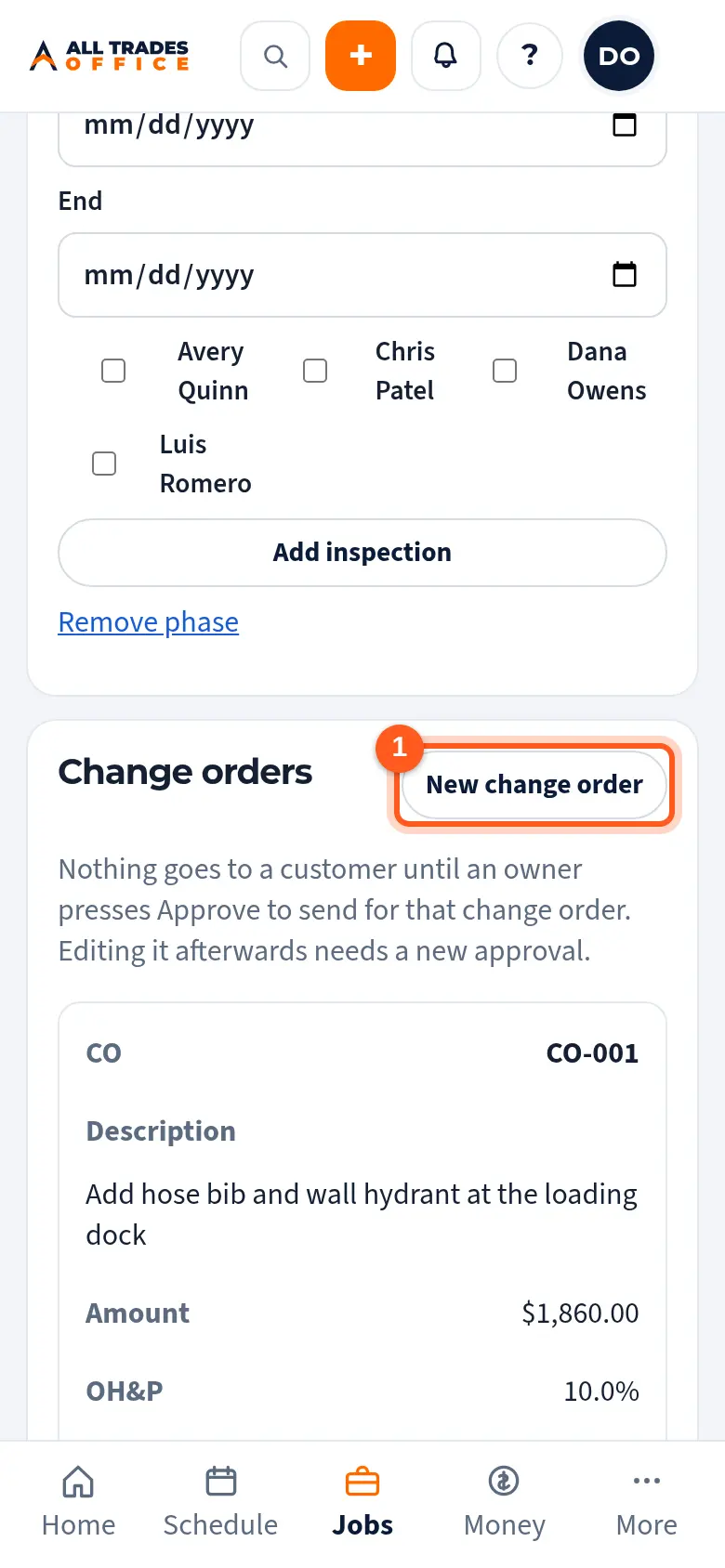
Open the project, scroll to Change orders, and tap New change order.
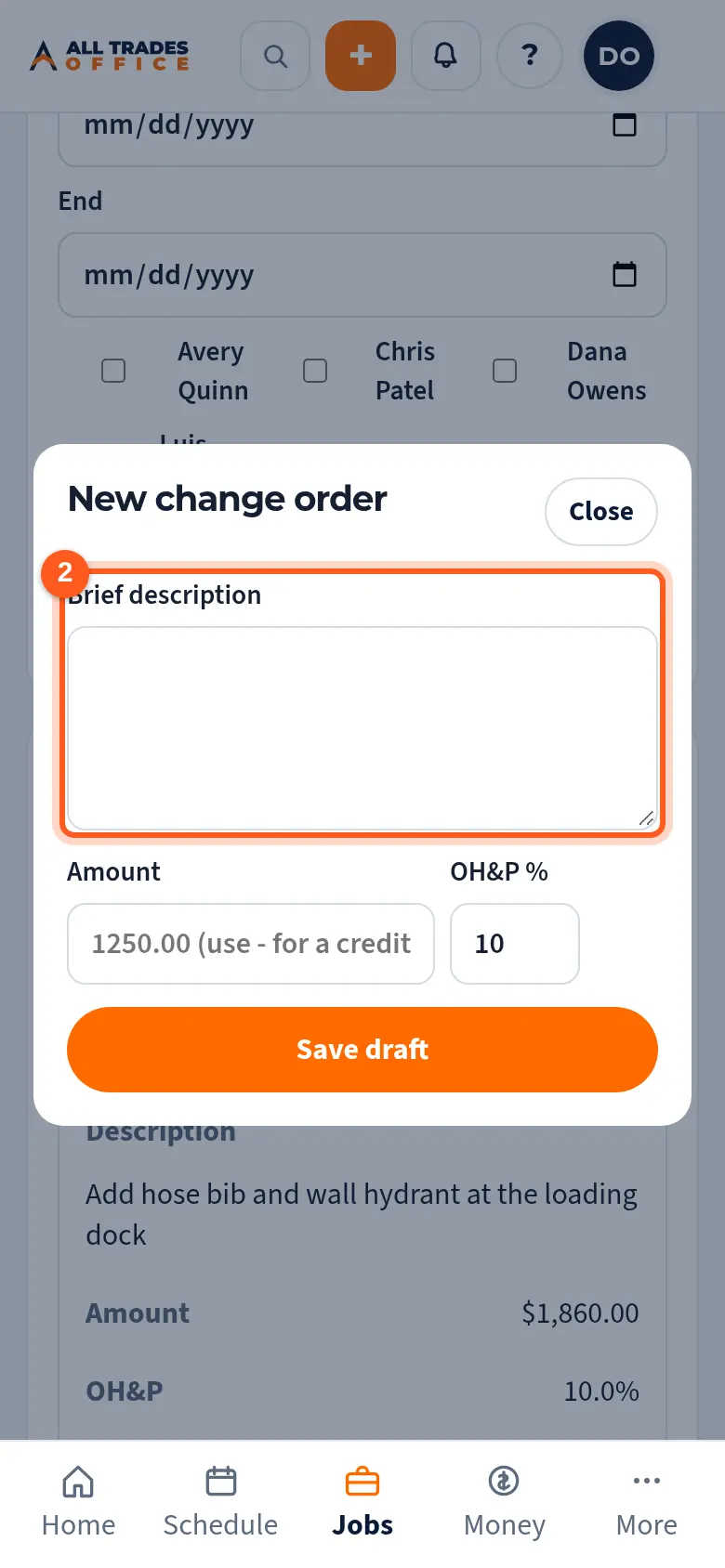
Type a short description and the amount (put a minus sign in front for a credit). Check the OH&P percent and tap Save draft.
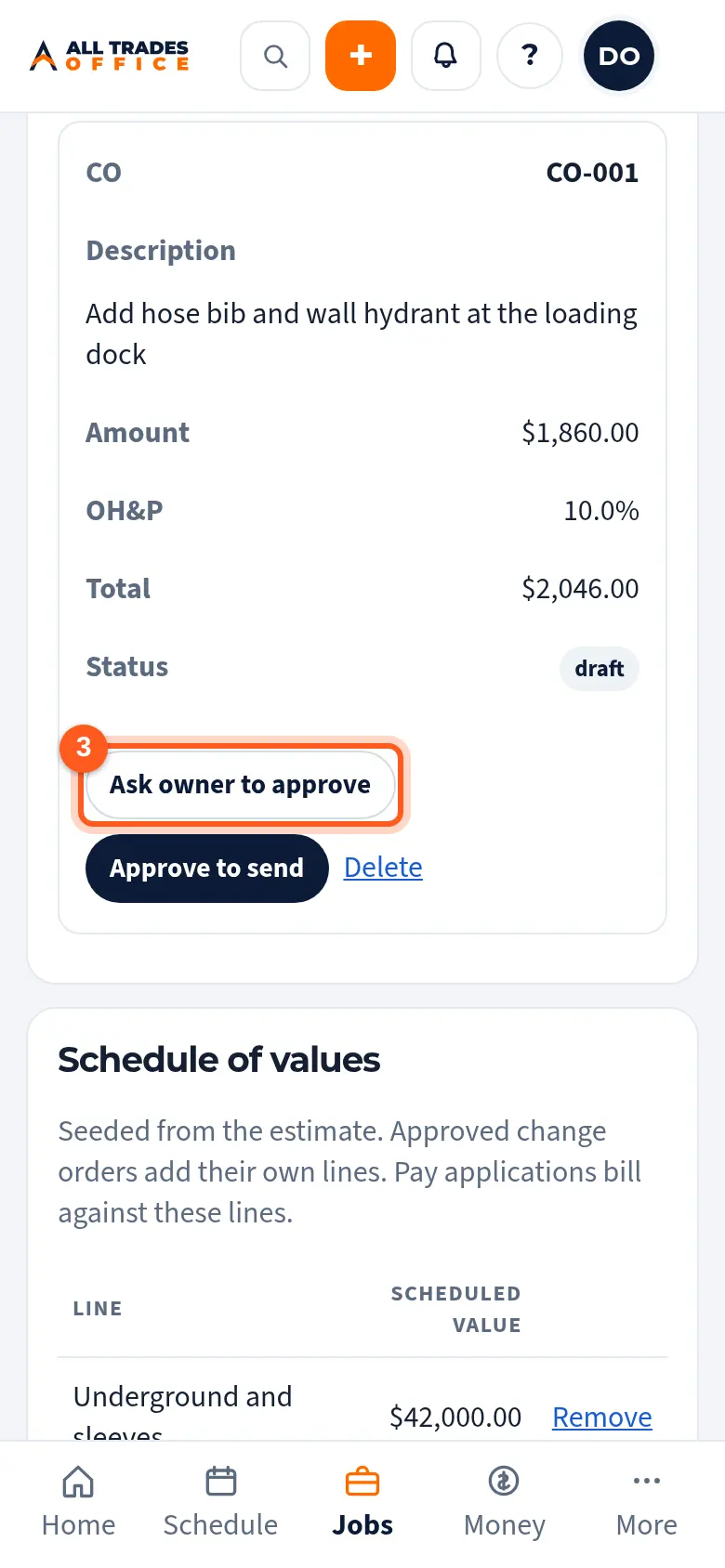
Tap Ask owner to approve. An owner then taps Approve to send. Nothing goes out before that.
After approval, tap Send email, or Mark sent if you delivered it another way. When the customer answers, tap Customer approved or Rejected.
Good to know
- If someone edits a change order after the owner approved it, it needs a new approval.
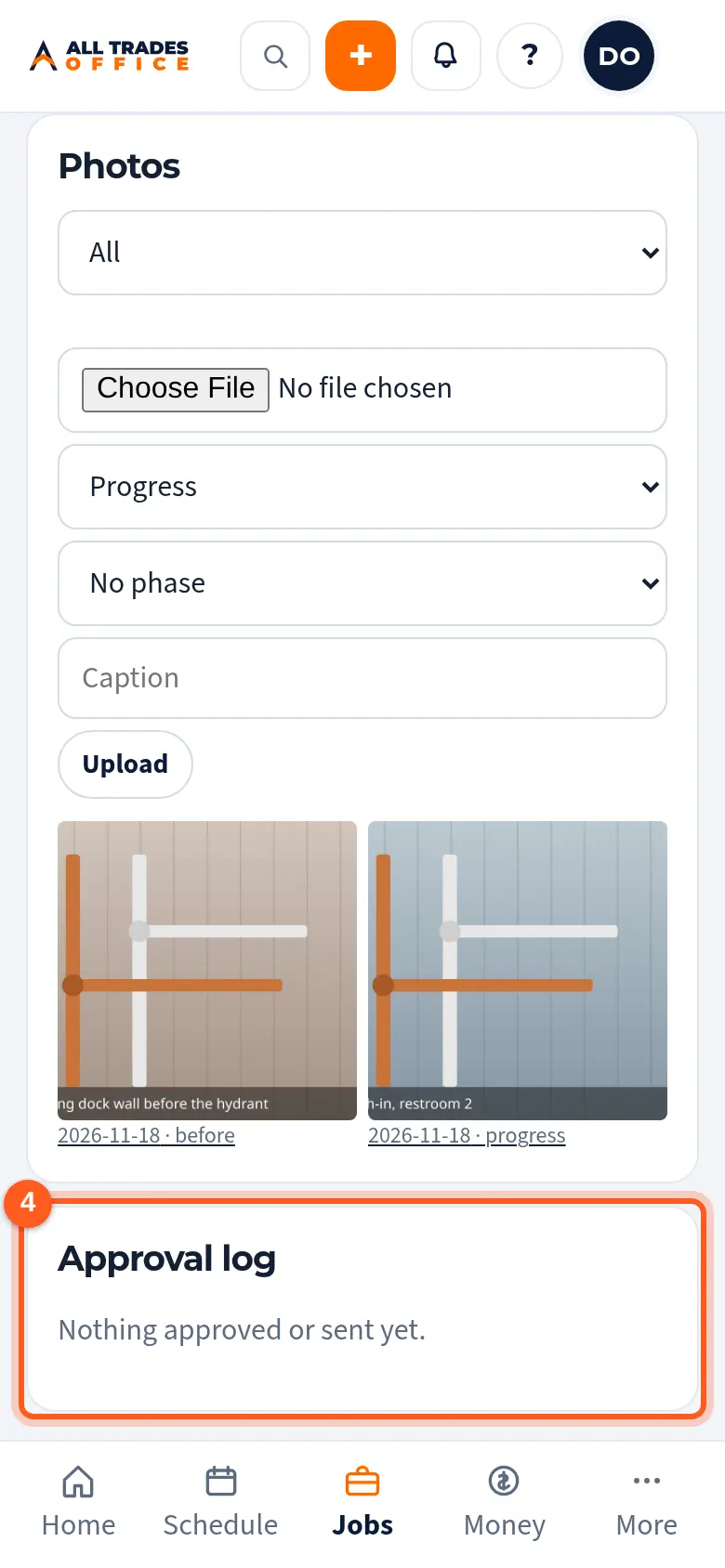
- Every approval and send is written to the project's Approval log.
Related
- Turn a T&M ticket into a draft change orderPrice a T&M ticket and turn it into a change order without typing it again.
- Write a T&M ticket and get it signedWrite up extra work on site, list the labor and material, and get the GC or owner to sign on your phone.
- Pay apps: schedule of values and progress billingSet up the schedule of values, bill each period's progress, and export the continuation sheet.