
Coming from ServiceTitan?
Export your customers and your price book from ServiceTitan, then bring them into All Trades Office.
Who can do this: Owner, Admin.
Last updated
Coming from ServiceTitan? You can bring over customers and your price book.
Only an Owner or Admin can import. You also need to be an admin in your old app to export.
We set up ServiceTitan from its published export columns. When you add your files we show you how each column was matched, so check them before you bring it in.
Steps
Customers: click Search in the top toolbar → choose Customers → don't set any filters → Expand icon → **Export to Excel (.xlsx)*.
This step happens on your phone, outside All Trades Office.
Price book: open Pricebook and use its export option to download your services and materials as Excel. If you can't find it, ask whoever runs your ServiceTitan account.
This step happens on your phone, outside All Trades Office.
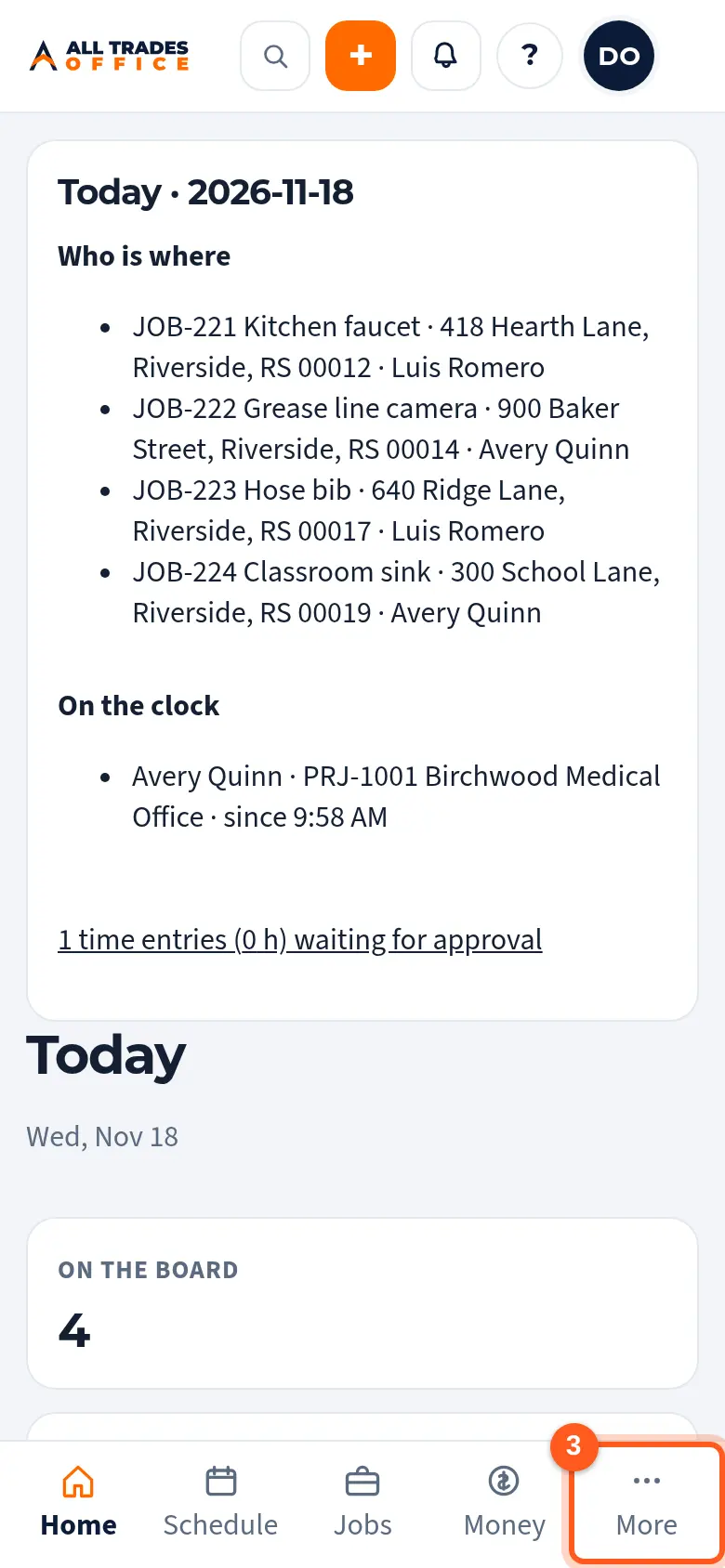
In All Trades Office, tap More at the bottom of the screen.
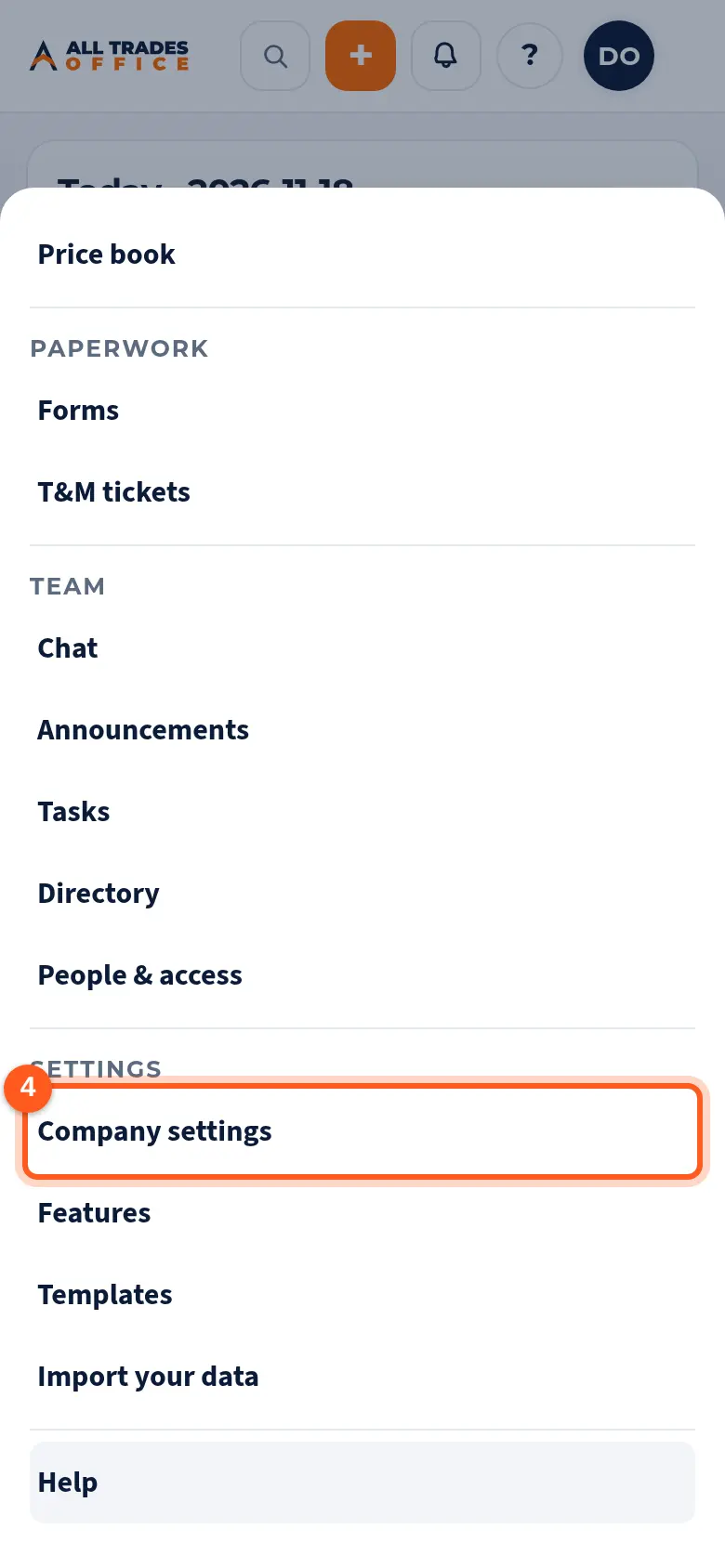
Under Settings, tap Company settings.
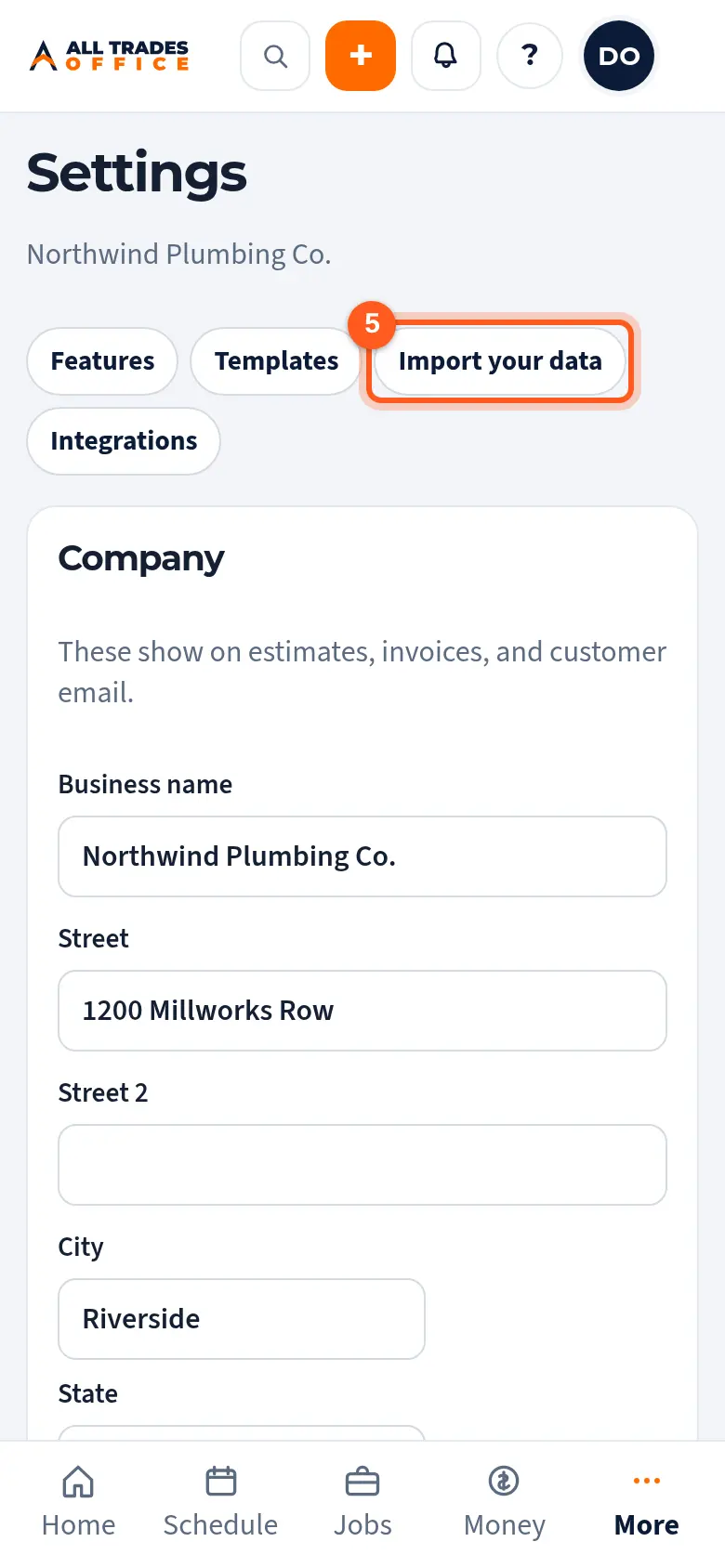
Tap Import your data.
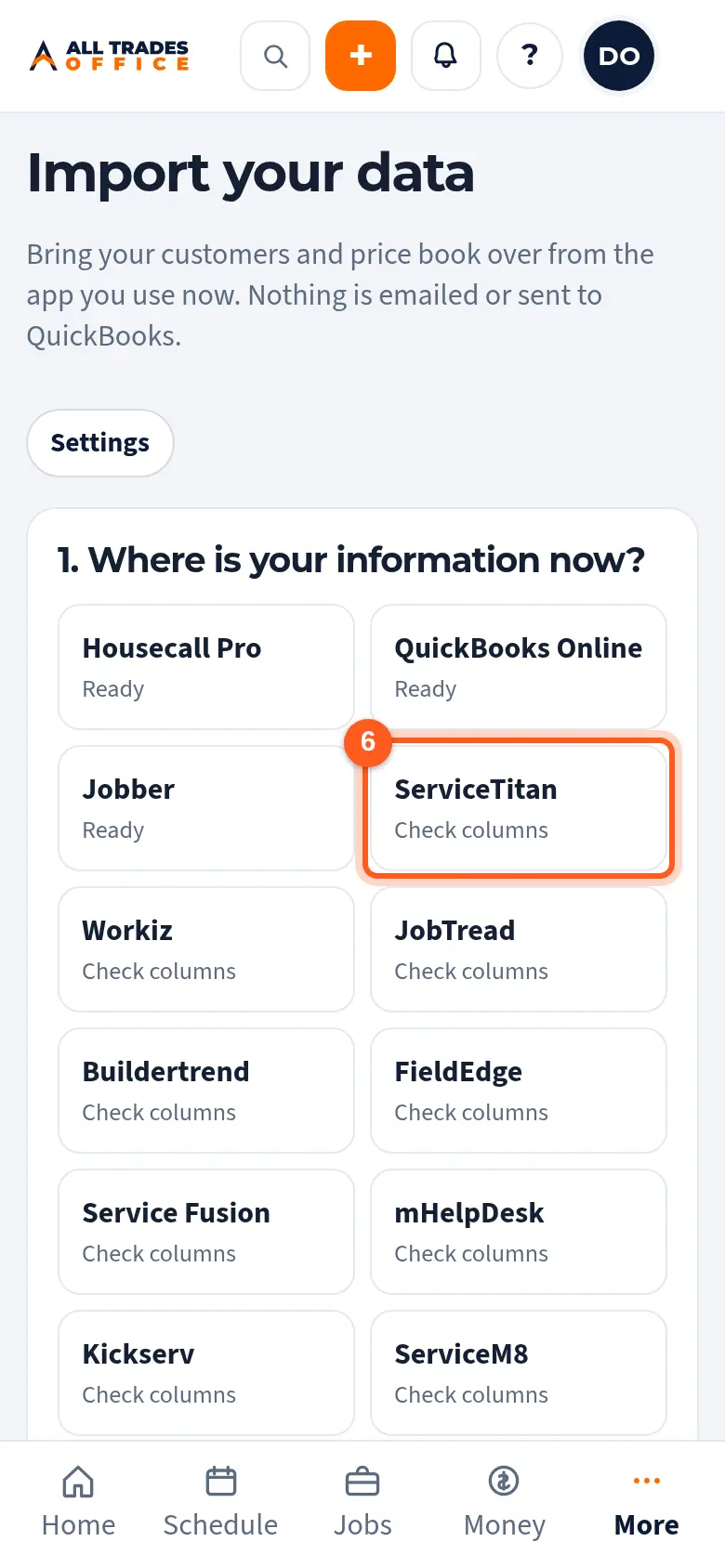
Tap ServiceTitan. The same export steps show on the screen.
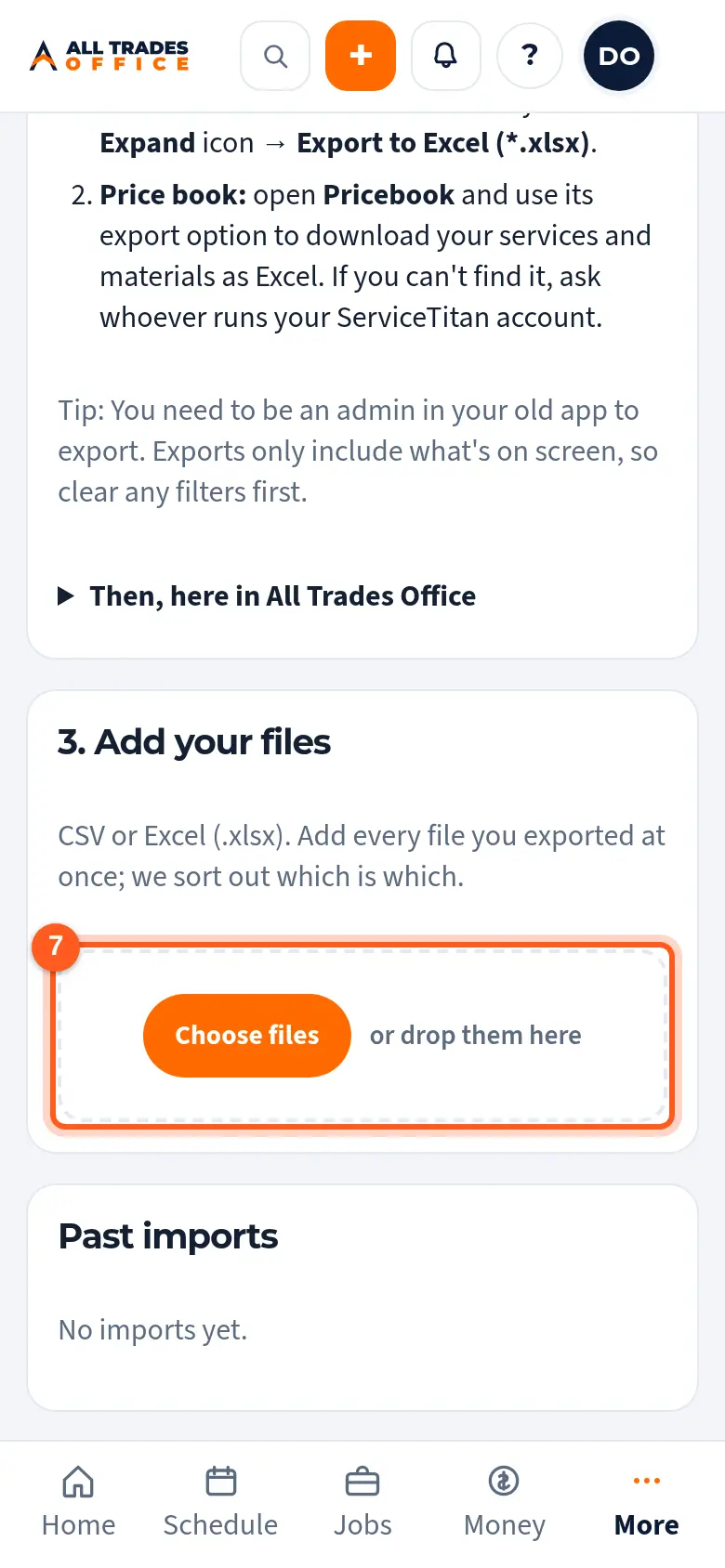
Tap Choose files and pick every file you downloaded. You can add them all at once. Then follow Check the columns and bring it in.
Good to know
- Exports only include what's on screen, so clear any filters first.
- Customers you already have are matched by email, phone, or name and street, so they aren't added twice.
- Imports never email or text your customers, and nothing is sent to QuickBooks.
- Not on the list, or the file looks different? See Bring in a list from another app or a spreadsheet.
Related
- Check the columns and bring it inAfter you add your files: check how the columns were matched, look over the preview, and bring your records in.
- Undo an importTake back an import for up to 30 days. Anything your team has used or changed since is kept.
- Bring in a list from another app or a spreadsheetBring customers or a price book in from any CSV or Excel list, from any app.