
Track a bid on the bid board and log follow-ups
Keep every bid, due date, and GC in one list, and log each call or email.
Who can do this: Owner, Admin, Office. Needs: Bids and proposals turned on in Settings → Features.
Last updated
One bid can go to several GCs. Each GC gets its own row so you can follow up and record the result separately.
Steps
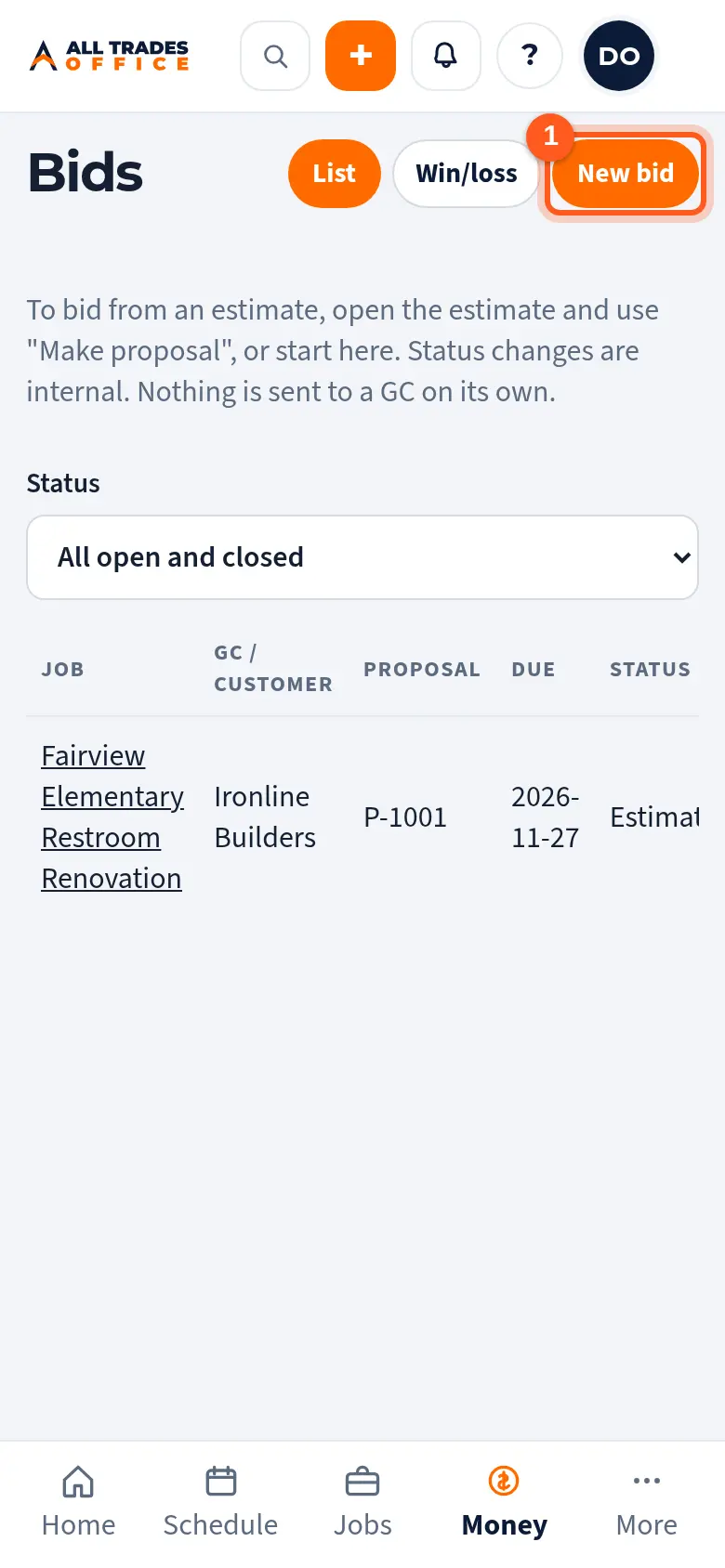
Open Bids and tap New bid.
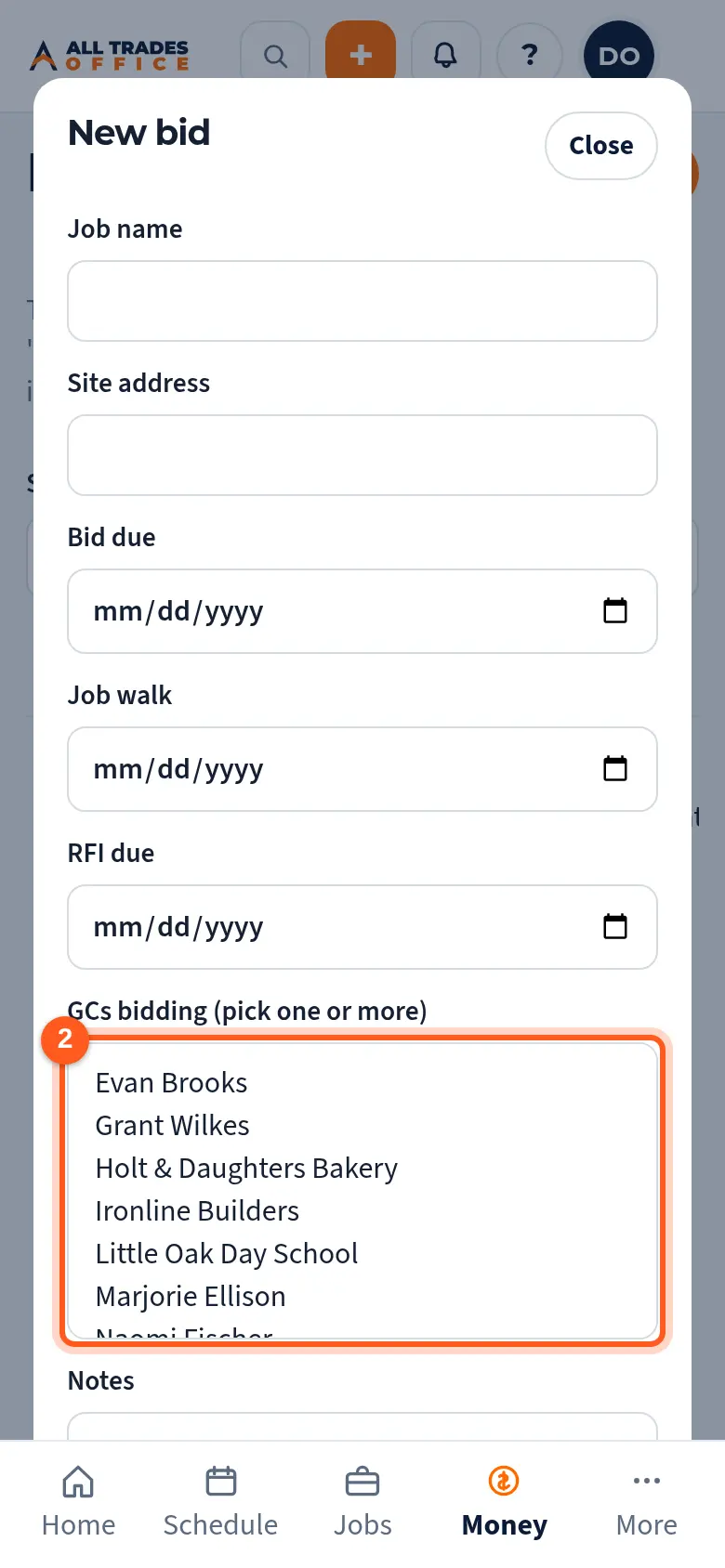
Type the job name, site, bid due date, and job walk date. Pick each GC that's bidding it, then tap Create.
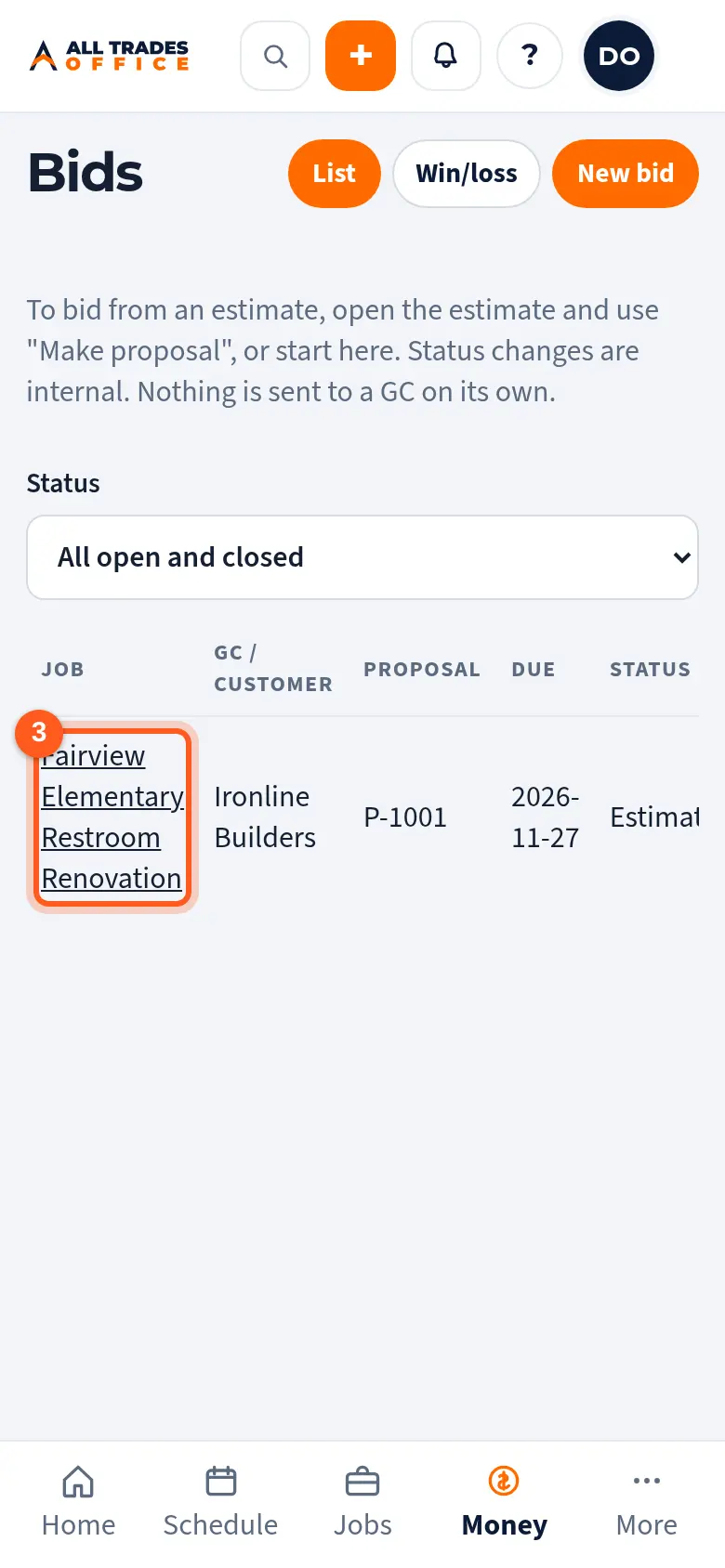
Your bids show in one list with the GC, proposal number, and due date. Use Status to filter. Tap a bid to open it.
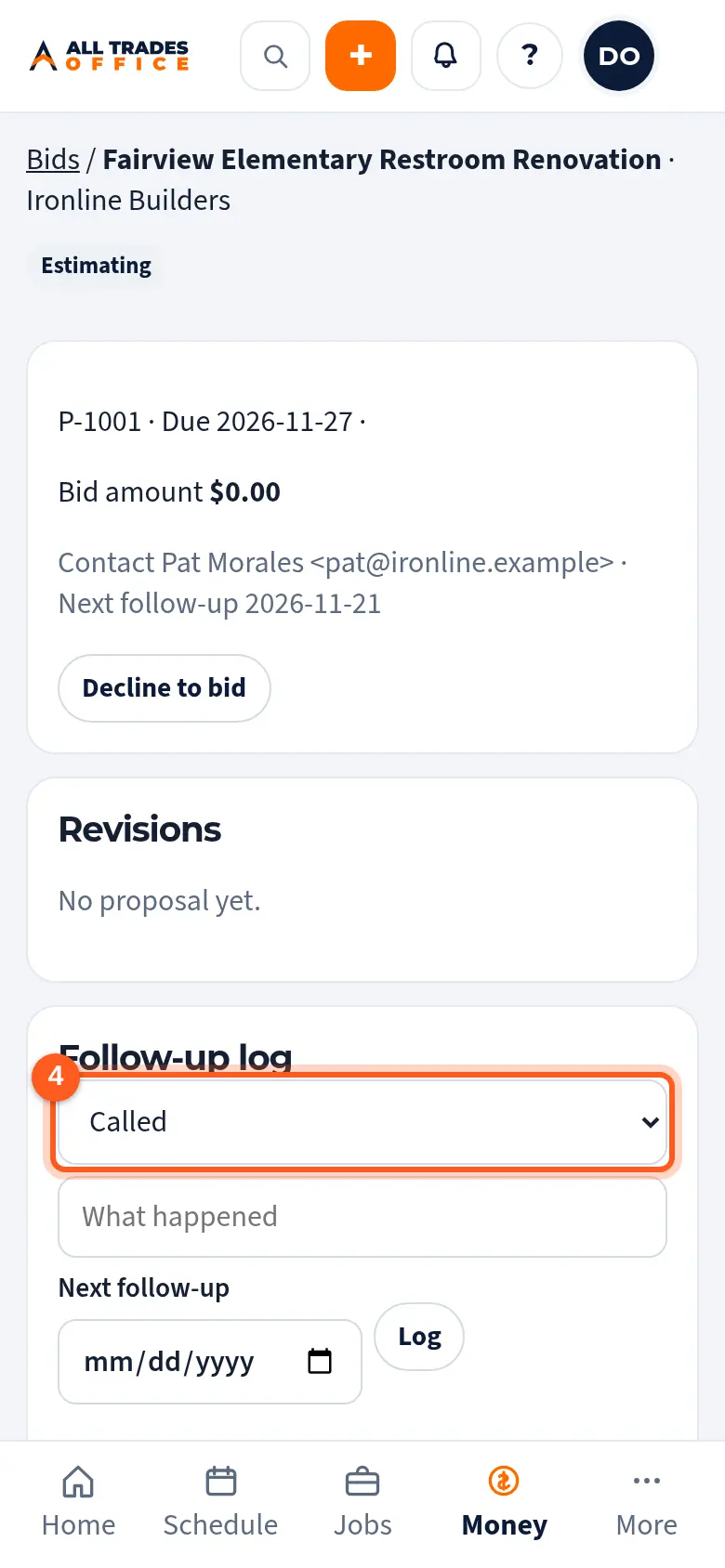
After each call or email, pick what happened, add a note and the next follow-up date, then tap Log.
Good to know
- Follow-up reminders are for your team only. They never email a GC.
- When a GC awards or passes, record it on the bid so your win/loss charts stay accurate.
Related
- Build a proposal from an estimate; revisionsTurn an estimate into a proposal for a GC, then make revisions as the numbers change.
- Read your win/loss and hit-rate chartsSee how many bids you win, how that changes over time, and which GCs you win with.