
Clock in and out by job, phase, and cost code
Track your hours against the right job so job costing stays accurate.
Who can do this: Owner, Admin, Office, Service Tech, Field Worker. Needs: Time clock turned on in Settings → Features.
Last updated
When you're not clocked in, pick where you're working and tap Clock in.
Steps
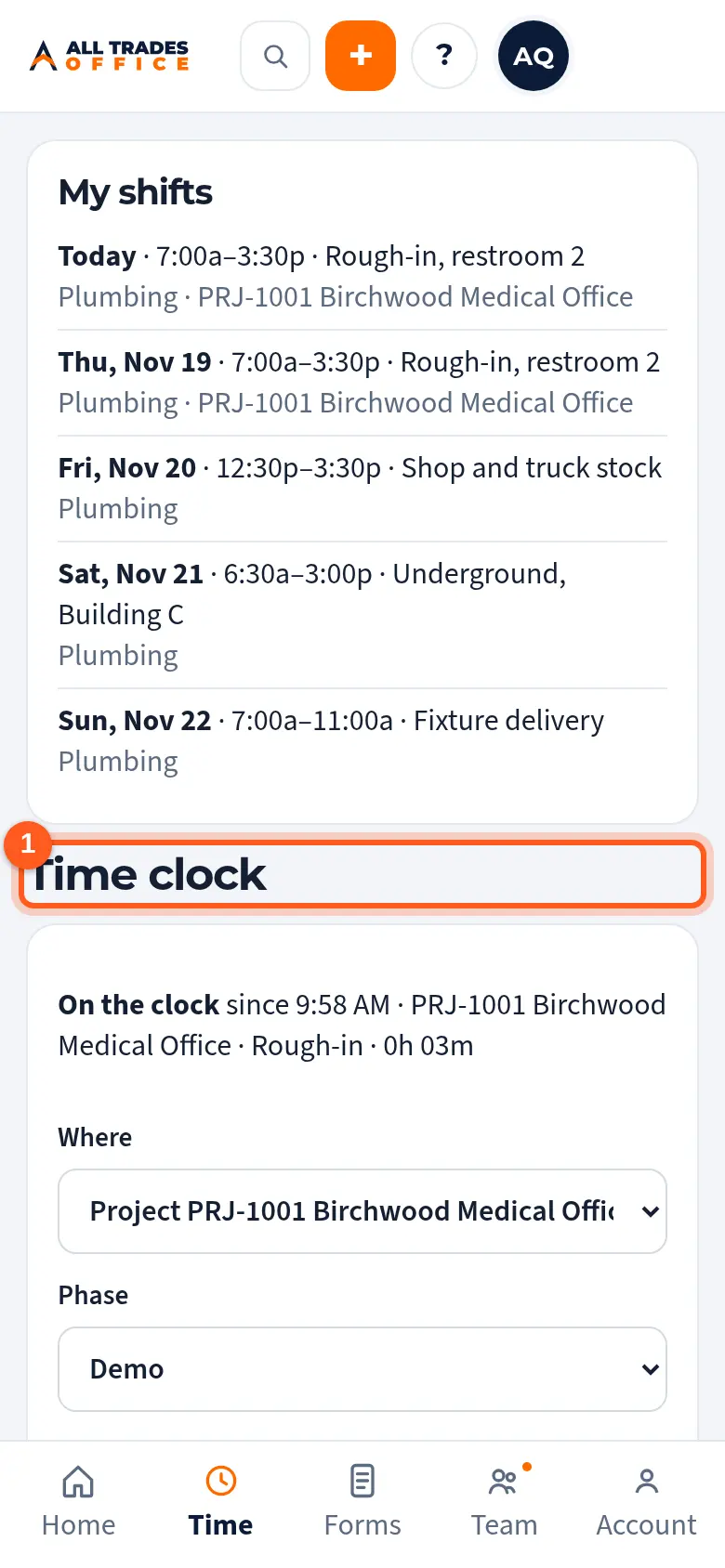
Tap Time at the bottom of your phone. In the office it's Schedule → Time clock. What you're clocked in on is shown here.
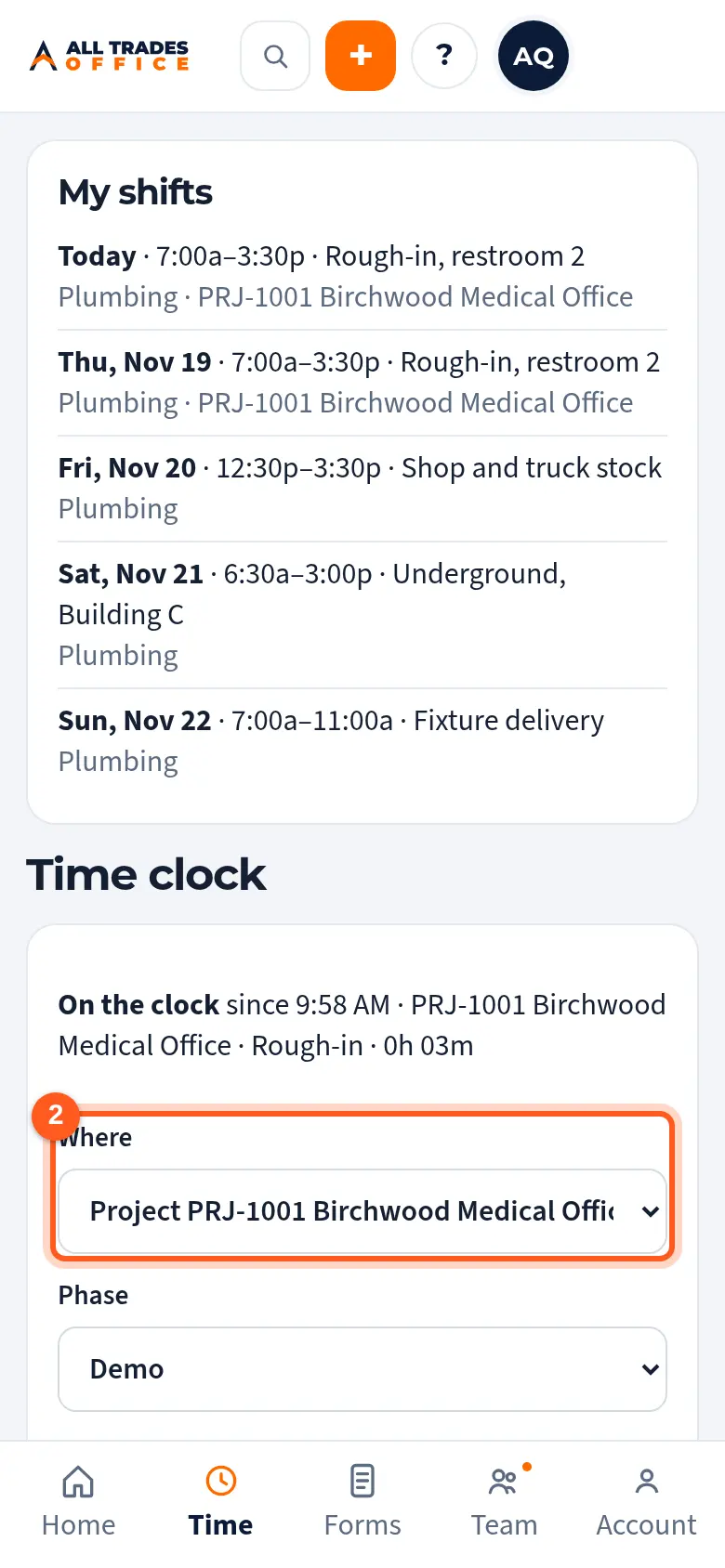
To move to different work, pick the new Where, Phase, and Cost code, and tap Switch to this.
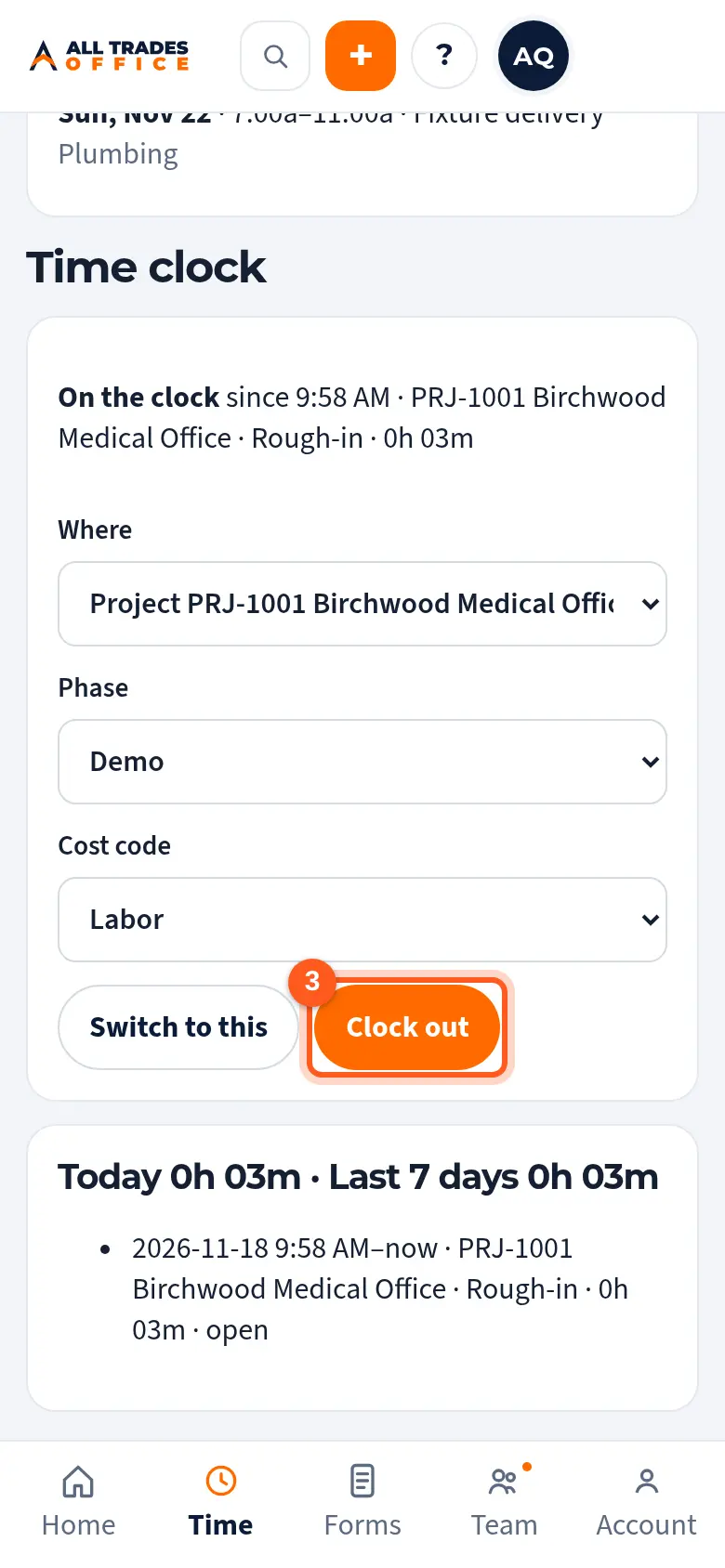
Tap Clock out at the end of the day. Your hours for today and the last 7 days are listed below.
Good to know
- Your hours go to the office for approval.
Related
- Approve timeReview your crew's hours and approve them.
- Getting started as a Field WorkerClock in, see your work, add photos and daily reports, and write T&M tickets.
- Job costing: budget, committed, and actualSee where a project's money and hours are going, by phase and cost code.