
Company info, logo, and colors
Set the business name, address, license number, logo, and colors that show on your estimates, invoices, and emails.
Who can do this: Owner.
Last updated
These details show on estimates, invoices, purchase orders, and customer email. Only the owner can change them.
Steps
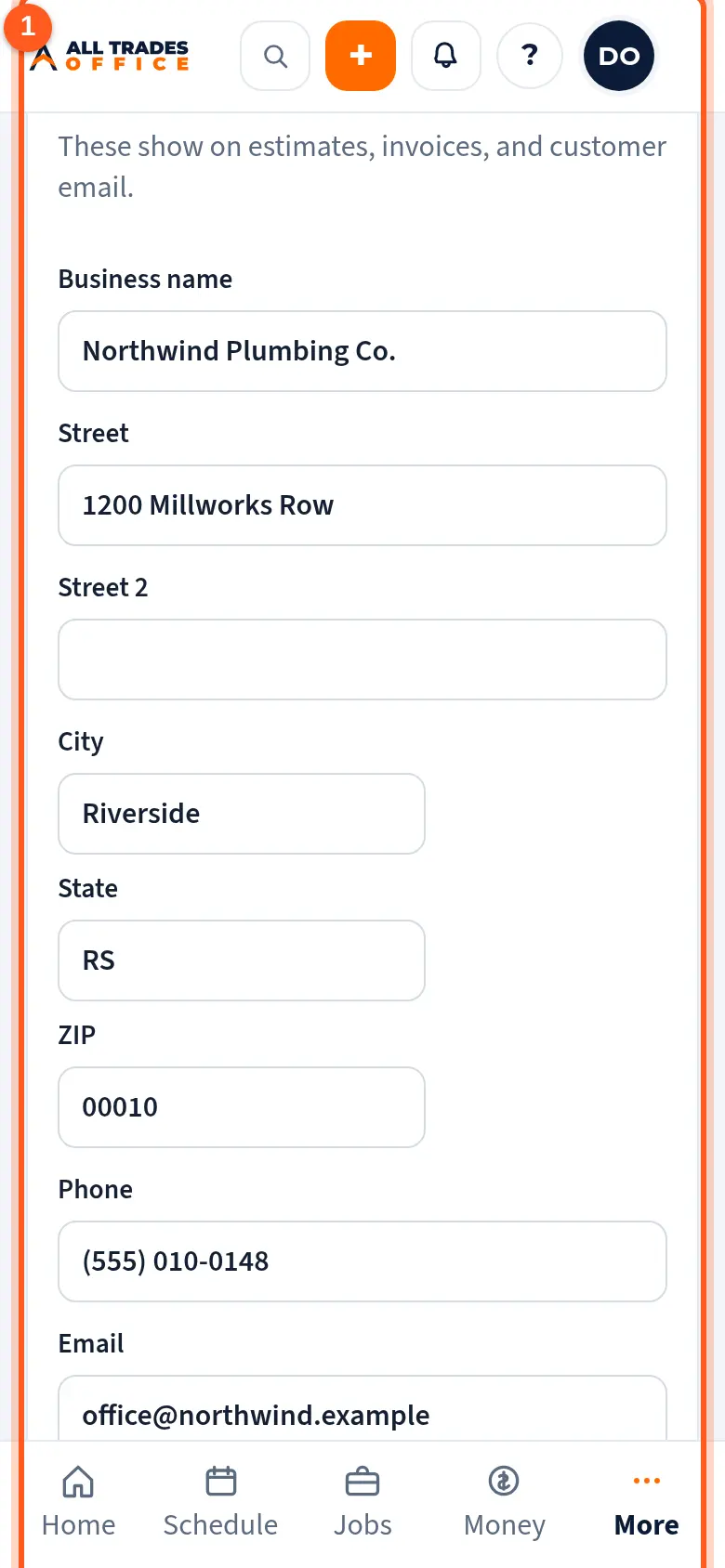
Open Settings from the menu. Under Company, fill in the business name, address, phone, email, and license number.
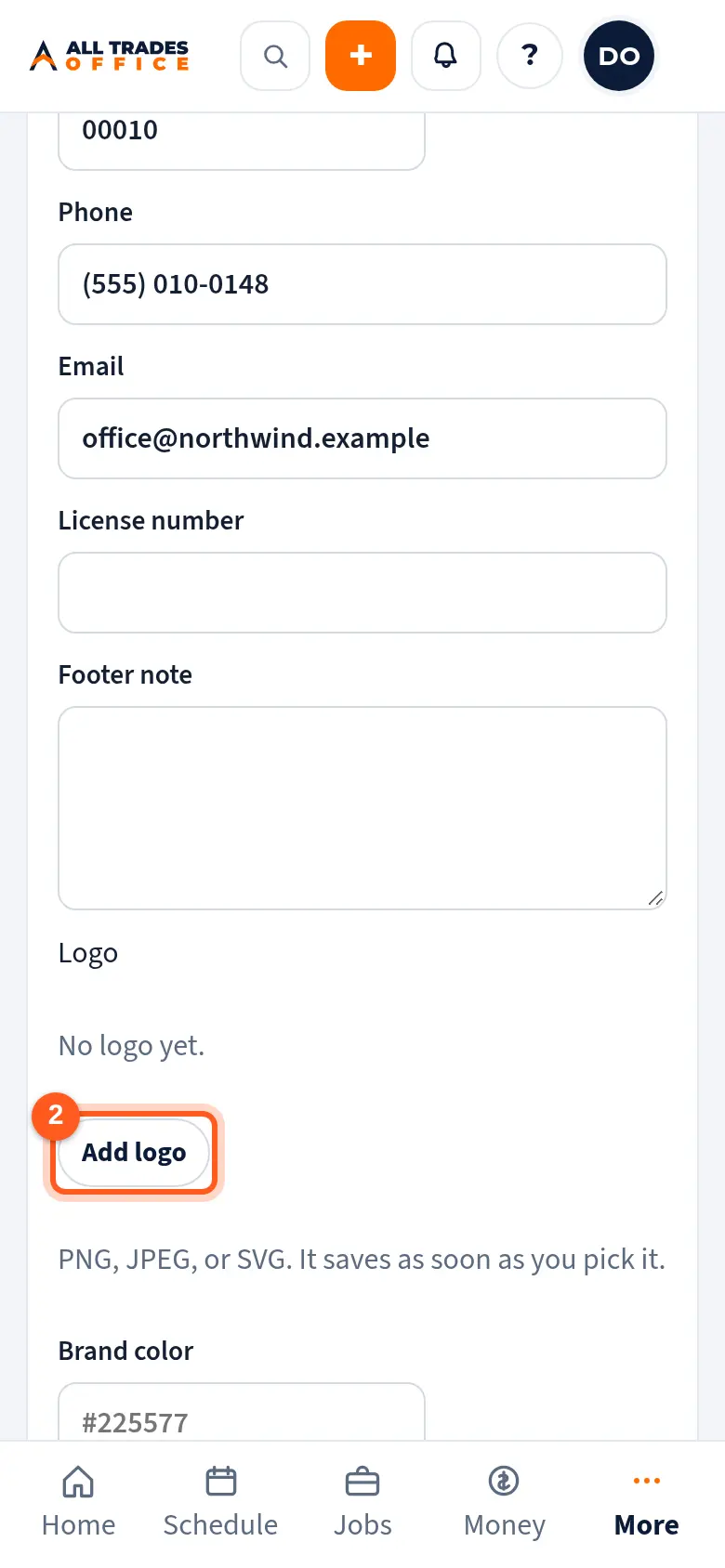
Tap Add logo and pick a PNG, JPEG, or SVG file. It saves as soon as you pick it.
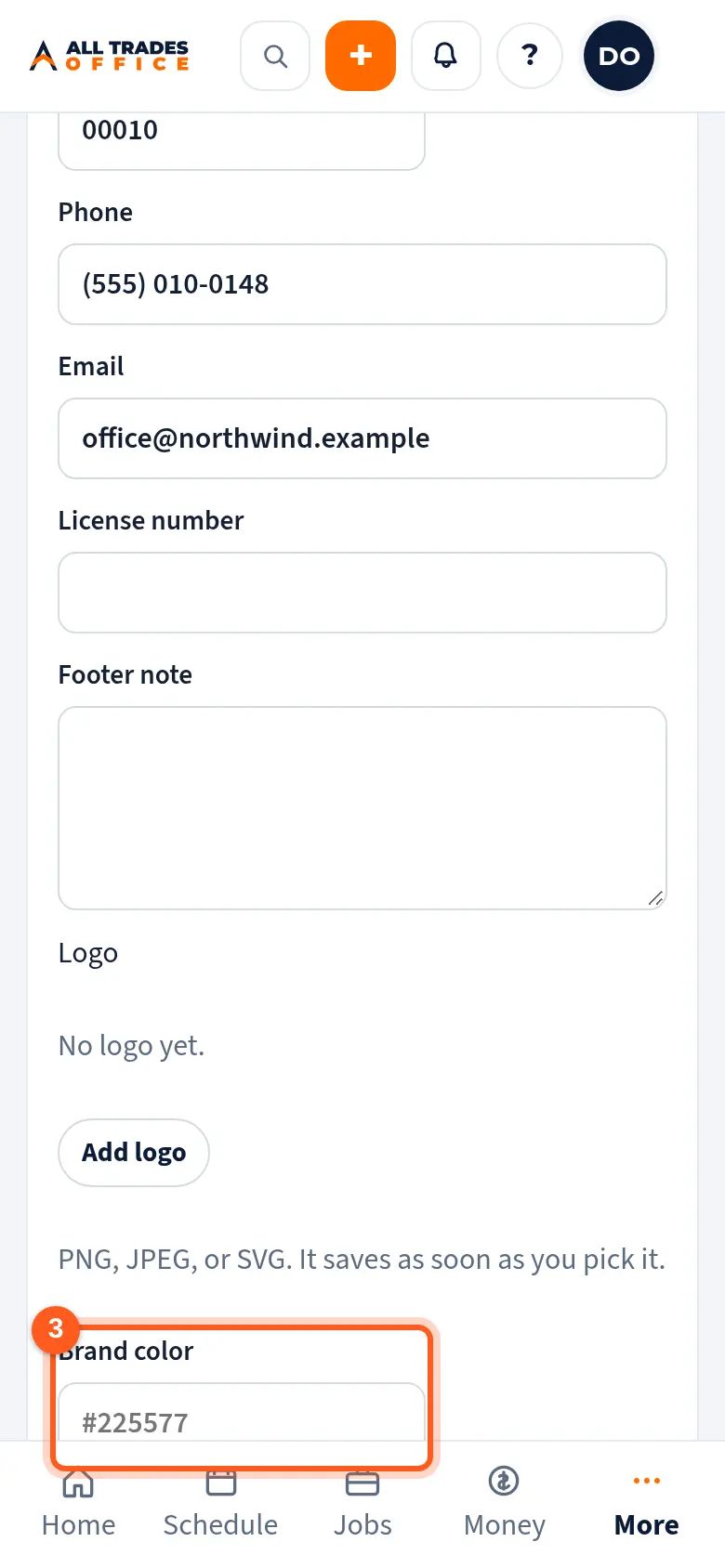
Set the Brand color and Accent, or tap Colors from logo to pull them from your logo. Then tap Save company.
Good to know
- If white text is hard to read on your brand color, the screen warns you so you can pick a darker one.
Related
- Document templatesChoose the layout for proposals, purchase orders, pay apps, waivers, and field forms.
- Customer email settingsSend estimates and invoices from your own Gmail or Outlook address.
- Numbers and taxSet your tax rate, how estimate, invoice, and job numbers look, and your time zone.