
Send an estimate and record the customer's choice
Email the estimate, let the customer approve an option from the link, or mark it declined.
Who can do this: Owner, Admin, Office with “Create and edit estimates” turned on for their role. Needs: Estimates turned on in Settings → Features.
Last updated
Customers approve right from the estimate link on their phone or computer. No account needed.
Steps
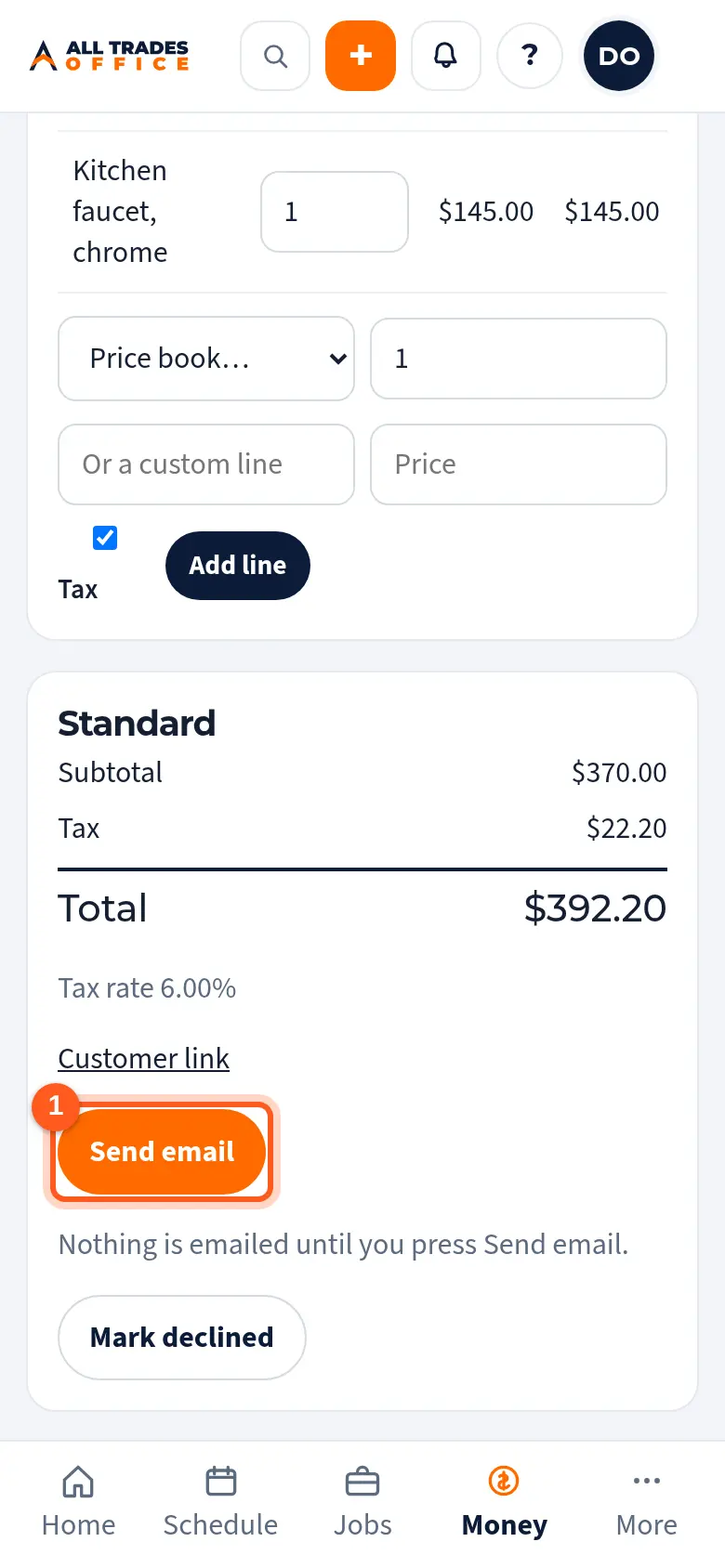
Open the estimate and tap Send email.
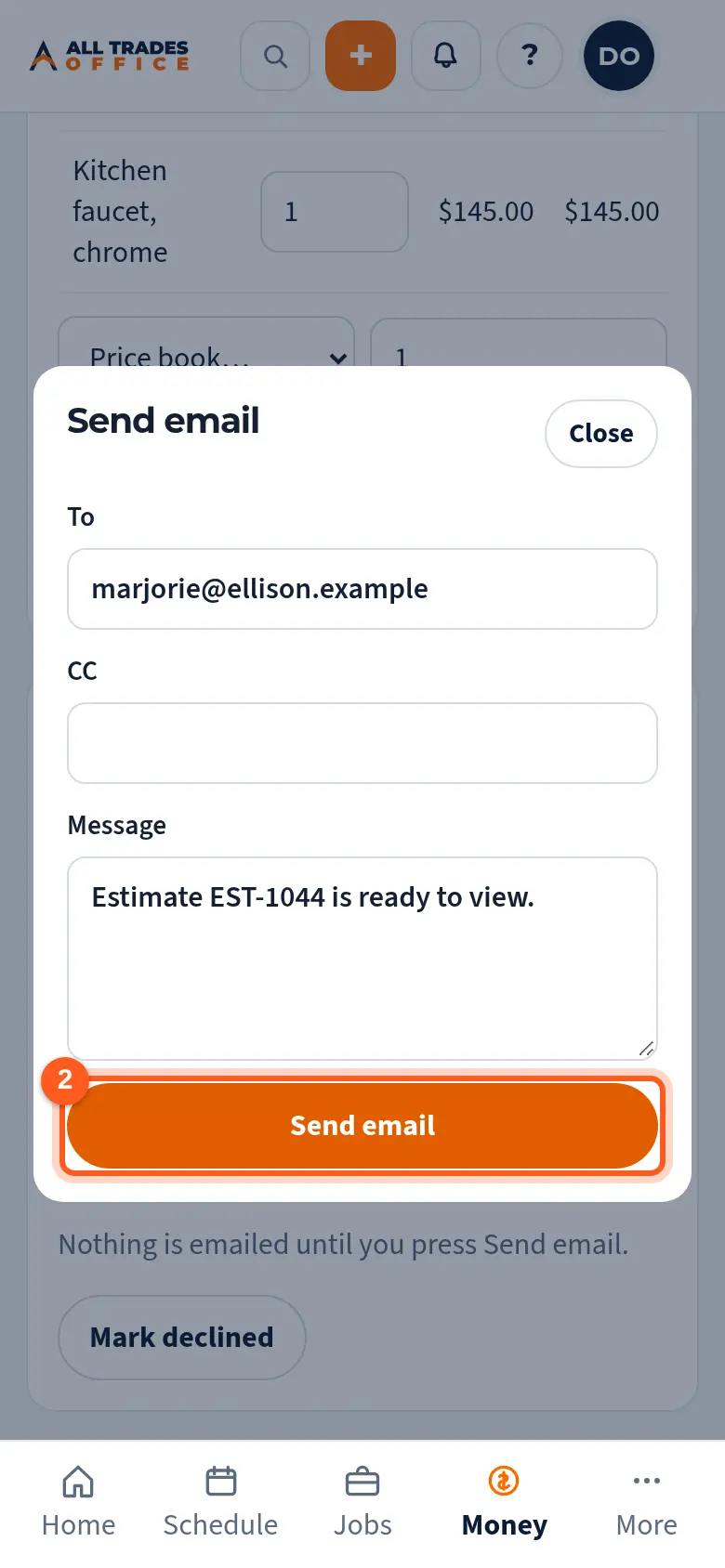
Check the email address and message, then tap Send email.
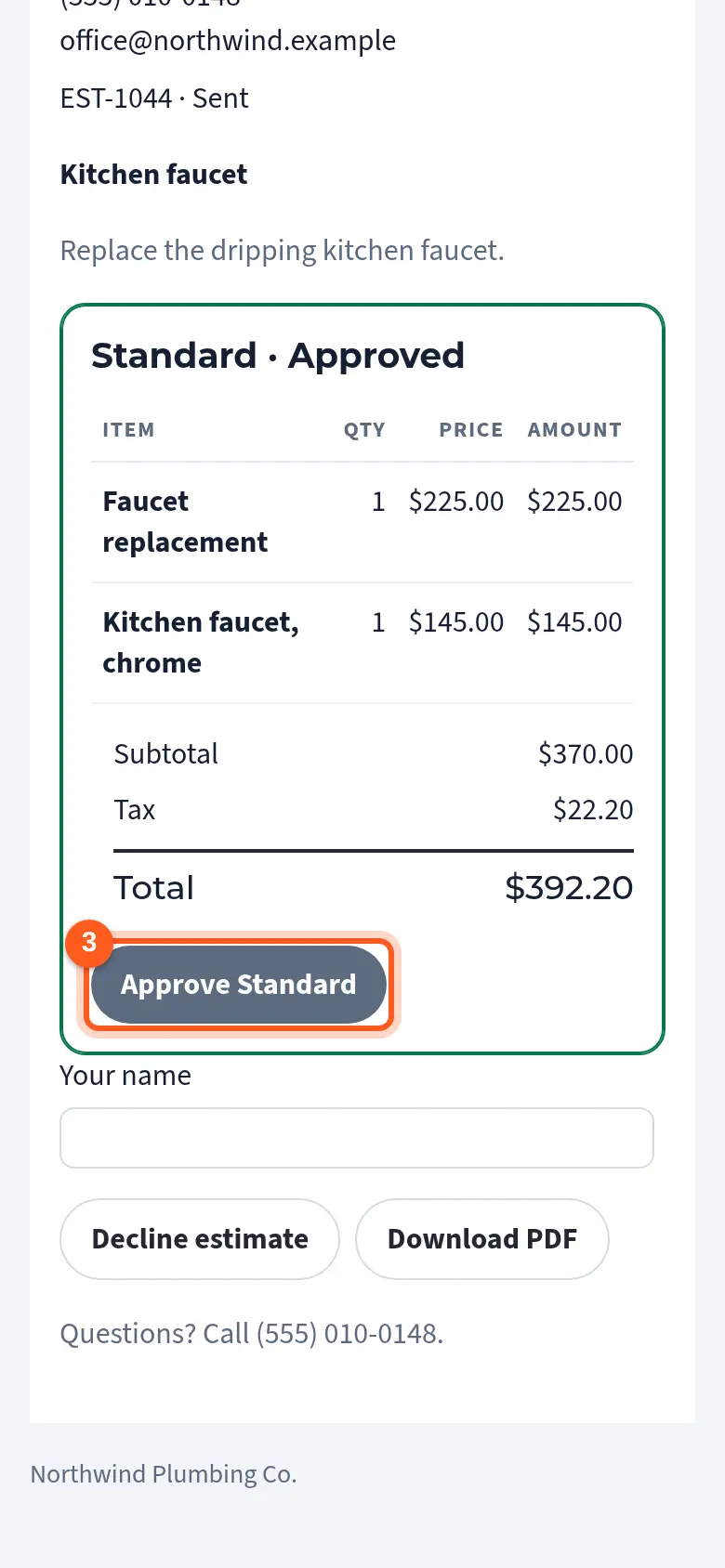
Your customer gets a link. They pick an option, type their name, and tap Approve. The estimate shows as approved in your list.
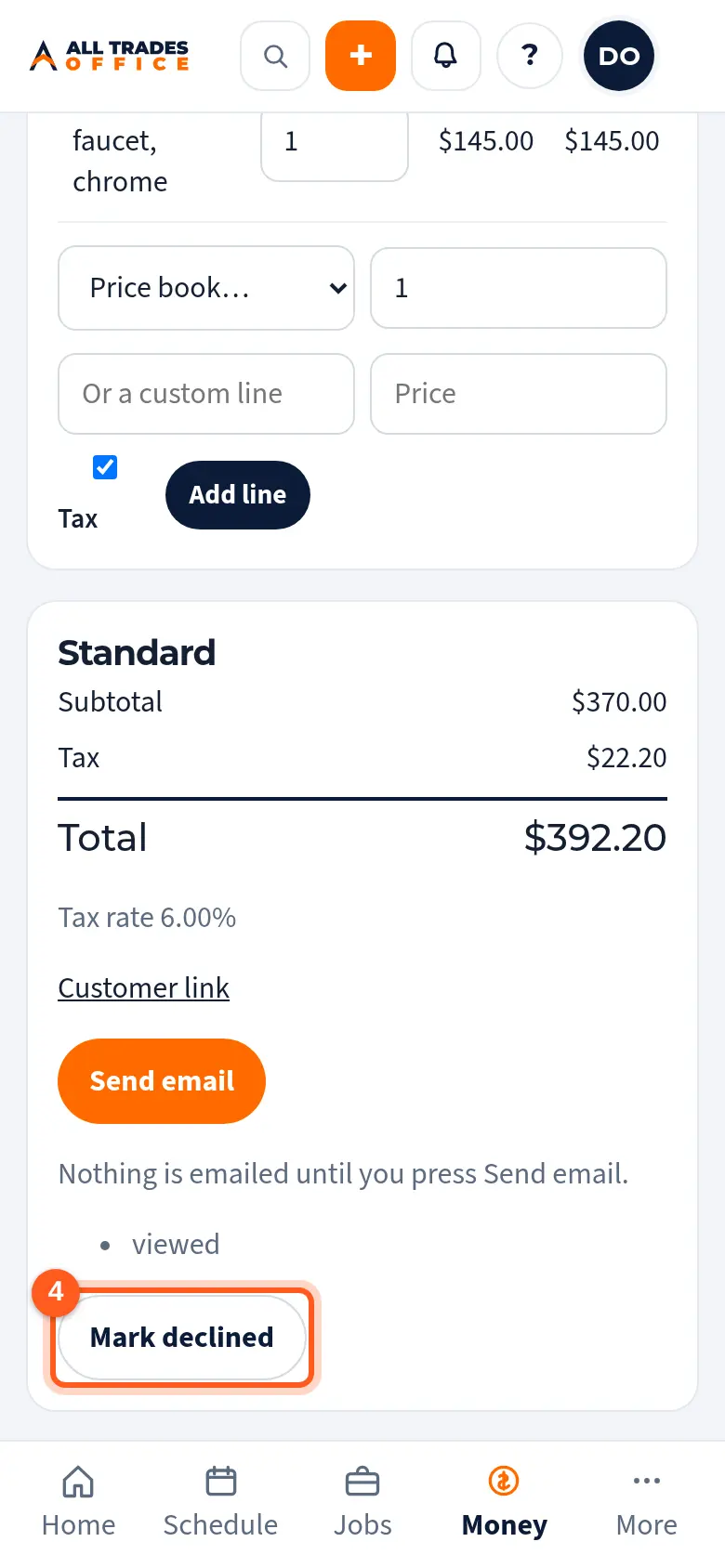
If they say no on the phone, open the estimate and tap Mark declined.
Good to know
- Tap Customer link to see exactly what your customer sees.
- If you handed them a paper copy, tap Mark sent so your list stays accurate.
- Email comes from your company name. See Customer email settings.
Related
- Build a good/better/best estimate from the price bookGive the customer options side by side, built from your price book items.
- Turn an approved estimate into a job or projectConvert the estimate so the lines carry over and nothing gets typed twice.
- Customer email settingsSend estimates and invoices from your own Gmail or Outlook address.