
Getting started as an Owner
Set up your company, logo, numbers and tax, pick the features you use, and invite your team.
Who can do this: Owner.
Last updated
A few minutes of setup makes every estimate, invoice, and purchase order come out with your name, logo, and numbers on it.
Steps
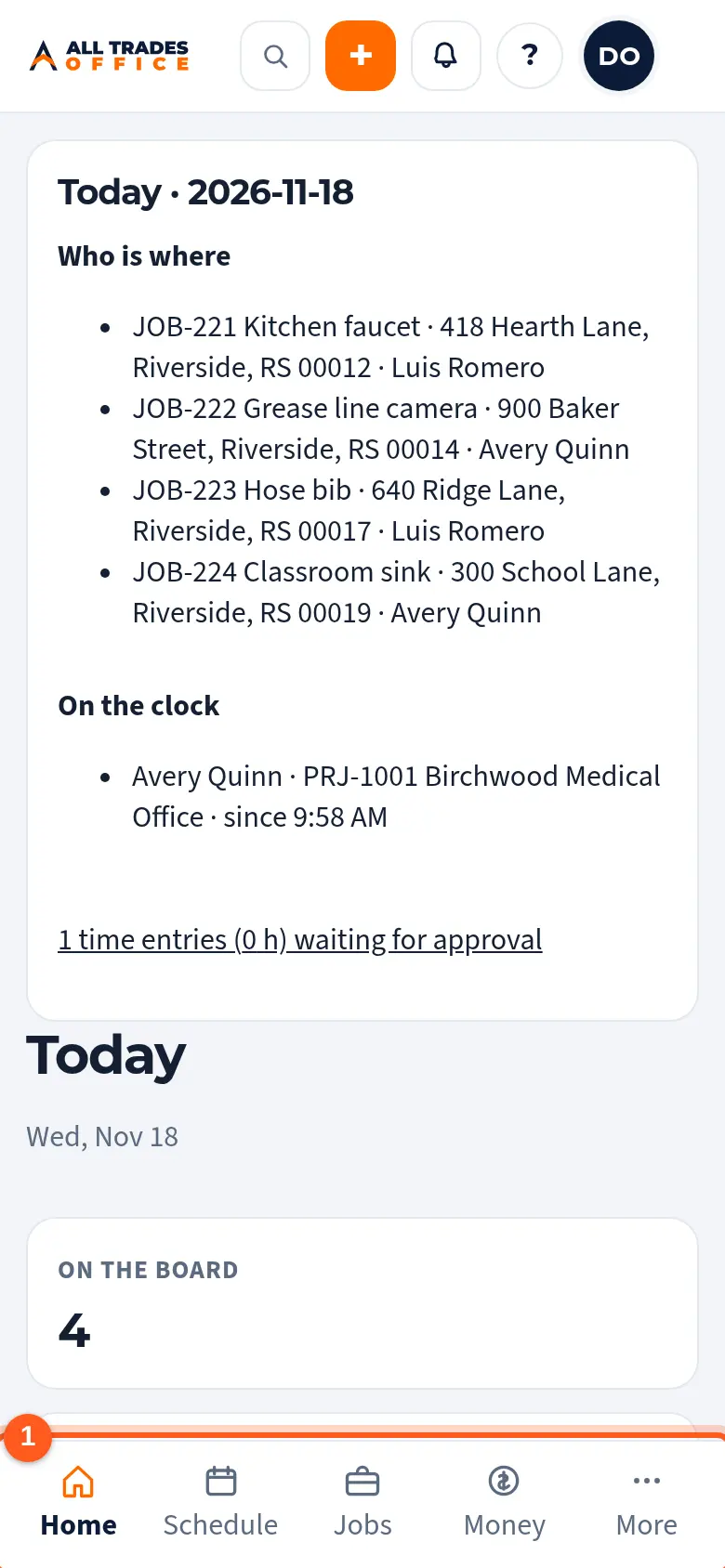
Your Dashboard opens first. It shows who is where, today's board, open estimates, and what's unpaid. Use the menu on the left (on a phone, the bar at the bottom) to get around.
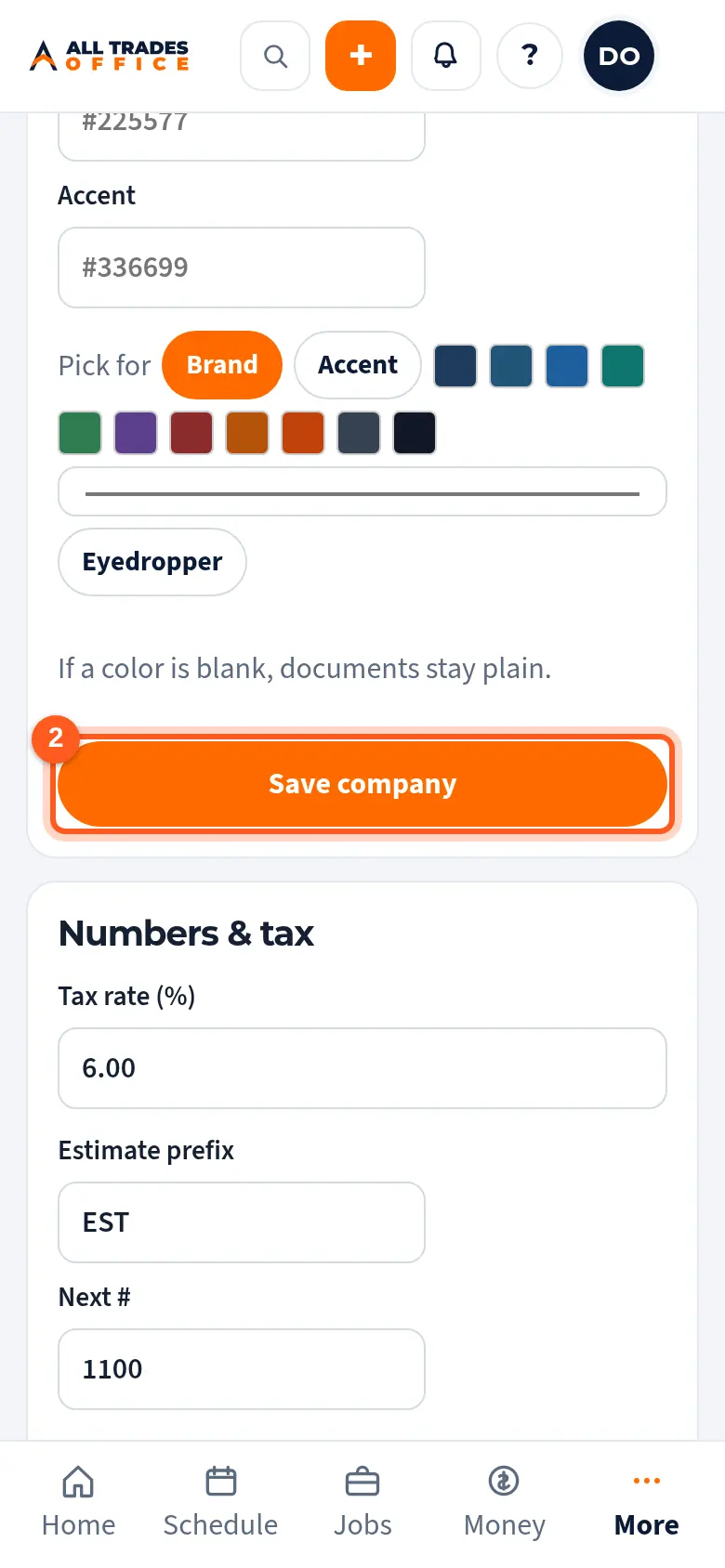
Tap Settings and fill in your company name, address, phone, and license number, then tap Save company.
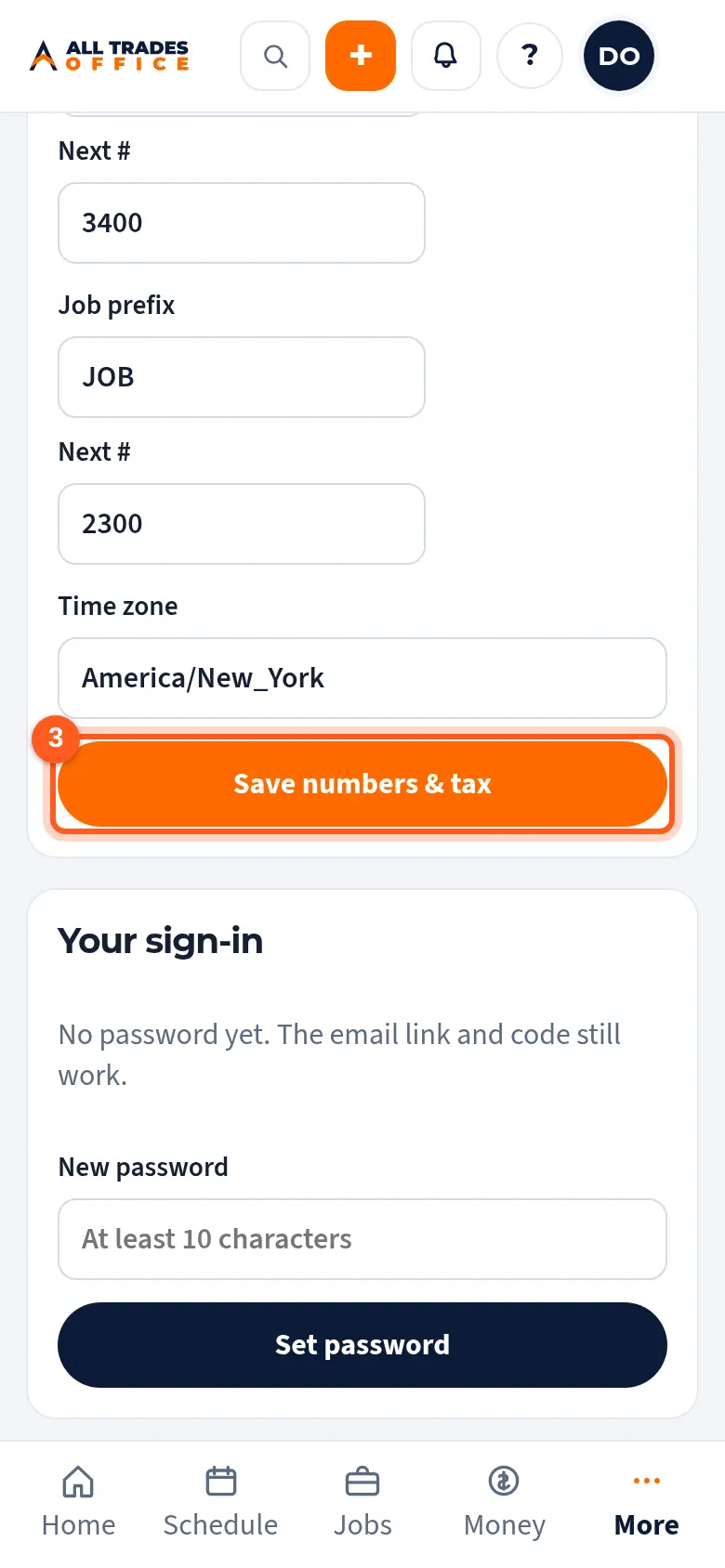
Set your tax rate and the starting numbers for estimates, invoices, and jobs under Numbers & tax, then tap Save numbers & tax.
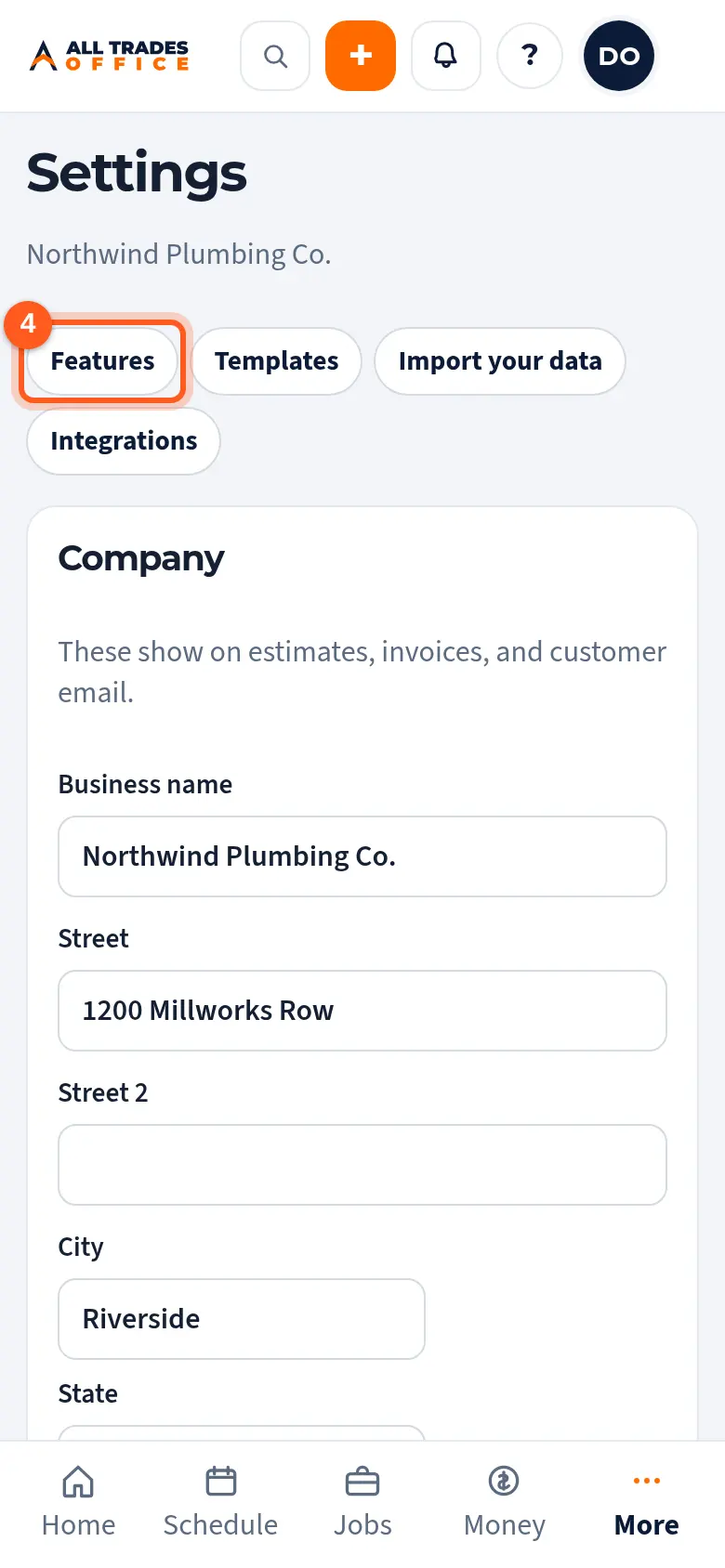
Tap Features at the top of Settings and untick anything your company doesn't use.
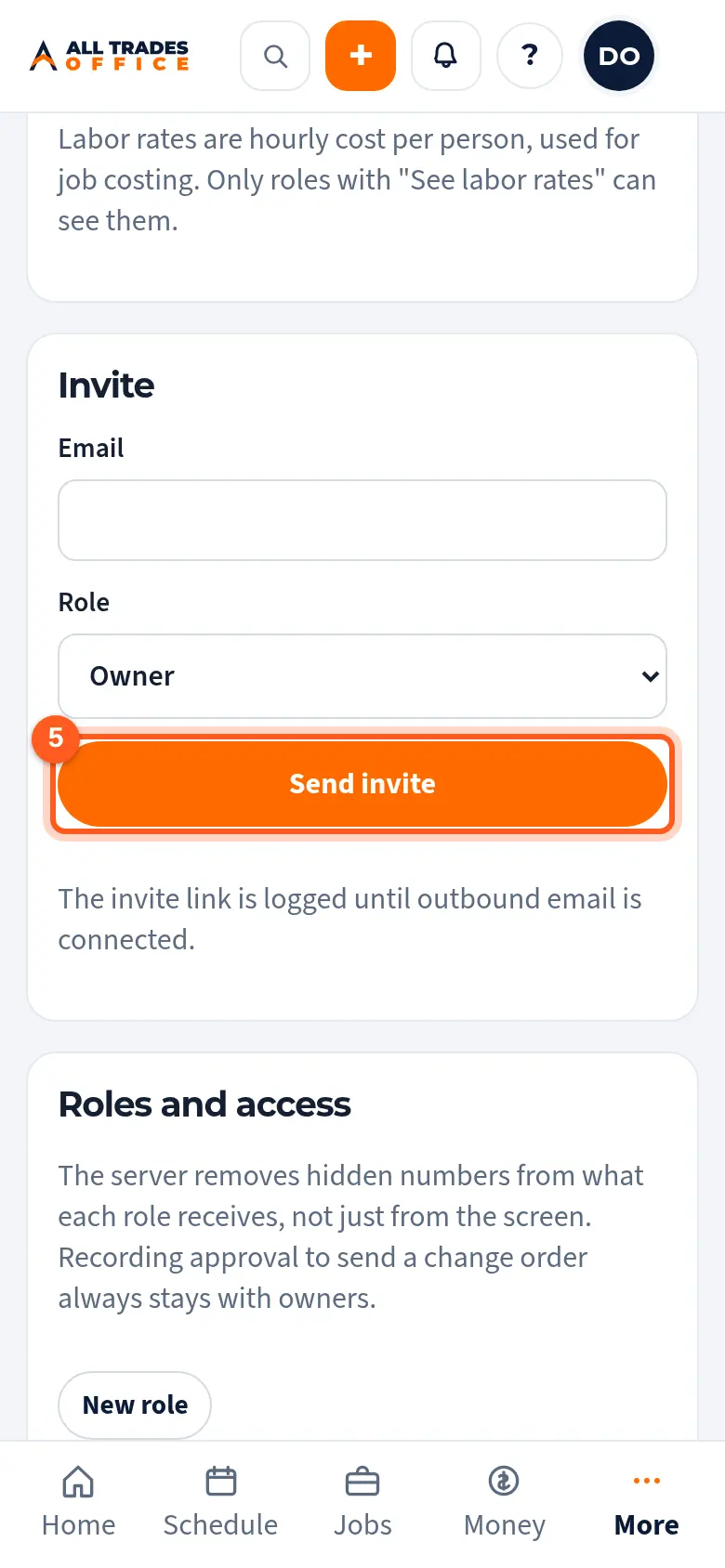
Open People & access from the menu and invite your team by email. Pick each person's role.
Good to know
- You can come back to any of these later. Nothing goes to a customer until you send it.
- New companies see a "What kind of work do you do?" question the first time. Your answer sets the features to start with, and you can change them any time.
- Invite a second Owner or an Admin so someone can cover for you.
Related
- Company info, logo, and colorsSet the business name, address, license number, logo, and colors that show on your estimates, invoices, and emails.
- Numbers and taxSet your tax rate, how estimate, invoice, and job numbers look, and your time zone.
- Turn features on or offHide what your company doesn't use so menus stay short. Nothing is deleted.
- Invite people and choose their roleAdd someone to your company and pick what they can see and do.